The Rocket Matter CRM API Guide
Use the Rocket Matter CRM API to post leads and data into your portal; includes sample posting URLs.
The Rocket Matter CRM API is made available for usage by Rocket Matter CRM clients and their vendor partners. Sample Posting URLs are provided in this guide so you can bootstrap your API posts to Rocket Matter CRM portal in minutes. Enjoy!
Welcome and Introduction to the Rocket Matter CRM API
 What is an API? An API is a way to share information between different software applications. The Rocket Matter CRM API allows third-party developers and vendor partners to POST new leads/intake data into Rocket Matter CRM. Enjoy! We are glad you are here!
⚠ Please make sure that all API requests are posted with form-data.
☑ Third-Party Vendor Compatibility
Using the POST Method, our API is instantly compatible with WordPress™ and other website forms including, but not limited to Contact Form 7™, InstaPage™, Ninjaforms™, Gravity Forms™. It also is fully compatible to receive data from more than 1,000 lead vendors, contact forms, CRMs, and thousands of other 3rd party systems right out-of-the-box.
Integration featured articles:
- How to integrate your website leads to Rocket Matter CRM
- How to integrate your leads using Zapier
- How to integrate leads from Gravity Forms to Rocket Matter CRM
- How to integrate leads from Facebook to Rocket Matter CRM
- How to integrate leads from Google Ads to Rocket Matter CRM
- How to integrate leads from LinkedIn Ads to Rocket Matter CRM
Your API Security Key
Security Key: Rocket Matter CRM will generate a unique AES 256-bit security (bank-grade) key for each client portal. You may reuse this key for any API integrations with the same client portal. Your portal's API Key can be found in setup > 3rd party integrations.
If you are a vendor, then ask your Rocket Matter CRM client to please provide you with their API key to get started.
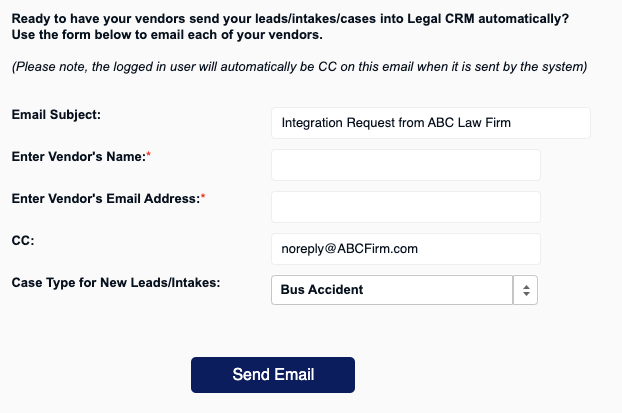
✉ For Rocket Matter CRM clients you can send any vendor your API information by going to setup > 3rd Party Integrations. Here you can enter the vendor's name and add the details for the campaign that you want them to post data for.
Rocket Matter CRM API 101 – The Basics
Let’s cover a few basics as we get started with some sample API posts.
The API and this document are evolving as needs arise. If you require any custom fields or other custom actions not included in this API Guide, then feel free to contact us and we can discuss a scope of work to add this functionality to suit your requirements.
Rocket Matter CRM recommends using the POST method to instantly send form-encoded data into Rocket Matter CRM via URL or directly from your form.
Rocket Matter CRM also accepts the GET method to accept URL-encoded data, query data, trigger programmable actions, and retrieve Client/Lead/Contact/Other data as needed. This can be used to Insert records, Update, and Query data out of Rocket Matter CRM as well as trigger actions. This API Guide includes the currently supported data fields, data field formats, descriptions, and examples, so you will know how to post to Rocket Matter CRM with ease and get started now.
You may also transmit files to the Rocket Matter CRM API by using the multipart/form-data method.
Note: The order of the data fields that you transmit to Rocket Matter CRM does *not* matter, and it does *not* need to be exactly as illustrated in the examples provided in the API Guide. Most fields are optional.
What Fields are Required to POST via API?
A complete list of API parameters is available below in Appendix 2.1, Available Fields
You will need the following required parameters to post a lead via API:
- FirstName + LastName or FullName
- LeadProvider - This should always be the source (the marketing source) of the lead/intake/caller. If you do not provide the Lead Provider, then Rocket Matter CRM will insert it as Unknown API Post to prevent your API posts from failing.
- Key - This is the client’s secret posting key that will be provided to you. Contact Rocket Matter CRM Support if you have not been given this yet and need it.
⚠ Note: If the parameter Status is not included in the API posting string then it will default to Status=New Lead
Transmitting Files and Documents to Rocket Matter CRM via API:
Files/documents are accepted with multipart header form data using the Raw request body. Multipart header forms should be used for uploading files to the API. The multipart/form-data method is needed to post files via API to our endpoint via HTTP POST.
For encoding of the request body, the Rocket Matter CRM API does not support base 64 or binary file encoding.

Supported File Formats: .txt, .doc, .docx, .pdf, .xls, .xlsx, .jpg, .jpeg, .png, .gif, .mp3
For more information on how to encode multipart form posts, visit W3 Schools.
You may also want to review this video that demonstrates how to send multipart/form-data requests with Postman.
Duplicate Checking via the Rocket Matter CRM API:
How does duplicate checking work inside of Rocket Matter CRM?
If you attempt to post duplicate data into Rocket Matter CRM, then the post will fail. Our duplicate checking per Case Type and is run against the lead/intake’s full name, email, cell & home field.
By default, you can post two records that have the same contact info if and only if they are different case types, or the second post will be rejected as a duplicate. This is helpful since one person may have multiple matters with your firm. Example: If a potential client has the same contact information but is opening up two different cases such as auto accident & workers compensation.
If you would like to update the lead, then the parameter LeadID is required for data integrity reasons. By requiring the LeadID to make an update, your firm will not have data overwritten by vendors by accident. It is recommended that when you post new leads to Rocket Matter CRM, that you store the LeadID which is contained in the API Response message from Rocket Matter CRM. Then, your system will have the LeadID to update any leads that you created.
Example of a Successful API Post Response Message:
API Post Response:
Success Lead #12345 Lead ID:12345
☑ Note: API error messages are enabled. If a post fails then the reason will be in the error response. You may use the error responses to perfect your posts.
New! - JSON Responses
We have added the ability to return API responses in JSON:
To get a JSON response you will need to add the following parameter inside your POST.
ReturnJSON"with values = True or False.
How to Post Intakes/Cases Where the Same Primary Contact is Used for Multiple Records
Need to Turn Off Duplicate Checking for "On Behalf Of" (OBO) (Death/Decedent/Minor/Child) Cases where multiple records share the same Primary Contact?
Sometimes there will be exceptions where you have multiple leads/intakes/cases to post to Rocket Matter CRM that all share the same Primary Contact.
One scenario would be the parent, legal representative, or guardian acting On Behalf Of (OBO) of multiple plaintiffs. For this scenario, there is a way to Turn Off duplicate checking in new posts so each plaintiff with the same Primary Contact may be posted as their own record, without merging together into one record.
If you do not disable duplicate checking for this scenario, then the records will all merge into one record when posting because the use of the same Primary Contact will make them appear to be duplicated to the Rocket Matter CRM API.
Example Diagram of the Same Primary Contact Used for Multiple Plaintiffs
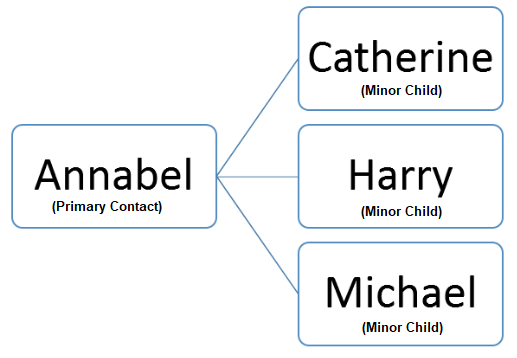
Example: Annabel is the same guardian (Primary Contact) for three different cases (three minor children). The plaintiff information for the three minor children (Catherine, Harry, and Michael) would be posted to Custom API fields. They would all share the same Primary Contact (Annabel).
We would suggest selectively turning off Duplicate Checking for this scenario for API Posts that are related to ONLY these leads/intakes/cases. This would permit Rocket Matter CRM to create three separate records for each of the minor children plaintiffs, with the same Primary Contact (Annabel) to be used on all three records.
The parameter to disable duplicate checking needs to be included as a posting field and will be passed as follows to disable duplicate checking:
dupcheck=0
⚠Note: We strongly recommend that you implement logic to only use this parameter for these exceptions and not to leave it on for every API Post. Please do not disable duplicate checking unless you have this unique scenario in play, and if you do it, then do it selectively.
Creating a Lead/Intake via the Rocket Matter CRM API
Want to create a New Lead in Rocket Matter CRM or Update the data to an Existing Lead? Rocket Matter CRM uses the term Lead and is meant to refer to either a Lead or Intake.
Creating a Lead Sample of a POST link with all of the fields, use the ones you would like to try:
(This is a URL-Encoded example for visual purposes, we highly recommend POSTING all these data points using form-data as individual post parameters instead.)
https://sample.yoursiteURL.com/api-legalcrmapp.aspx?FirstName=John&LastName=Smith &Address1=123 AnystreetCity=WilkesBarre&State=PA&Zip=12345&CellPhone=570-123-7899&HomePhone=570-123-7899&Email1=test@testing.com&Summary=His vehicle was hit by a drunk driver&CaseType=Auto Accident&LeadProvider=Google&Hear=Live Chat&Key=Y8d7cMkSLGhONnZyjzVAVbhGV9eXX8
Update Data or Status of an Existing Lead/Intake in Rocket Matter CRM via API
A complete list of API parameters is available below in Appendix 2.1, Available Fields
In this example, we are only updating the Status field, and we are changing the Status of this Lead/Contact/Intake to Signed Retainer Contract
Sample of a POST link to change Status:
(This is a URL-Encoded example for visual purposes, we highly recommend POSTING all these data points using form-data as individual post parameters instead.)
https://sample.lawruler.com/api-legalcrmapp.aspx?LeadId=1203&Status=Signed Retainer Contract&Key=Y8d7cMkSLGhONnZyjzVAVbhGV9eXX8
⚠ Note: The name, phone, email address of Primary Contacts may not be updated after a leads/intake/case has been created. This is a protection in place to prevent the law firm staff from having this critical information changed without their consent. All other fields may be updated.
If you need to update the name, phone, email address of Primary Contacts, then we recommend that you post a note to the firm with the new information, or send that data to Summary in the Case Description.
Posting Data to Custom Fields
All you will need to do is get a list of custom fields from the firm and add them to your posting string. ANY field in Rocket Matter CRM intake/case forms can be posted to. This is highly recommended since by posting data to each individual field, you will save time with data entry and increase accuracy with each intake.
All standard and custom field parameters can be found inside the Rocket Matter CRM Intake Form Builder under each question label.
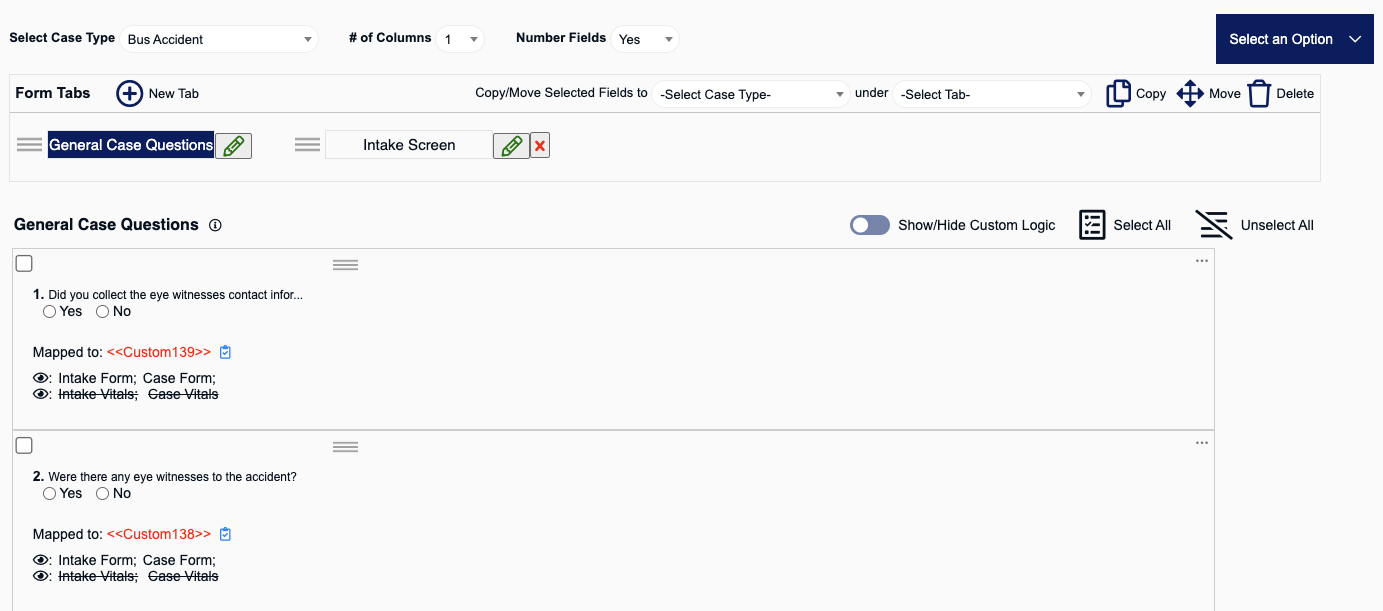
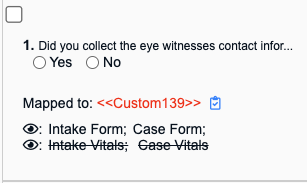
⚠ Note: You will remove the << >> angular brackets from the field name to get the API parameter name foreach custom field and you must use lower case. Custom fields are case sensitive and require lower case.
Example: custom2413
⚠ Note: For case type-specific custom fields, you must make sure that you are posting into the same case type that the fields belong to, or the fields will not work. For example, if you have custom2413 in the Auto Accident case type, but not accessible to All case types, then you may only use that custom field with API posts that are for the Auto Accident case type.
Sample posting string with custom field parameters:
(This is a URL-Encoded example for visual purposes, we highly recommend POSTING all these data points using form-data as individual post parameters instead.)
https://sample.lawruler.com/api-legalcrmapp.aspx?FirstName=John&LastName=Smith &Address1=123 AnystreetCity=WilkesBarre&State=PA&Zip=12345&CellPhone=570-123-7899&HomePhone=570-123-7899&Email1=test@testing.com&Summary=His vehicle was hit by a drunk driver&custom1=datagoeshere&custom2=datagoeshere&custom3=datagoeshere&custom4=data&CaseType=Auto Accident&LeadProvider=UTMSOURCEGOESHERE&Hear= Yourcompanyname &Key=Y8d7cMkSLGhONnZyjzVAVbhGV9eXX8
For posting data to Picklist fields, if you need to fill data for multiple options, you will need to separate each picklist option with a comma ","

Example: custom1953
Value: Option3,Option2
(You would put in the actual data and not insert it as "Option 3, Option 2" since that was for example purposes)
If your field was "What colors are there in a rainbow?" and the data that you wanted to insert some data, then you would insert it as "Orange, Yellow, Blue, Green, Red"
Lookup / Query Data from Rocket Matter CRM via API Using the GETStatus Method
Let’s say that you want to find out the status of a lead, or look up something about a particular lead/intake with an API Post. This can be done programmatically from the API using the operation GetStatus or by using the parameter ReturnXML=True. This section will cover how to get data from Rocket Matter CRM about a particular Lead/Contact/Intake from your application.
In order to do the lookup/query, you will need either the LeadID (&LeadId).
Note: This outputs a feed of machine-readable XML. Just use the appropriate start/end markers such as <Lead> and </Lead> for XML.
Sample of a POST link to query data from Rocket Matter CRM via your application:
(This is a URL-Encoded example for visual purposes, we highly recommend POSTING all these data points using form-data as individual post parameters instead.)
https://sample.sitename.com/api-legalcrmapp.aspx?Key=012300000000000000XYZ&
Operation=GetStatus&ReturnXML=True&LeadId=[LeadID]
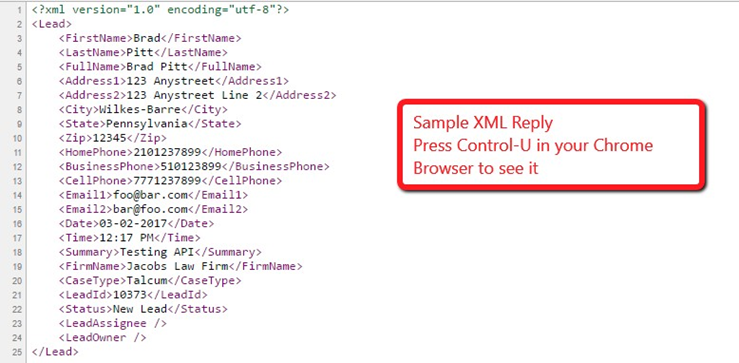
The API response message will be in machine-readable XML that your application can parse in for any queried fields:
Firstname, Lastname, address1, address2, city, state, zip, cellphone, homephone, businessphone, email, summary, conversation, CaseType, LeadProvider, Status, LeadOwner, LeadAssignee
Sample of an Actual XML Reply
You will need to install an XML Viewer in your Internet Browser to see the XML or the Control-U key will not do anything. We recommend the XML Tree Google Chrome Browser Extension.
How to Configure API Failure Notifications
It's important to know if a post to your system fails, so your firm can ensure new information is not missing. Therefore, Your Rocket Matter CRM allows users to be notified if an API post to your system fails.
To configure the users who should get notified, locate the Failed API Post Notifications section on the 3rd Party Integrations page and select at least 1 user to receive the notifications:

Appendix 2.1 - Available Rocket Matter CRM API Fields
In order for existing lead data to be updated in the system, there must be a posting parameter of "overridelead=true" . Otherwise, data will not be overridden if it already exists. Please consult with your Firm before using this parameter as it could overwrite user-inputted data if not used properly.
- LeadID: This is the unique identifier for each Lead in Rocket Matter CRM (Type: Integer)
- CaseType: Type: of Case as provided, ex: Motor Vehicle Accident, Divorce, Custody, Xarelto, Qui Tam, etc (Type: Varchar Max Length 255)
-
LeadProvider: This is the Lead’s Marketing Source or UTM Source, where the Lead/Contact/Intake came from. For example Firmname.com, Main website page, Google, TV advertisement (Type: Varchar Max Length 255).
If you forget to include this, then Rocket Matter CRM inserts “Unknown API Post” as the Lead Provider, to prevent your API Posts from failing. *** This is a Default Field that is Required ***
- Hear: This field is for the Contact Method of the lead/marketing source for each lead/intake. (Ex: nGage, Apex, Alert Communications, Intake Desk)
- Status: The status of the Lead/Contact. You must map to existing statuses in Rocket Matter CRM . If you want to create new statuses first, then please create them so you may map them. Ex: New Lead/Contact, Emailed Intake Questionnaire, Sent Retainer Contract, Signed Retainer Contract, Converted to CaseApproved (Type: Varchar Max Length 255)
- Tags: Add tags to any Lead/Case. For multiple, separate with commas: Tags = New, Level 1, High Value
- FirstName: First Name of the Lead/Contact (Type: Varchar Max Length 255)
- MiddleName: Middle Name of the Lead/Contact (Type: Varchar Max Length 255)
- LastName: Last Name of the Lead/Contact (Type: Varchar Max Length 255)
- FullName: This is Optional in case First Name and Last Name is not provided
(Type: Varchar Max Length 255) - Address1: Street Address Line 1 (Type: Varchar Max Length 255)
- Address2: Street Address Line 2 (Type: Varchar Max Length 255)
- City: City name (Type: Varchar Max Length 255)
- County: County name (Type: Varchar Max Length 100)
- State: Shortcode abbreviation of a State, or full name of the State (Type: Varchar Max Length 255)
- Zip: Zipcode varied length and international zip codes are okay (Type: Varchar Max Length 15)
Note: Cell Phone is a required field in Rocket Matter CRM and if only one phone number is provided, then please default to the Cell Phone field since you will not be able to send SMS Texts otherwise
- CellPhone: Cell Phone (If a single number is available for the lead, then please insert it in Cell phone) (Type: Varchar Max Length 30) *** This is a Default Field that is Required ***
- HomePhone: Home Phone No with or without country code International Numbers are okay this field is multi-length. (If a single number is available for the lead, then please insert it in Cell phone)
(Type: Varchar Max Length 30) - BusinessName: Company Name associated with a contact. (If this is the only name parameter passed, the contact created will be of type Business instead of Individual)
- BusinessPhone: Business Phone (If a single number is available for the lead, then please insert it in Cell phone) (Type: Varchar Max Length 30)
- Email1: Primary Email Address (Type: Varchar Max Length 255)
*** This is a Default Field that is Required *** - Email2: Secondary Email Address (Type: Varchar Max Length 255)
- SSN: Social Security Number (Type: XXX-XX-XXXX must include the dashes, Ex: 123-45-6789)
- DOB: Date of Birth (Type: Date Format MM/DD/YYYY or MM-DD-YYYY and must include the slashes or dashes or it will not be accepted) Ex: 01/11/2001 or 01-01-2001
- DriversLicense: The driver’s license number of the primary contact on a lead/intake/case (Type: Varchar Max Length 255)
- ContactPreference: What is the best way to reach this lead/intake/client? During the day, after 5 pm on weekdays, etc (Type: Varchar Max Length 255)
- WhenToContact: When is the best time for this lead/intake/client to be contacted?
(Type: Varchar Max Length 255) - LeadAssignee: This is the current user assigned to managing the lead/contact/matter
- LeadOwner: This is the current user that owns the lead/contact/matter
- Summary: Case Description/Synopsis of the Case (No Max Length since it is a text field)
- CaseRole: The case role of the lead. Ex. "Lead" , "Client" (Type: Varchar Max Length 50)
- ContactType: The contact type of the contact. Ex. "Lead" , "Client", "Caller" (Type: Varchar Max Length 50)
- CampaignName: This is the Ad Campaign Name. This is primarily used with the Five9 integration but could be used for custom implementations for other use cases.
- Conversation: Example Chat or Other Transcripts (No Max Length it is a text field)
- Key: This is the unique security token key that uses bank-grade AES 256-bit encryption for the client portal and is generated by Rocket Matter CRM. This will prevent spam and garbage posts in the client portal.
- dupcheck: This is to turn off duplicate checking and should only be used for exceptions where the same Primary Contact is used for multiple leads/intakes/cases. This must be set to = 0 / False to be used. Example use: dupcheck=0
- Language: The language of the lead/intake. The API Field Language requires the Language value to be passed in API Posts. In Rocket Matter CRM, the Default Language is English. It does not need to be passed at all.
Planned usage of Language field: api-legalcrmapp.aspx? leadid=11618&language=Spanish&key=4YGH7PYA8BACHA3ZAAzhLiNJLG1IZj
List of all Available Language Values in Rocket Matter CRM:
Language Language Language Language Afrikaans Finnish Laothian Tamil Albanian French Lithuanian Telugu Arabic Galician Macedonian Thai Azerbaijani Georgian Malay Turkish Basque German Maltese Ukrainian Bengali Greek Malayalam Urdu Belarusian Gujarati Marathi Vietnamese Bulgarian Haitian Creole Mongolian Welsh Catalan Hebrew Norwegian Yiddish Chinese (Hong Kong) Hindi Persian Zulu Chinese (Simplified) Hungarain Polish Chinese (Traditional) Icelandic Portuguese Croatian Indonesian Romanian Czech Irish Russian Danish Italian Serbian Dutch Japanese Slovak English Kannada Slovenian Esperanto Korean Spanish Estonian Latin Swahili Filipino Latvian Swedish