Use AI to summarize your documents, edit your docs. directly in the application, preset and schedule your reports, use open API, allow multi-parties client portal access, drag and drop document folders, and create folder structures.
Enhancements
AI Powered Document Summary
You can now generate an AI-powered summary for any document stored in NextGen — no setup required. Simply upload a document and the system will automatically produce a three-part summary: an Executive Summary, a Details section, and an Outline, giving you a clear picture of the document's contents without needing to open the full file.
This feature is available to all firms using native NextGen storage and is enabled automatically.
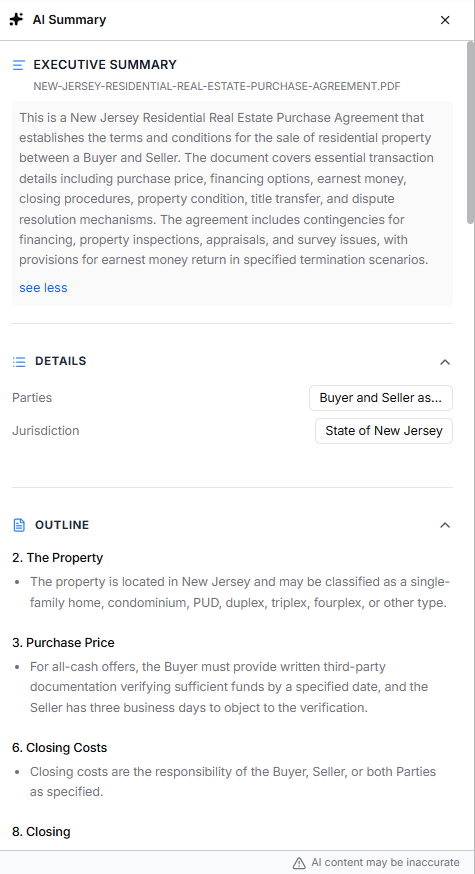
What to know:
- Supported file types: PDF, DOCX, DOC, RTF, TXT, EML, and HTML.
- Processing time: Most documents are summarized within seconds. Larger files (200+ pages) may take up to two minutes.
- No file size limit: Any document that uploads successfully to NextGen can be processed.
- When fields appear empty: For short or vague documents, the Details and Outline sections may not populate — but the Executive Summary will always be generated.
- AI accuracy: As with all AI-generated content, summaries may not be fully accurate. Always verify critical details against the source document.
In-App Document Editing
You can now edit documents directly within NextGen - no more downloading, editing externally, and re-uploading. Word documents open in a new tab for editing and sync back automatically, while PDFs can be edited using a built-in PDF editor. A new preview experience displays the document alongside its AI summary for faster review.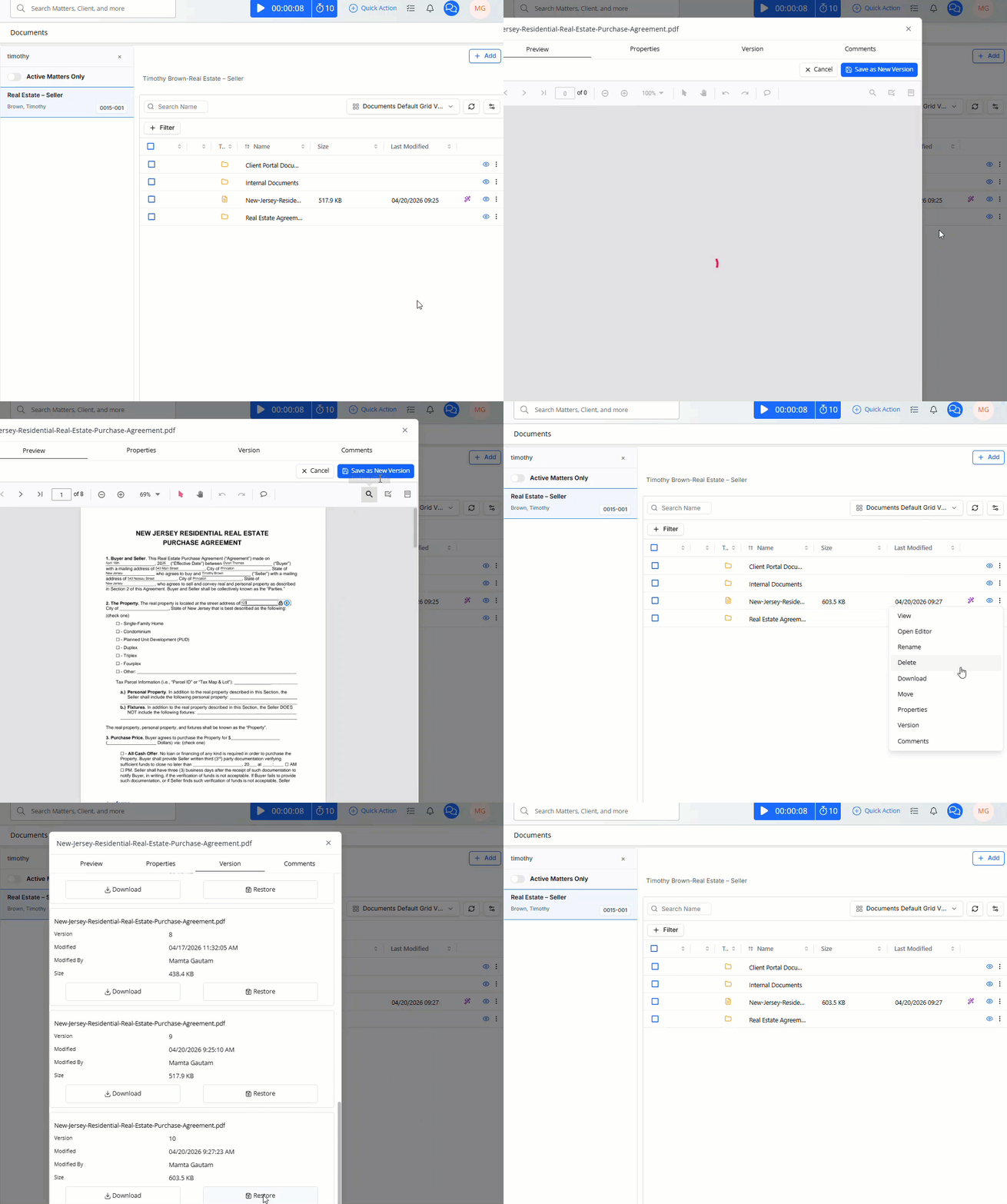
What's new:
- Word document editing: Word files open in a new browser tab for editing and sync back to NextGen automatically — no manual re-upload needed.
- PDF editing: A built-in PDF editor supports comments, highlights, annotations, and undo. Comments can trigger email notifications to keep relevant team members in the loop.
- Version history: Previous versions of edited documents are saved, so you can review or restore an earlier version at any time.
- Document preview: A new preview experience displays your document alongside its AI-generated summary side-by-side, making document review faster and more efficient.
- Client Portal sync: Since edits update the source file directly, any documents shared via the Client Portal will always reflect the latest version automatically.
To learn more, read Edit Your Documents Within the Application
Report Presets and Scheduled Delivery
Stop re-entering the same report filters every time you run a report. You can now save your preferred filter combinations as reusable Presets and schedule reports to land in your inbox automatically — no manual running required.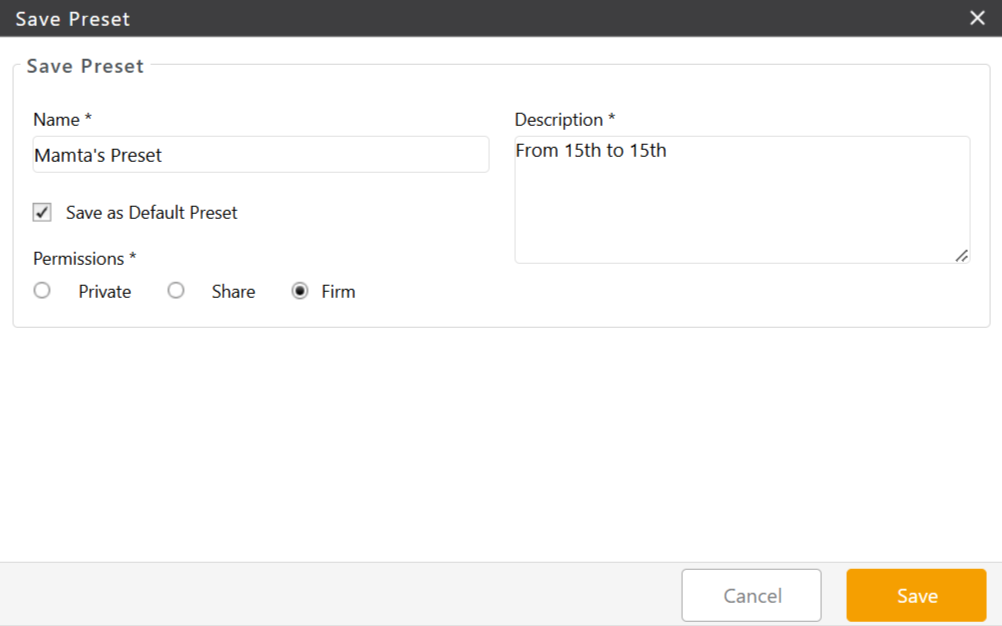
Presets
- Save your filters: Save any combination of report criteria as a named Preset for reports including AR, P&L, Time Entries, and more.
- Set a default: Mark a Preset as the default for a report so your preferred filters load automatically every time you open it.
- Share with your team: Presets can be kept private, shared with specific users, or shared by role. Note that sharing a Preset does not grant report access — existing report permissions still apply.
Scheduled Delivery
- Automate your reporting: Schedule any report to run daily, weekly, or monthly and have it delivered to recipients by email as a PDF or Excel file.
- Easy access: Delivery emails include a direct download link — recipients don't need to be logged into NextGen to access the report.
- Missed an email? All scheduled reports are also available to download from the Jobs List within NextGen.
- Manage your schedules: Pause, resume, or delete any scheduled report at any time from the schedule management screen.
- Schedule run time: All scheduled reports run at 6:00 AM EST.
To learn more, read Preset and Schedule Your Reports
Open API - Available to All
You can now connect your own tools and systems directly to NextGen through our Open API — no special enrollment needed. Whether you're building an integration, working with a development partner, or connecting a third-party app, everything you need is ready to go through a secure, scalable, and developer-friendly REST API without requiring prior beta enrollment. 
What's included:
- REST API access: Read and write data in NextGen securely via REST APIs using JSON over HTTPS, with support for pagination, filtering, sorting, and selective field retrieval.
- Secure sign-in: Choose the authentication method that works for you — OAuth 2.0 for third-party apps, or Personal Access Tokens for direct integrations — both with built-in access controls.
- Developer Portal: Your one-stop shop for setting up and managing your integration. Register your app, grab your credentials, browse documentation, and keep an eye on usage — all in one place. Find it under Setup > Apps > Open API.
- Sandbox environment: Not ready to go live yet? Test everything in a safe sandbox environment that won't touch your real data.
- Webhooks: Get notified the moment something changes in NextGen, so your connected systems always stay up to date.
- Built for reliability: Safeguards are in place to prevent duplicate actions and keep your application running smoothly, even under heavy usage.
Multi-Party Client Portal
You asked, we delivered. You can now invite multiple people to a matter's Client Portal — not just the primary client. Whether you're working a family law case, coordinating with co-counsel, or communicating with opposing counsel, everyone who needs access can now have it.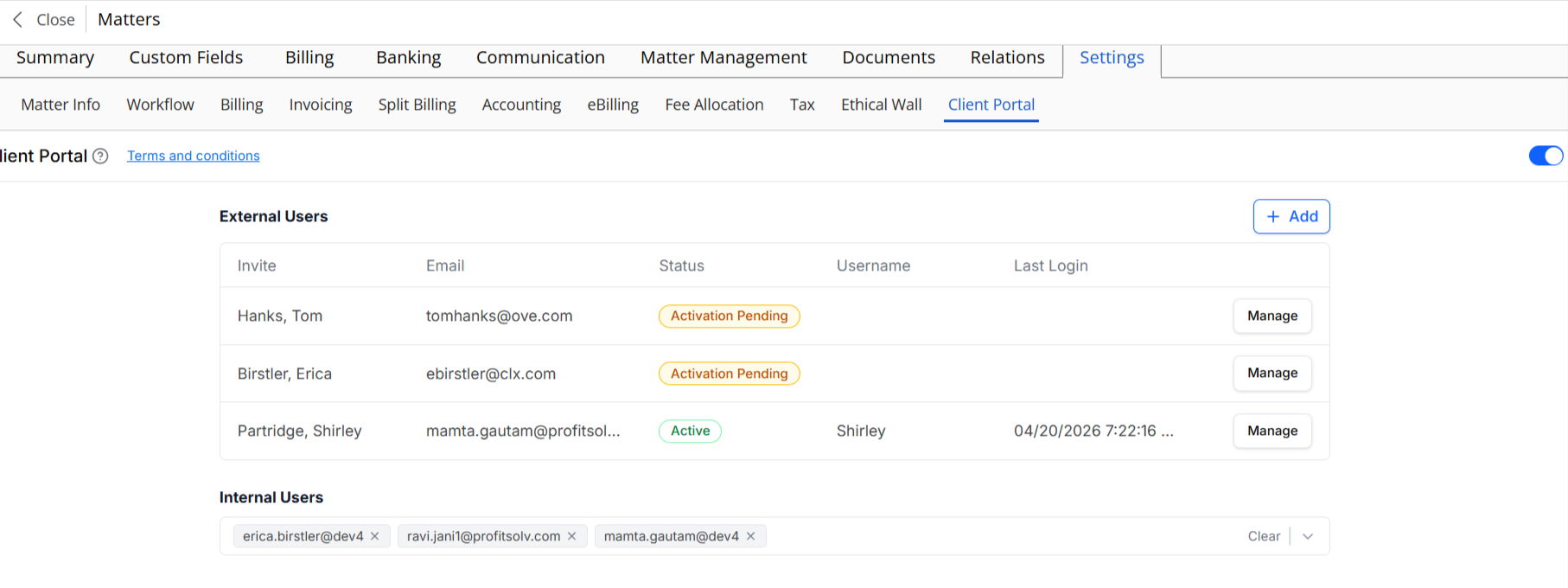
What's new:
- Invite anyone from your address book: Add co-counsel, opposing counsel, relatives, or any other contact to the Client Portal alongside the primary client.
- Control what each person sees: Every portal party gets their own individual permissions. You decide exactly what each person can access — invoices, documents, tasks, calendar events, notes, and intake forms.
- Private messaging: Conversations between your firm and each portal party stay completely private. Portal parties cannot see each other's messages, which is especially important when both sides of a matter are involved.
- Individual notification settings: Set up notification preferences separately for each portal party, including daily digests, new item alerts, and document upload notifications.
- You stay in control of sharing: Nothing is shared with a portal party automatically. To share an item, simply use the "Share via Client Portal" option in the three-dot menu.
- Permissions memory: If you ever disable a party's access and later turn it back on, all of their previously shared items will reappear automatically — no need to reshare anything.
What stays the same:
- Client Portal still needs to be enabled at the firm level under Setup > Firm Settings > Firm Preferences.
- Your existing firm-level permission settings continue to work exactly as before.
- The invitation process hasn't changed — the 48-hour activation link, resend invite, and remove client options all work the same way.
- Your current Client Portal setup is not affected. Everything stays as-is; you simply now have the option to add more parties when you need to.
To learn more, read Manage Client Portal Access
Drag and Drop Files and Folders
Organizing your documents just got a lot easier. You can now move files and folders wherever they need to go — across folders, or even across different matters — without the hassle of downloading and re-uploading anything.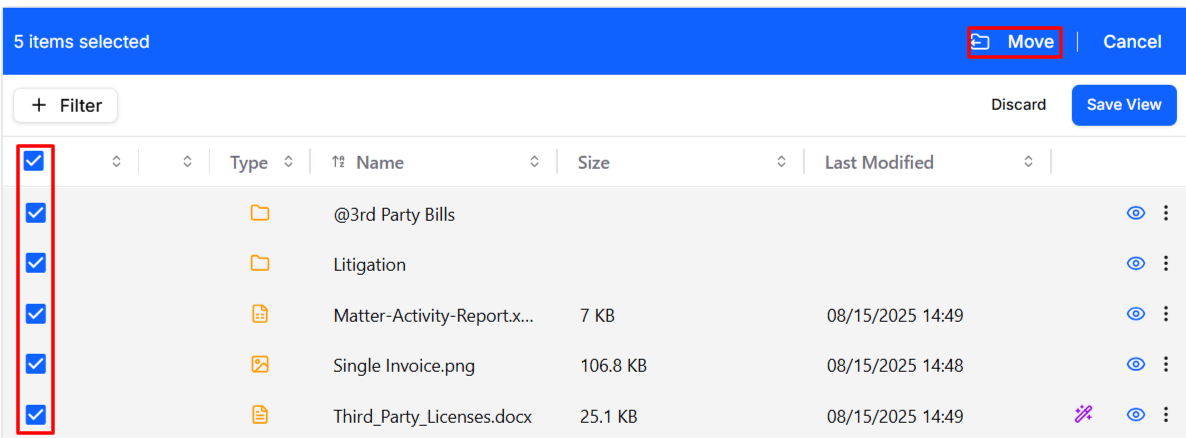
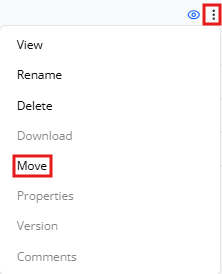
What's new:
- Move files your way: Whether you prefer dragging and dropping, selecting multiple files with checkboxes, or using the Move option in the three-dot menu, you've got options.
- Move across matters: Need to send a file to a completely different matter? No problem — cross-matter moves are fully supported.
- Folders move together: When you move a folder, everything inside it — including any subfolders and their contents — comes along with it, keeping your structure intact.
- Made a mistake? An Undo option appears briefly after every move, so you can quickly reverse anything that wasn't intentional.
- Works where you work: This feature is available in both the Matter Documents screen and the main Documents screen.
A couple of things to know:
- This feature is available for firms using
- Move actions are not currently tracked in the activity log.
Document Folder Structure Templates
Tired of setting up the same folder structure every time you open a new matter? You can now create reusable folder templates that apply automatically when a new matter is created — keeping your document organization consistent across the firm without any extra effort.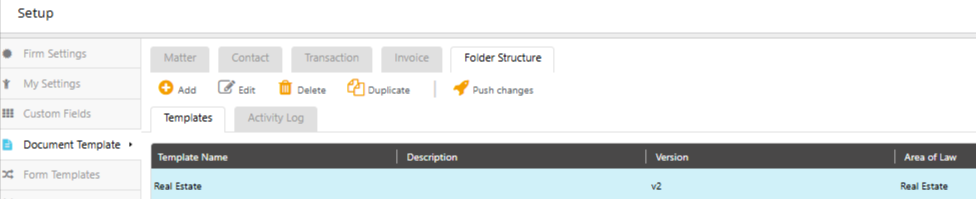
What's new:
- Set it up once: Create your folder structure templates under Setup > Document Template > Folder Structure. Build one from scratch, or save yourself some time by copying the folder structure from an existing matter and using that as your starting point.
- Tied to your Area of Law: Each template is linked to a specific Area of Law, so the right folder structure is applied automatically whenever a new matter is created in that area. Templates also work seamlessly alongside your existing Matter Templates.
- Always know what changed: Templates are versioned (V1, V2, and so on) and every change is tracked in the activity log, so you always have a clear record of who updated what and when.
- Updates apply going forward: Changes to a template won't affect matters that have already been created. When you're ready to roll out a revision, use the Push Changes option to apply it to new matters.
- Easy to manage: Templates can be duplicated or deleted at any time without affecting any matters that were already created from them.
A couple of things to know:
- This feature is available in NextGen only and is not available in Classic.
- Please don't delete the default Client Portal or Internal Documents folders — removing them will affect related functionality in your matters.