You can invite clients to the client portal to view and share items or revoke their access.
Invite a Client
To invite a client to access the client portal: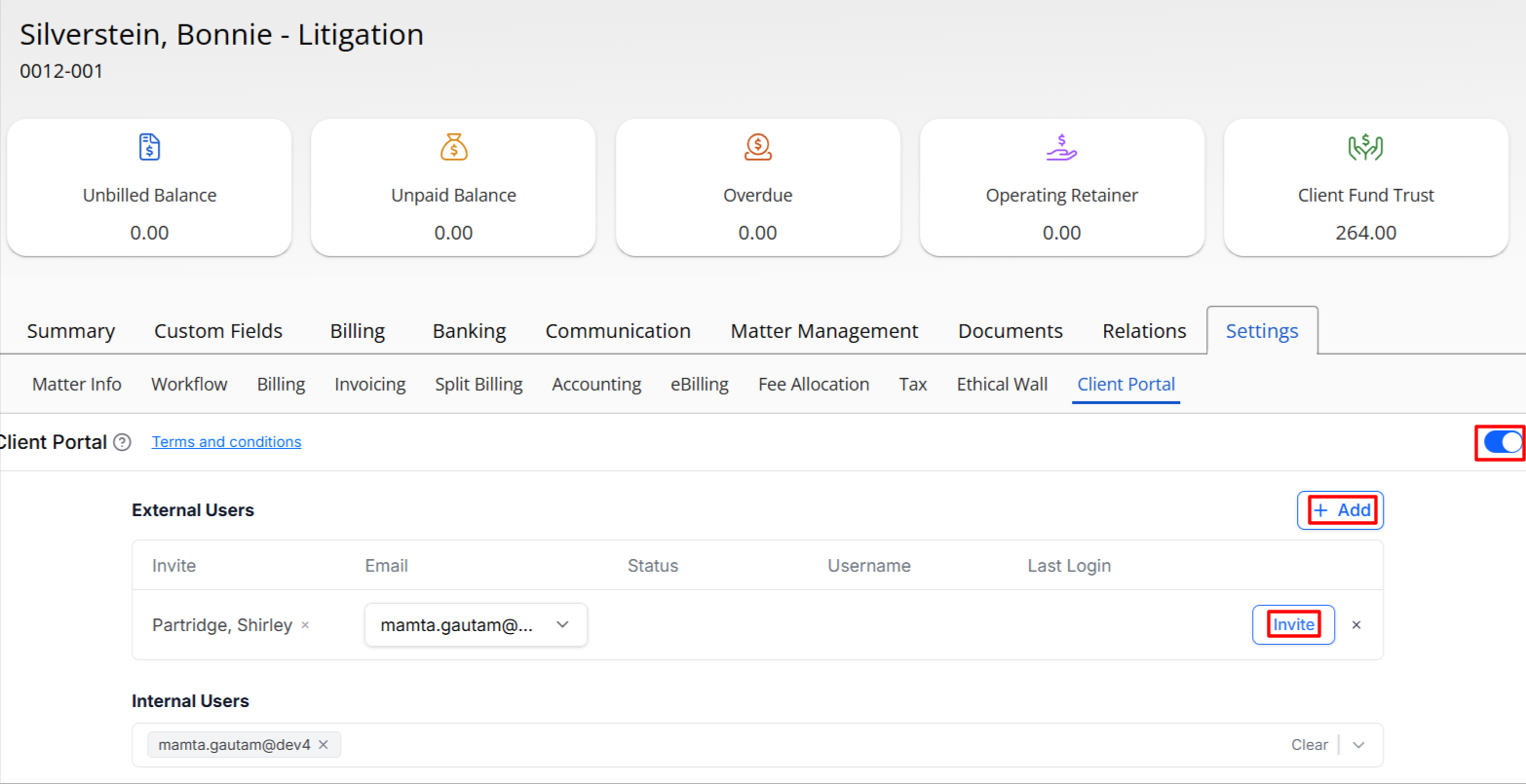
- From the left navigation panel, click Matters.
- On the Matters screen, double-click the matter and scroll down to its summary section.
- From the tabs atop the summary section, click Settings.
- From the tabs in the Settings area, click Client Portal.
- On the Client Portal screen, in the upper right corner, slide the toggle button ON.
- In the External Users section, enter the first two letters of the client's name, select from the displayed list and click Invite.
- If the email field is empty, enter the client's email.
- On the Invite window, select the necessary permissions and notifications.
- Click Invite.
The system saves the client's primary email address and sends them an invitation with instructions for creating a client portal account.
Disable Client Access
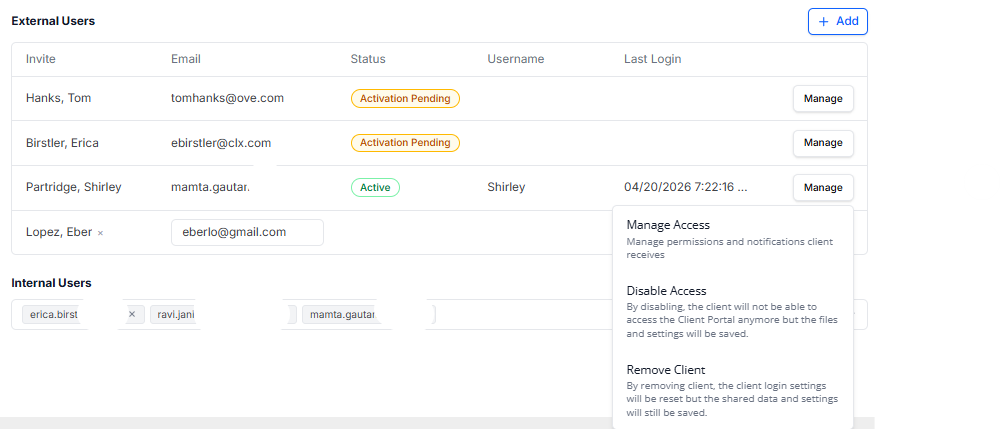
To temporarily disable a client's portal access:
- From the left navigation panel, click Matters.
- On the Matters screen, double-click the matter and scroll down to its summary section.
- From the tabs atop the summary section, click Settings.
- From the tabs in the Settings area, click Client Portal.
- On the Client Portal screen, click Manage > Disable Access.
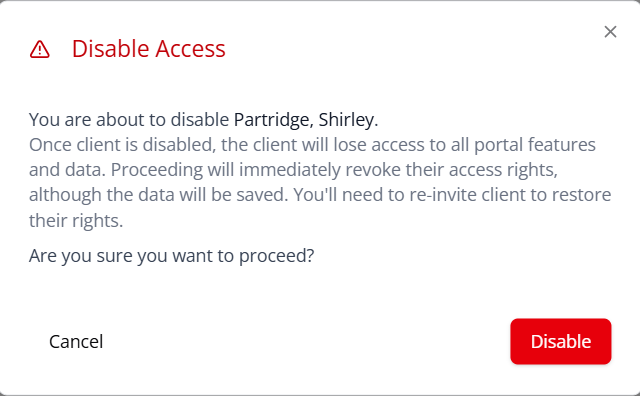
The Disable Access message reads: Client portal access has been disabled.
Enable Client Access
To enable a client's portal access:
- From the left navigation panel, click Matters.
- On the Matters screen, double-click the matter and scroll down to its summary section.
- From the tabs atop the summary section, click Settings.
- From the tabs in the Settings area, click Client Portal.
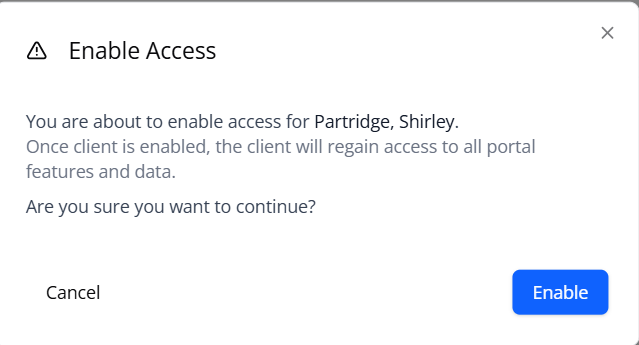
- On the Client Portal screen, click Manage > Enable Access.
- Confirm the Enable Access message.
Remove Client Access
To remove a client's portal access:
- From the left navigation panel, click Matters.
- On the Matters screen, double-click the matter and scroll down to its summary section.
- From the tabs atop the summary section, click Settings.
- From the tabs in the Settings area, click Client Portal.
- On the Client Portal screen, click Manage > Remove Access.
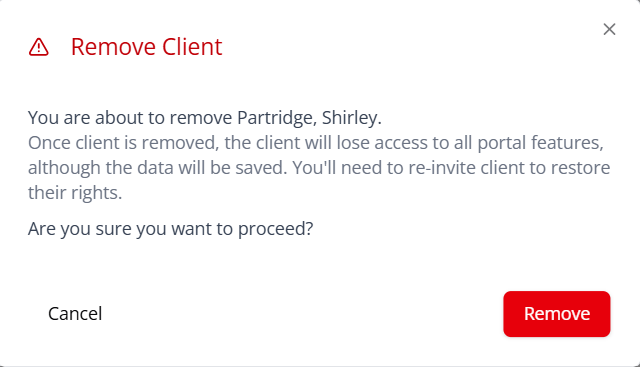
- Confirm the Remove Client message.
The system removes access, displaying Client's status as Activation Pending.
Re-Invite Contact
To re-invite a client to the client portal:
Follow the steps above to Invite a Client to the Client Portal.