How to Send and Report on E-Signs
Send e-sign documents to leads and cases by text and email, then track and report on their status.
The CRM system includes a ready-to-use integration with the top e-sign provider, Dropbox Sign (formerly HelloSign). Your firm can start sending out e-sign documents via text message and email as soon as an e-sign template has been configured. The CRM's embedded version of Dropbox Sign offers significant time savings as it only takes seconds to fill in client information and send the e-sign to recipients via text message and email.
This article will cover how to send e-signs to leads/cases in the CRM as well as how to report on the e-signs that have been sent, signed, and canceled. For details on configuring an e-sign template that can be sent for signing, see How to Create an E-Sign Template.
How to Send an E-Sign Document
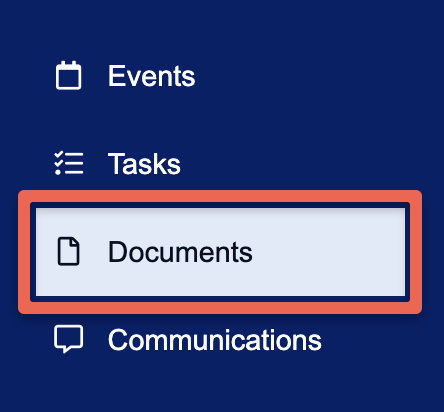
First, navigate to the lead/case record in the CRM that you wish to send an e-sign to. Next, go to the Documents section of the record using the left-side menu.
Under the Documents section, click the E-Sign tab that appears near the top left. Here you will be able to select any available e-sign template to send for signing.
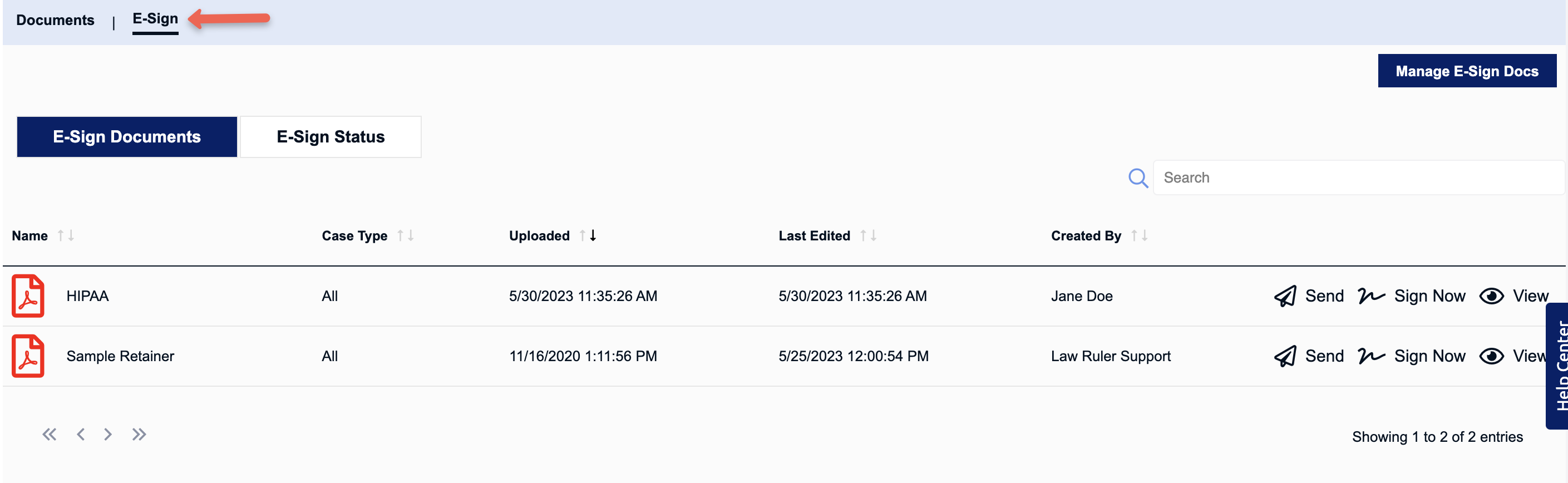
In the E-Sign Documents tab, you will see options for Send, Sign Now, and View to the right of each e-sign template.
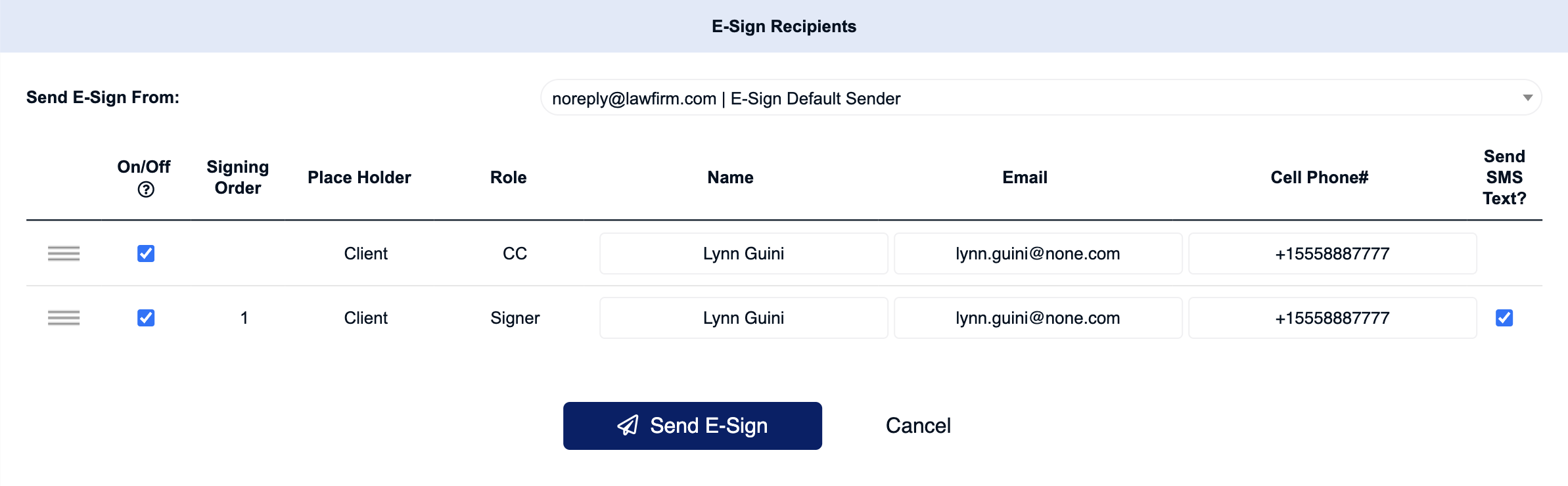
- Send - This option allows you to send an e-sign to the lead/client via email and text. When you click the "Send" option, a pop-up will appear for you to confirm and/or modify the contact information of each signer and recipient of the signed contract (CC). Once that is completed, click the "Send E-Sign" button at the bottom of the pop-up to send out the signature request.
- Sign Now - This option allows you to pull up the e-sign agreement on your device to sign immediately. This option is generally recommended for instances where your signer is in front of you, such as in-person consultations, and they need to sign the document on a handheld device, such as an iPad or even a laptop.
- View - This option allows you to view the e-sign template file that will be sent for signing. This option will not show any data that will be merged into the document upon sending the e-sign. To view an example of the data that will merge into the e-sign doc, it's recommended to perform a test by first sending the e-sign to yourself using a test record in the CRM with your contact information.
How to Check the Status of Sent E-Signs
Once an e-sign has been sent, you can keep track of the signature request’s status directly inside the lead/case record by going to Documents > E-Sign > E-Sign Status.
In the Envelope Status column you will be able to see once the recipient has viewed the e-sign document and when they’ve submitted a signature.
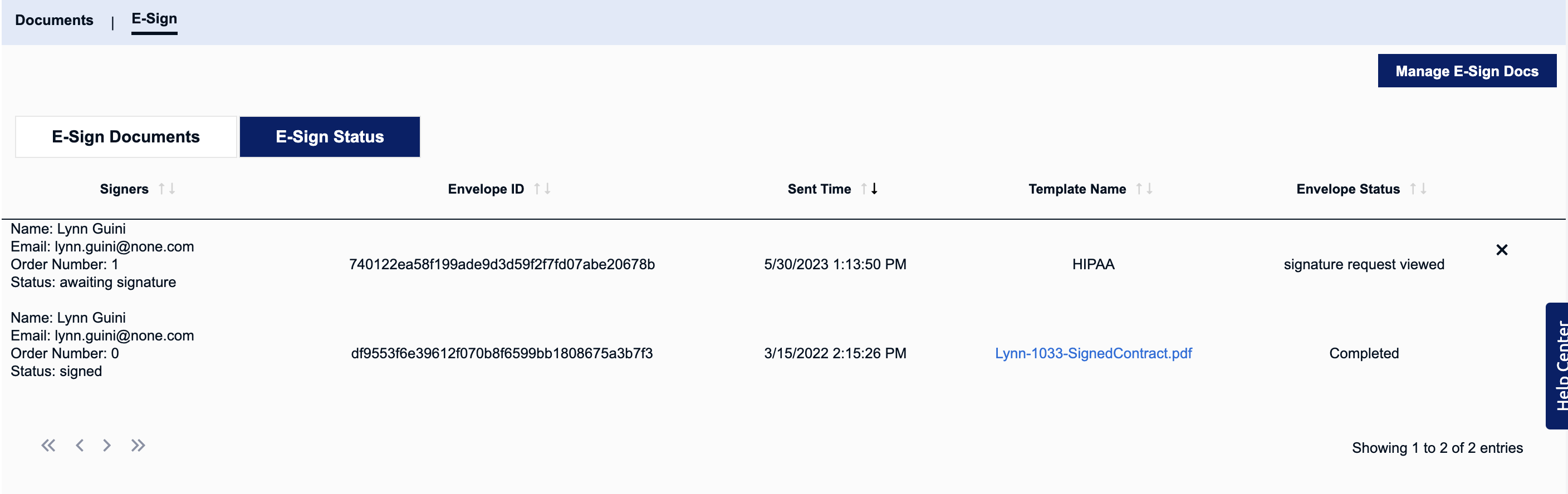
All signed documents are automatically pulled back into the CRM and can be found under the Documents section of the lead/case record.
How to Report on E-Sign Documents
The CRM offers a couple of different reports that allow you to track the status of your e-sign documents that have been sent and signed.
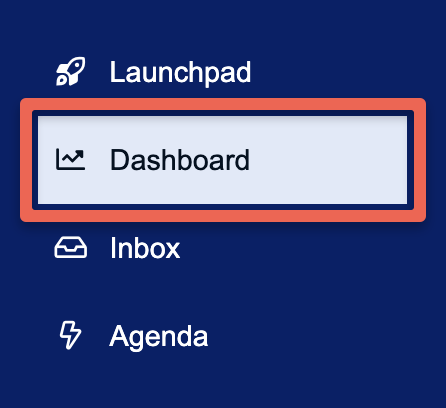
The first report that can be used to track the status of e-sign documents is the CRM's Dashboard. To access this report, navigate to Dashboard using the main navigation menu located on the left-hand side.
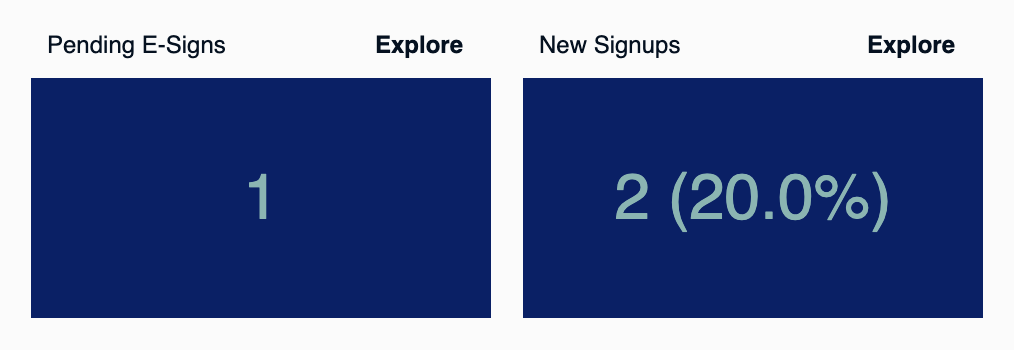
Using the Pending E-Signs tile, you can keep track of sent e-signs that have not yet been signed. You can also track signed e-signs that have been received using the New Signups tile.
For more on the CRM's Dashboard feature, see How to Use Dashboards in the CRM.
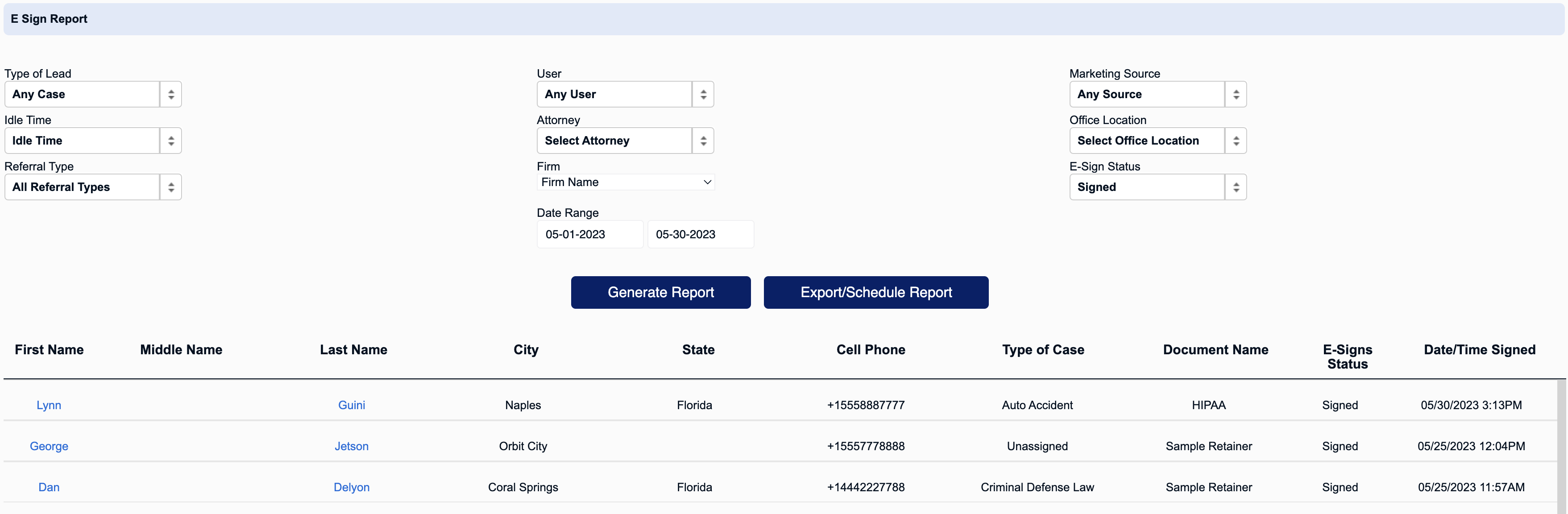
Another report that can be used to track the status of all e-signs, not just pending and completed e-signs, is the CRM's E-Sign Report. To access this report, use the main navigation menu on the left-hand side and go to Reports > E-Sign Report.