Upload files up to 5GB, send invoices automatically, send invoice reminders automatically.
Enhancements
Extended File Upload Limit
You can now upload files up to 5 GB directly to a matter - no more splitting large files or sharing them outside the platform.
Previously, file uploads were capped at 100 MB per file. This release raises that limit to up to 5 GB per file across NextGen and the Client Portal, using your existing document storage integrations.
Here's what you can do now:
- Upload larger files — The per-file limit increases from 100 MB to up to 5 GB.
- Upload multiple files at once — Select multiple files in the Add Document modal and track progress per file. If one fails, you'll see the error for that file only.
- Download without limits — Files uploaded under the new limit download without the old 100 MB / 120 MB restrictions.
Keep in mind:
- The preview size limit hasn't changed. You can upload and download large files, but very large files won't be previewable in the browser.
Send Invoices Automatically
Stop manually sending invoices one by one. Turn on automatic sending in Invoice Settings and every invoice goes out the moment it's generated or approved — using your existing templates, recipients, and subject lines. Nothing new to configure.
Here's what you can do:
- Turn it on firm-wide — Go to Invoice Settings and enable Send Invoices Automatically. Choose whether it applies to all existing matters or new matters only.

- Control it per matter — Need to manually review invoices for a specific client? Turn automatic sending off on that matter. Want to add a matter that was excluded during setup? Turn it on individually.
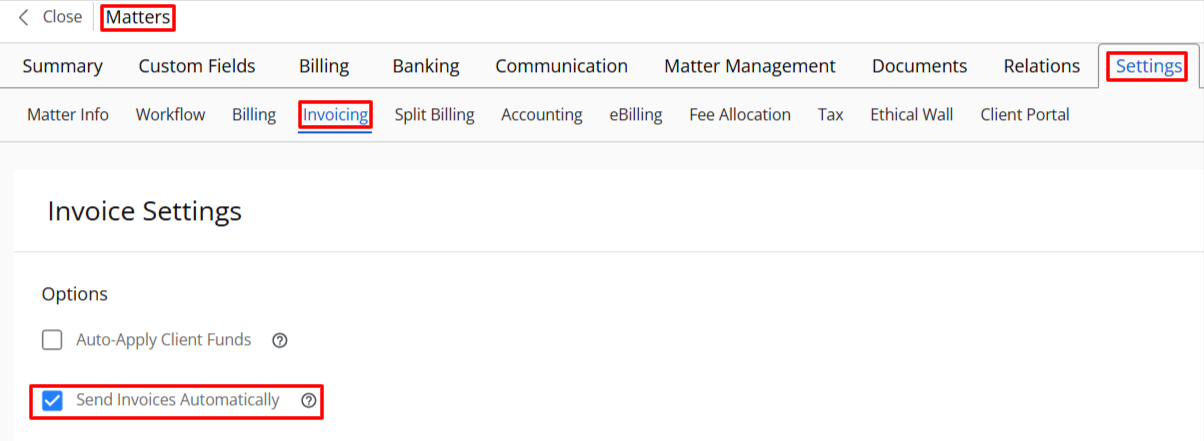
- Send on generation or approval — If your approval workflow is off, invoices go out immediately when generated. If it's on, they go out when approved, including bulk approvals.
- Give clients a secure download link — Your clients receive the invoice email with a link to download their invoice. The email uses your firm's existing template and subject line.
- Track every email sent — Every invoice email is logged in System Emails and Invoice Email History. View it, download it, or revoke the download link at any time. A small envelope icon on the invoice grid shows you what's been sent.
Keep in mind:
- Invoices go out as download links, not attachments. You can revoke any link from System Emails.
- This feature is not available if your firm still has access to CosmoLex Classic.
Send Invoice Reminders Automatically
Your firm can now send automatic follow-up emails on unpaid invoices — no manual chasing required. Set your schedule once, and reminders go out on their own until the invoice is paid.
Here's what you can do:
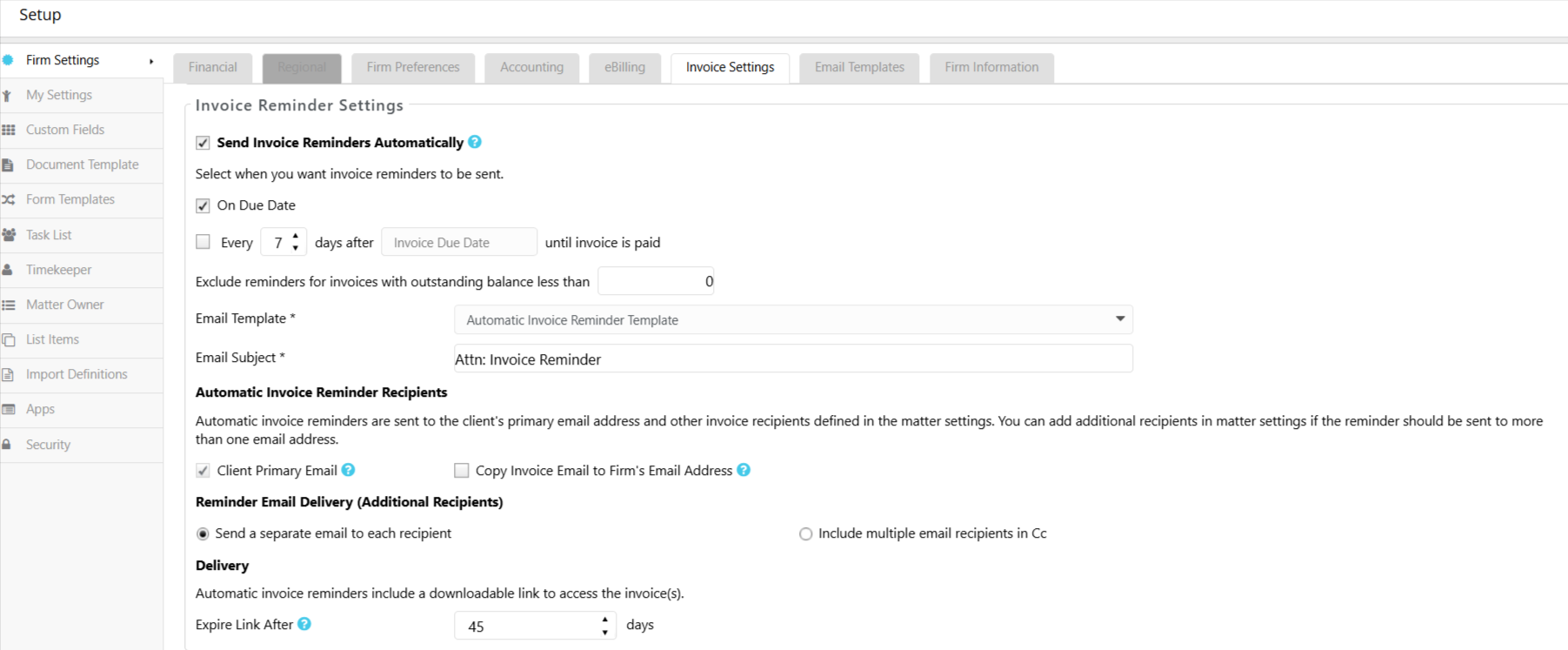
- Set your reminder schedule firm-wide — In Invoice Settings, enable Send Invoice Reminders Automatically and define your schedule: send on the due date, every X days after the invoice date, or every X days after the due date. Set a minimum balance threshold, choose your default template, and configure link expiration — all from one screen.
- Customize per matter — Switch any matter from Use Firm Default to Custom to adjust the schedule, balance threshold, template, or subject line for that client. Or turn reminders off entirely on matters that don't need them.
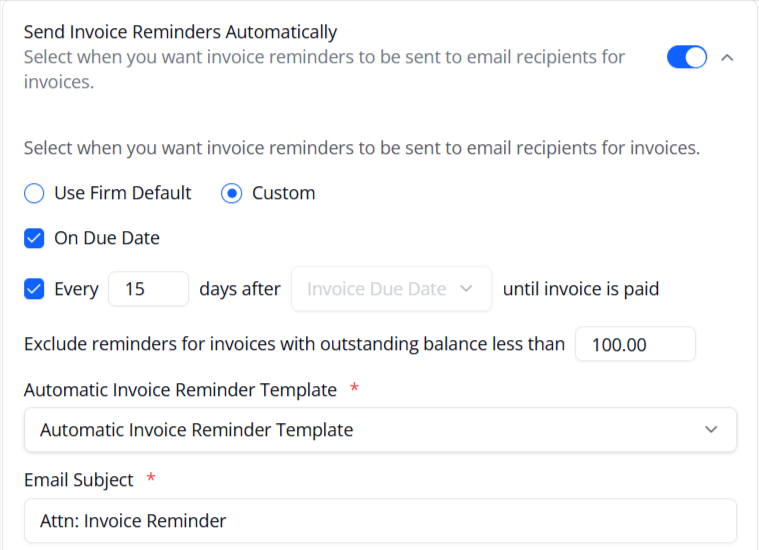
- Update settings without losing customizations — When you change firm-level settings, you decide: apply to active matters still using firm defaults, or override everything. Your custom and disabled matters won't be touched unless you choose to override.
- Use a ready-made template — A default Automatic Invoice Reminder template is included. Duplicate it or build your own.
- Let the system handle delivery — Reminders go out automatically based on your firm's time zone and repeat at your set interval until the invoice is paid.
- Track every reminder — Each reminder is logged in System Emails and Invoice Email History. View the email, download it as a PDF, or revoke the client's download link. The log clearly marks each one as an automated reminder.
- Filter and report on reminders — The Days Since Last Reminder and Last Reminder Date filters already in your invoice views now work with automatic reminders. Add the matching grid columns to any invoice view.
Keep in mind:
- Your clients receive a secure download link, not an attachment. Links expire after a configurable number of days (default: 45 days; range: 3–120 days). Revoke any link from System Emails.
- Invoices below your minimum balance threshold won't receive reminders. The default threshold is $0.00, so all unpaid invoices are included unless you set a higher amount.
- Reminder intervals must be between 7 and 365 days.
- Inactive matters receive your firm settings when applied, but reminders stay turned off on those matters. Enable them manually if needed.