Automatic invoice sending allows you to email invoices to clients the moment they are generated or approved, without any manual action. You can enable this at the firm level, control it per matter, and every sent email is logged for a full audit trail.
Watch a Video
Enable Automatic Invoice Sending at the Firm Level

- From the toolbar atop the screen, click your Profile Icon.
- From the drop-down, click Setup.
- From the Setup left navigation, click Firm Settings.
- From the tabs atop the Firm Settings screen, select Invoice Settings.
- In the Invoice Settings section, check the Send Invoices Automatically checkbox.
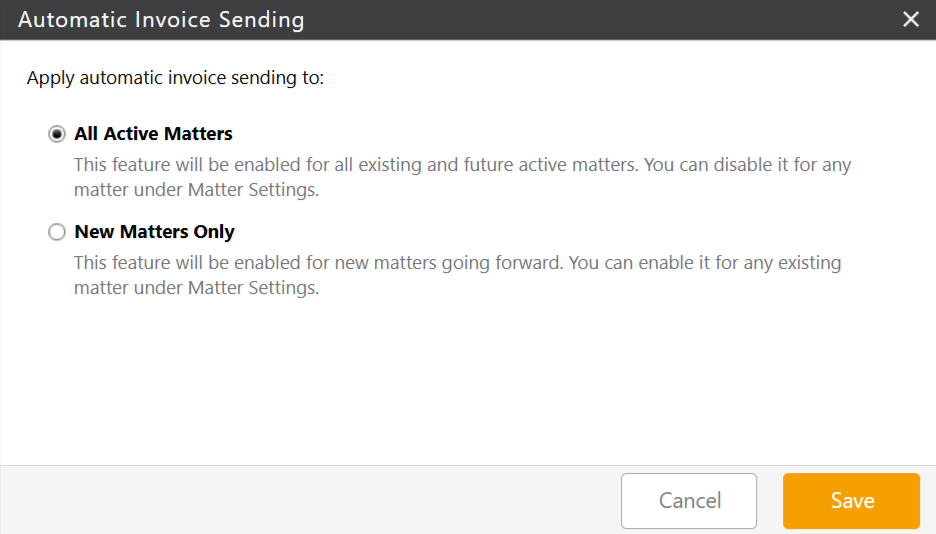
- When prompted, choose how to apply the setting:
- All Active Matters: Enables automatic sending for every matter in the firm immediately.
- New Matters Only: Applies the setting only to matters created going forward. Existing matters are not affected.
- Click Save.
Override Automatic Sending At Matter Level
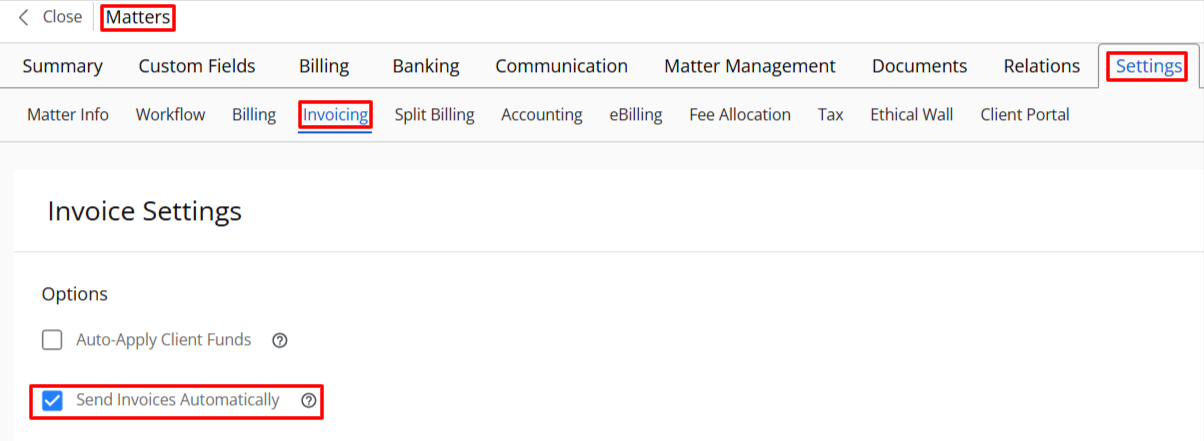
You can override the firm-level setting on individual matters. This is useful for matters that require manual review before the invoice is sent to the client. To change the automatic sending setting on a matter:
- From the left navigation panel, click Matters.
- On the Matters screen, double-click the matter for which you wish to change the settings.
- From the tabs on the Matter's details section, click Settings.
- From the tabs on the Settings section, click Invoicing.
- To automatically send invoices, check the box beside Send Invoices Automatically.
- Enable or disable the setting as needed:
- Checking the box: Turns on automatic sending for this matter, even if it was excluded at the firm level.
- Unchecking the box: Disables automatic sending so invoices on this matter must be sent manually.
- Click Save.
View Sent Invoice Emails
Every automatically sent invoice email is recorded in two places:
- System Emails (Communications): Shows the recipient, timestamp, and delivery status for every sent email. From here, you can view the email, download a copy, or revoke the download link.
- Invoice Email History: Accessible from within the invoice itself. Shows all sends associated with that invoice.
On invoice grids, an envelope icon indicates that the invoice has been emailed.
To view sent emails from System Emails:
- From the left navigation panel, go to Practice > Communications.
- From the Communications left navigation, select System Emails.
- Locate the invoice email entry.
- Click the entry to view it, download a copy, or revoke the download link.
To view sent emails from Invoice Email History:
- Open the relevant invoice.
- Select the Email History tab.
Revoking a download link will invalidate the link previously sent to the client. The invoice record itself is not affected. Links can only be revoked from System Emails.
Things to Know
- No new setup required. Automatic sending uses your existing recipient lists, invoice email templates, and subject-line settings.
- Permissions are unchanged. Any user who can currently send invoices manually can configure and use automatic sending.
- Download links, not attachments. Invoices are delivered as secure downloadable links. Links can be revoked from System Emails at any time.
- Envelope icon. An envelope icon appears next to any invoice that has been emailed, giving you an at-a-glance status in the invoice list.