Once your firm has been approved for text messaging, you are ready to send and receive text messages.
In addition to sending and receiving text messages, you can also use SMS to:
Watch a Video
Send an SMS
To send an SMS:
- From the left navigation panel, click Matters.
- On the Matters screen, double-click a matter and scroll down to its summary.
- From the tabs atop the summary section, click Communications.
- From the tabs atop the Communications screen, click Text Messages.
- The client, and matter relations with cell phone numbers provided will display in the Matter Contacts section.
- If a contact needed is not listed, make sure the contact is linked to this matter as either the client or a relation, and that a cell phone number is provided.
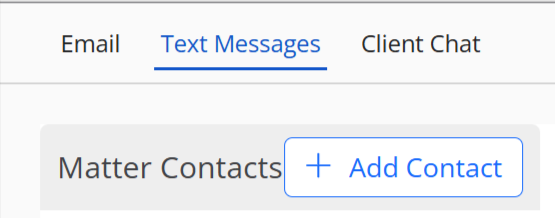
- If you have contacts listed, select the contact to whom you wish to send a text message.
- To the right, at the bottom of the SMS Messaging section, type your message and click Send.
- Your contact will receive a message with your firm name and the ability to opt in/out.
- The status of your contact's choice will display beside the contact's cell number:
- Opted- In: Your contact responded with START.
- Opted-Out: Your contact responded with STOP. You can no longer message this contact but all messages between you and the contact will display here.
- Pending: They have not chosen to opt in or out yet.
- If your contact has opted in, you can use the SMS Messaging section to carry on two-way messaging with your contact. Your conversation with the contact will also display here.
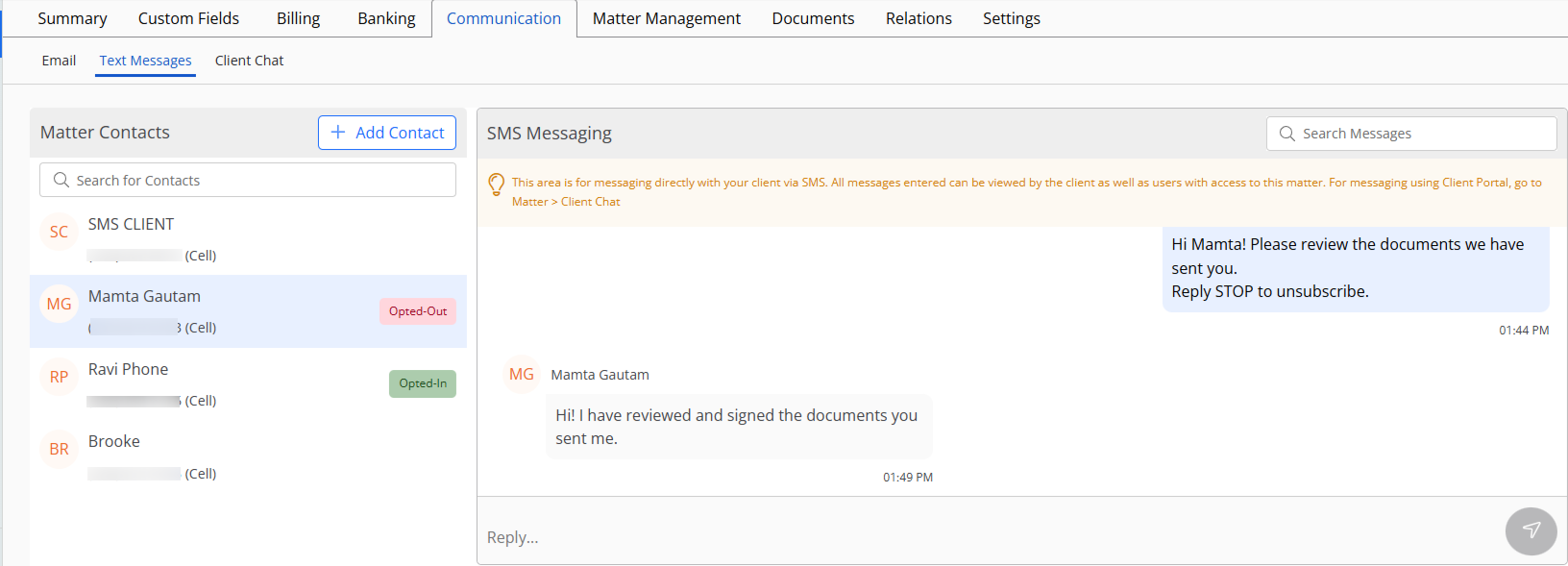
- To search for a particular conversation, in the Search Messages box at the top right, type in the key word.