Rocket Matter Classic Integration - Legal Case Management & Billing Software
Integrate Rocket Matter CRM with Rocket Matter Classic for case management and billing.
Rocket Matter CRM offers an easy-to-use integration with Rocket Matter Classic, a cloud-based Legal Case Management & Billing Software that integrates trust & business accounting, time tracking, billing, email & document management, and tasks & calendaring, in a single application.
For more information about subscribing to Rocket Matter, please visit www.rocketmatter.com
What the 1-Click Rocket Matter CRM > Rocket Matter integration offers:
- Creates Matters in Rocket Matter (Note: The primary contact in Rocket Matter CRM becomes the client)
- Creates Contacts in Rocket Matter
- Duplicate Checking of existing contacts in Rocket Matter to allow selection of existing contacts or creation of new contacts at the time of sync
- Rocket Matter CRM intake form data field mapping and syncing directly to Rocket Matter custom fields
- Rocket Matter CRM intake and sign-up documents will be synced directly into Rocket Matter documents
Creating a Matter in Rocket Matter
Creating a matter in Rocket Matter is a very simple process. Once you have an intake/lead record ready to convert from Rocket Matter CRM to Rocket Matter, all you need to do is press the Send to Rocket Matter button located in the Action Menu.
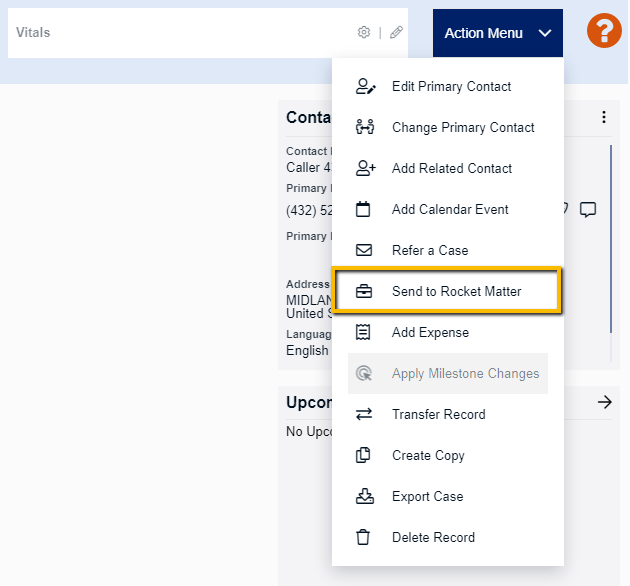
After pressing the Send To Rocket Matter a pop-up will open.
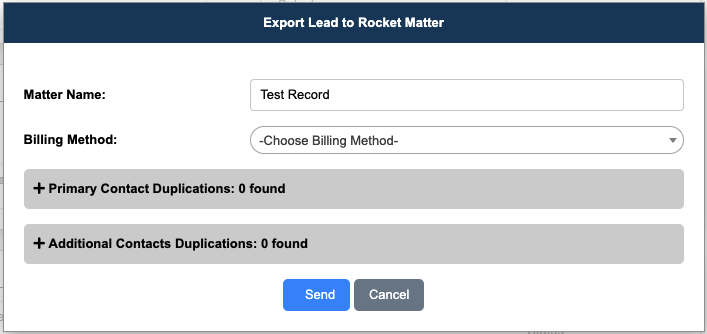
This pop-up will show you the Matter Name (this can be changed manually), the Billing Method that you want to set, and if there are any duplicate contacts in Rocket Matter already.
Duplicate Contact Checking
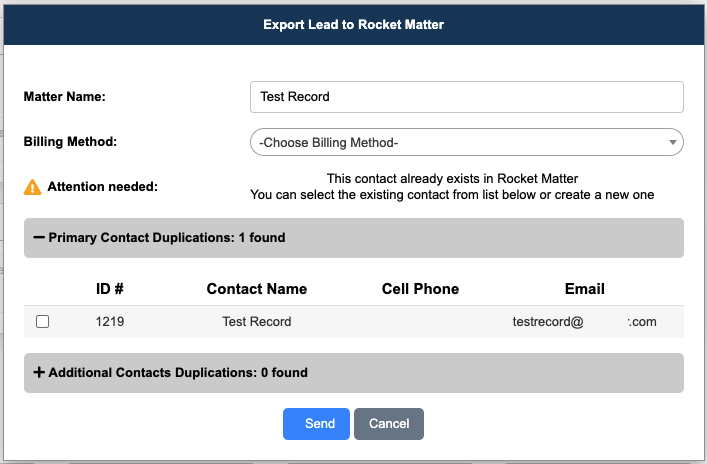
If there are any primary or additional duplicate contact(s) found they will be displayed in this pop-up:
- You have the option to convert to Rocket Matter using these existing contacts by pressing the checkbox next to the contact name
- You can ignore the duplicate contact by leaving the checkboxes blank/empty & pressing "Send"
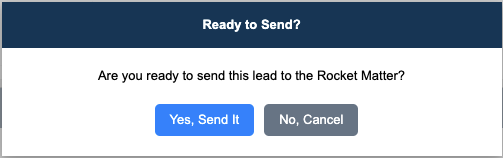
The next step is to verify that you want to send this lead to Rocket Matter.
Click Yes, Send It to send the record to Rocket Matter.
Successful Rocket Matter Export
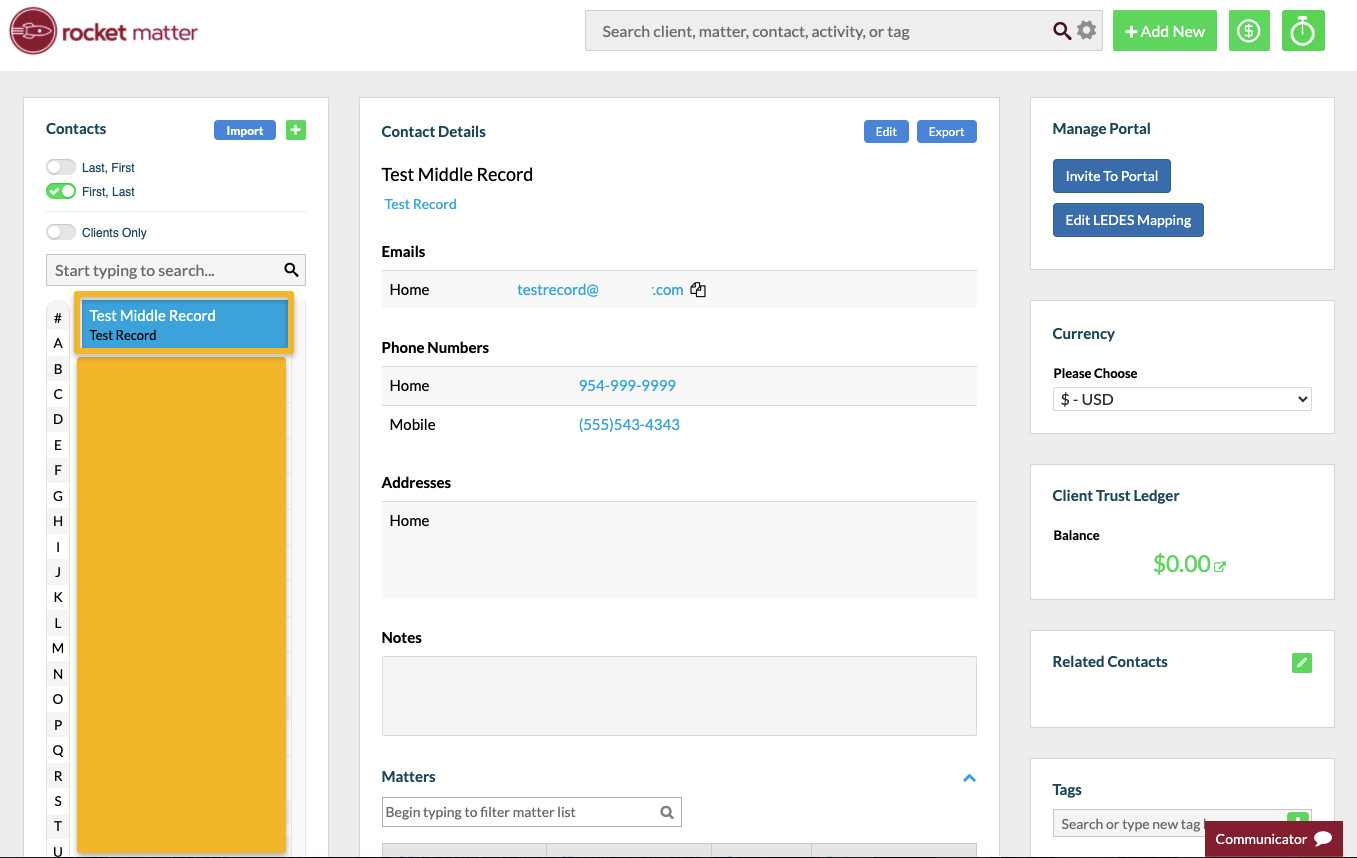
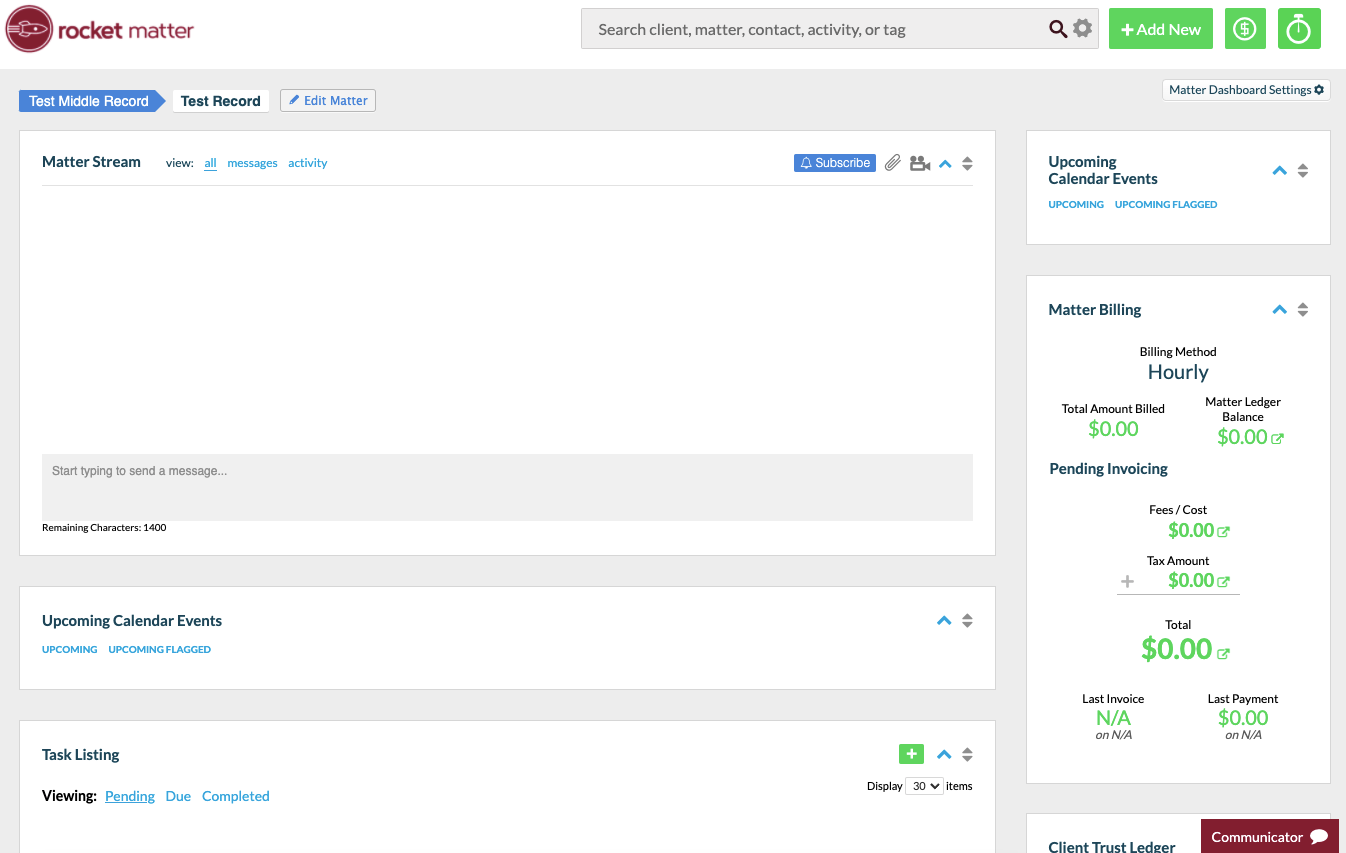
Once a record is successfully converted you will see a green success message in the bottom right corner of Rocket Matter CRM.

You will also see a new success log inside of our Audit Log section with the new Rocket Matter, Matter ID for that record.

Your Rocket Matter CRM intake has now been created as a new contact & Matter within Rocket Matter!
Sending Rocket Matter CRM Documents > Rocket Matter
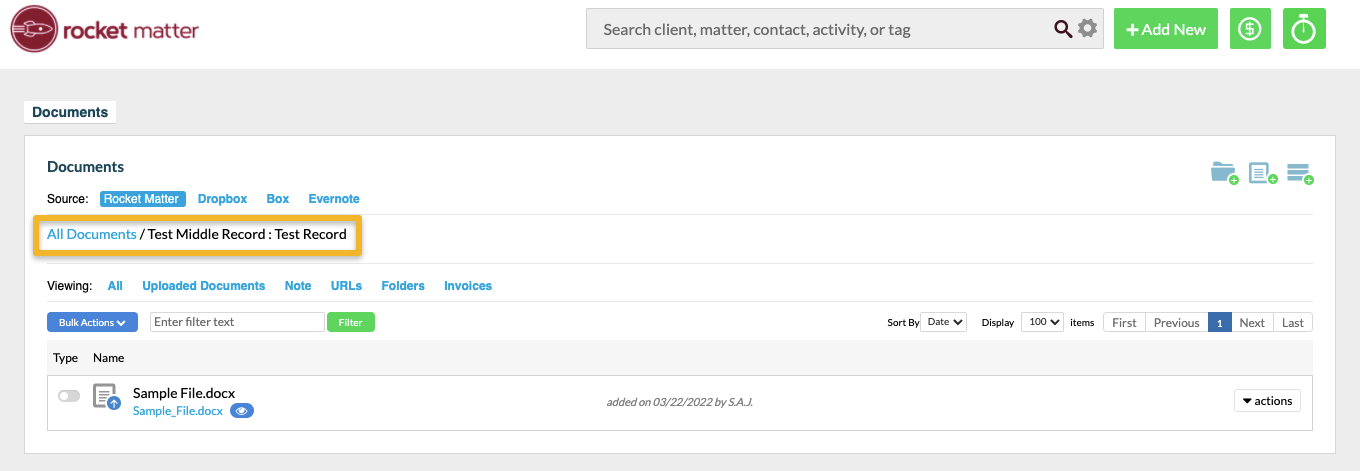
In our current integration, your Rocket Matter CRM Intake documents will be sent to Rocket Matter's documents section.
How to Disable Document Sending to Rocket Matter
If you would like to disable Documents from sending to Rocket Matter you can do so by going to:
Setup > Global Settings & Statuses > Cases Software > Send Documents > Turn the toggle OFF

How to Setup Custom Rocket Matter CRM to Rocket Matter Intake Fields
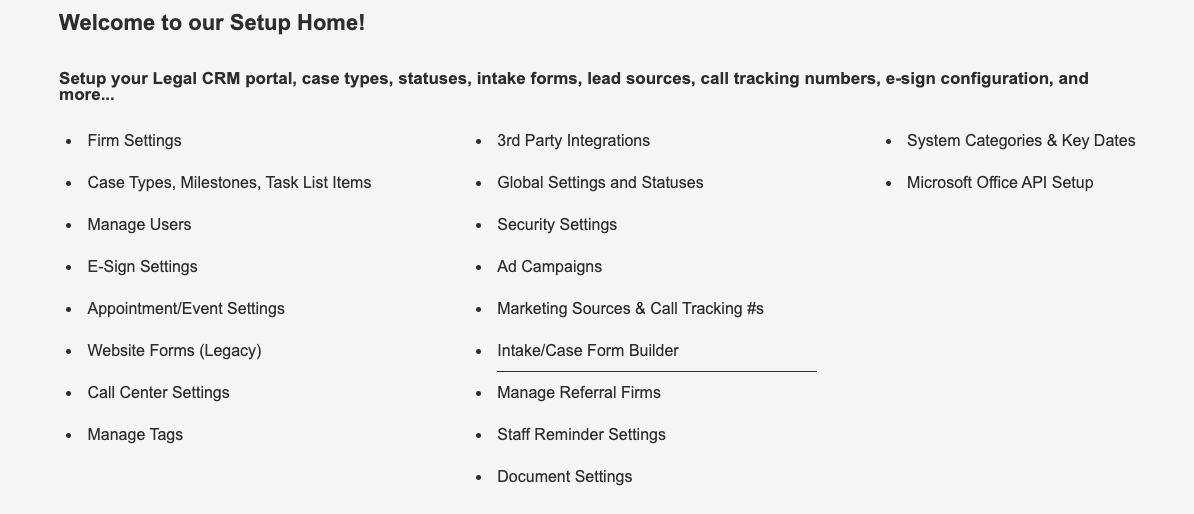
To pass custom field data into Rocket matter you first will need to create fields in your intake form.
Setup > Intake/Case Form Builder
Select your case type
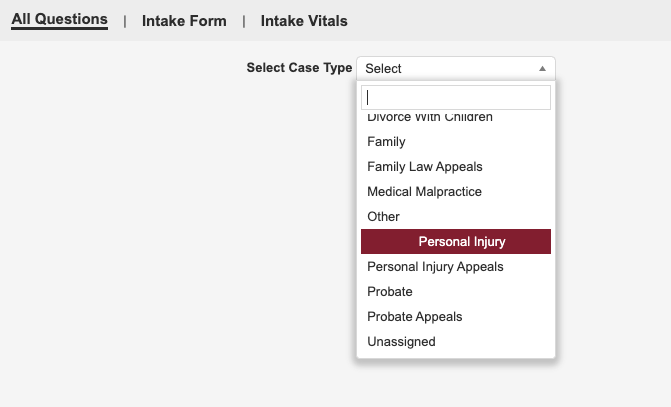
Scroll down to the bottom right-hand corner and you will see the following options:
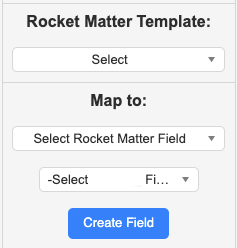
Rocket Matter Template:
Here is where you select the Rocket Matter Template where the RM fields that you want to pair in your Rocket Matter CRM intake form are.
Map to:
Here is where you select the Rocket Matter field that you want to create in Rocket Matter CRM.
After selecting your desired options, click Create Field and it will be added to your intake form!
Setting A Default Rocket Matter Template to A Case Type
Once you have created your custom fields and finalized your intake form you will have to set a Rocket Matter template to the case type.
Navigate to Setup > Case Types, Milestones, Task List Items
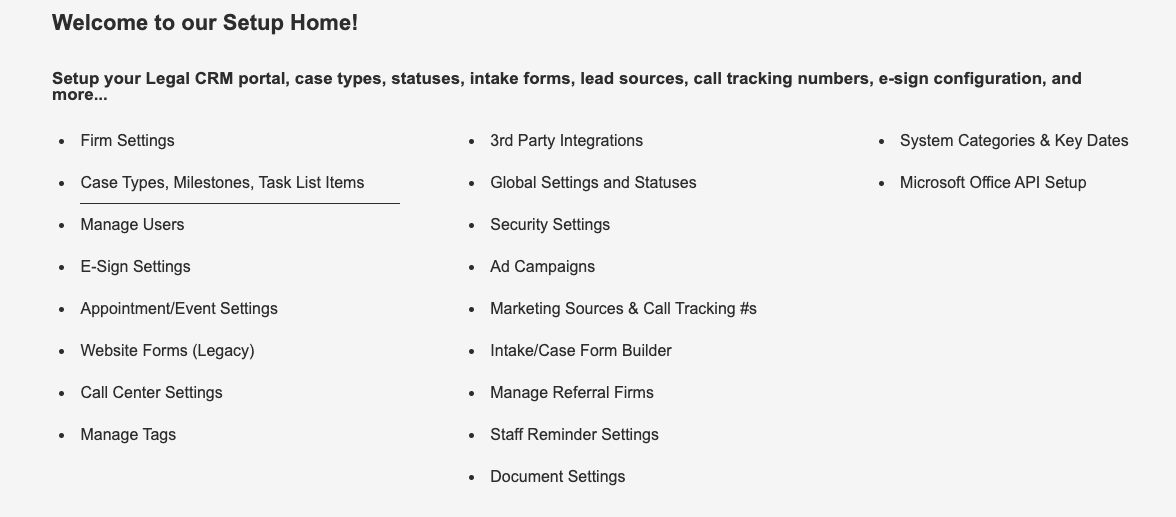
Click Edit next to the case type that you just worked on. A pop-up will open, please set a Rocket Matter Template in the drop-down and click Save Case Type.
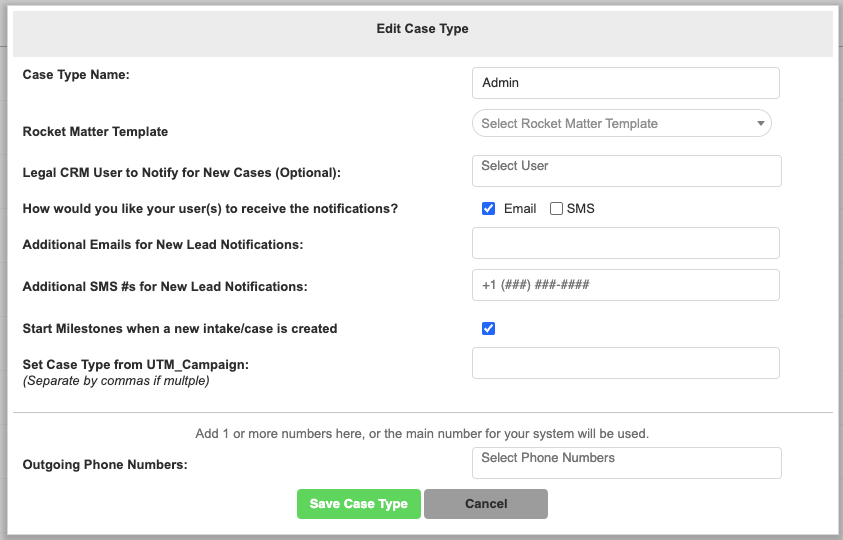
Done! Now when you convert a lead to Rocket Matter the custom fields will pass over to the template fields.