How to Reset Your Rocket Matter CRM Password
Reset a forgotten or expired Rocket Matter CRM password from the login screen.
If you’ve forgotten your Rocket Matter CRM password, don’t worry—resetting it is quick and easy. Follow the steps below to regain access to your account.
- First, open Google Chrome and navigate to your firm's Rocket Matter CRM portal URL.
Don’t remember the URL? Please reach out to your firm administrator for assistance. - On the login screen, click the Forgot my password option located directly beneath the LOGIN button.
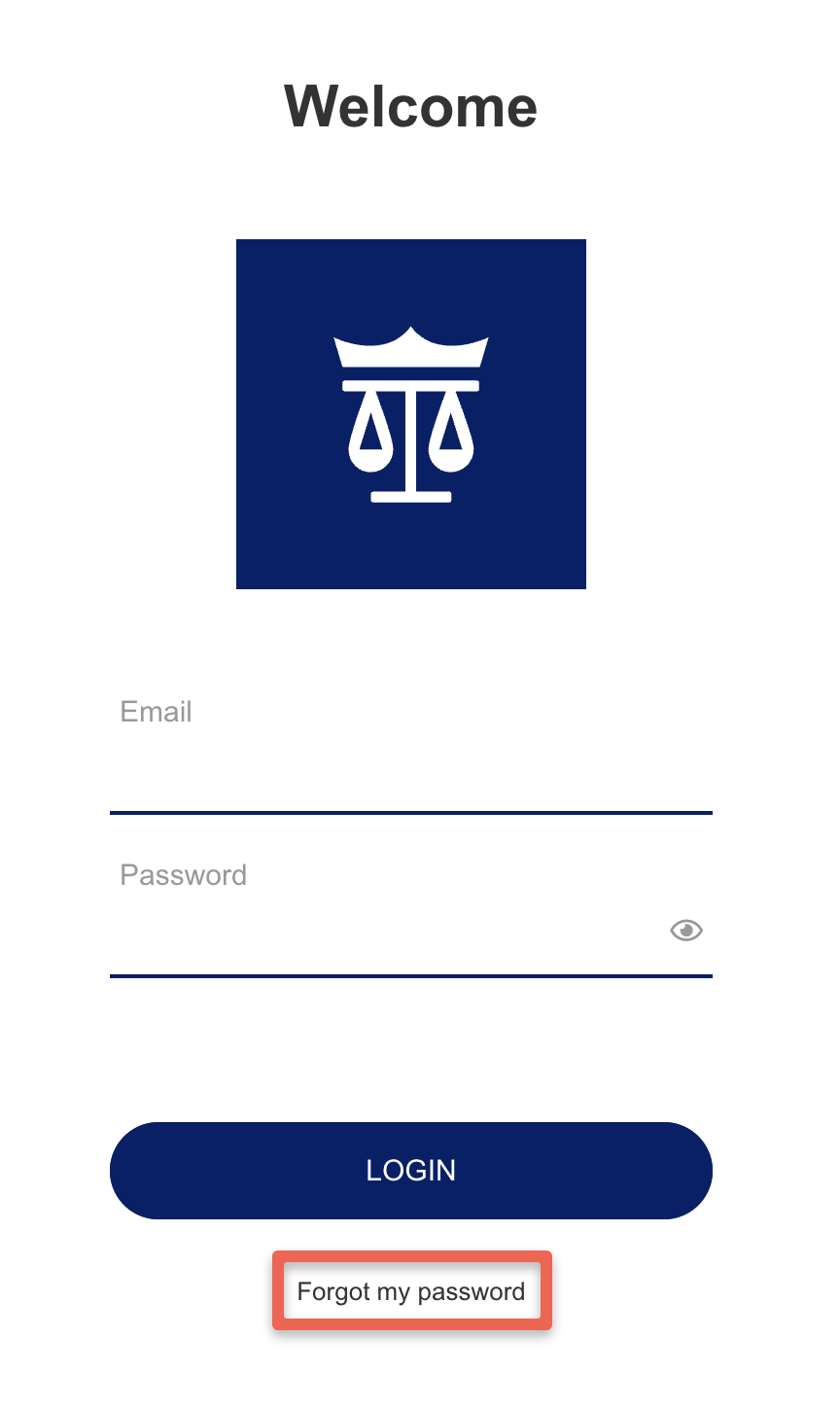
- In the password reset screen, enter the email address you use to log in to Rocket Matter CRM. Then, click SEND PASSWORD.
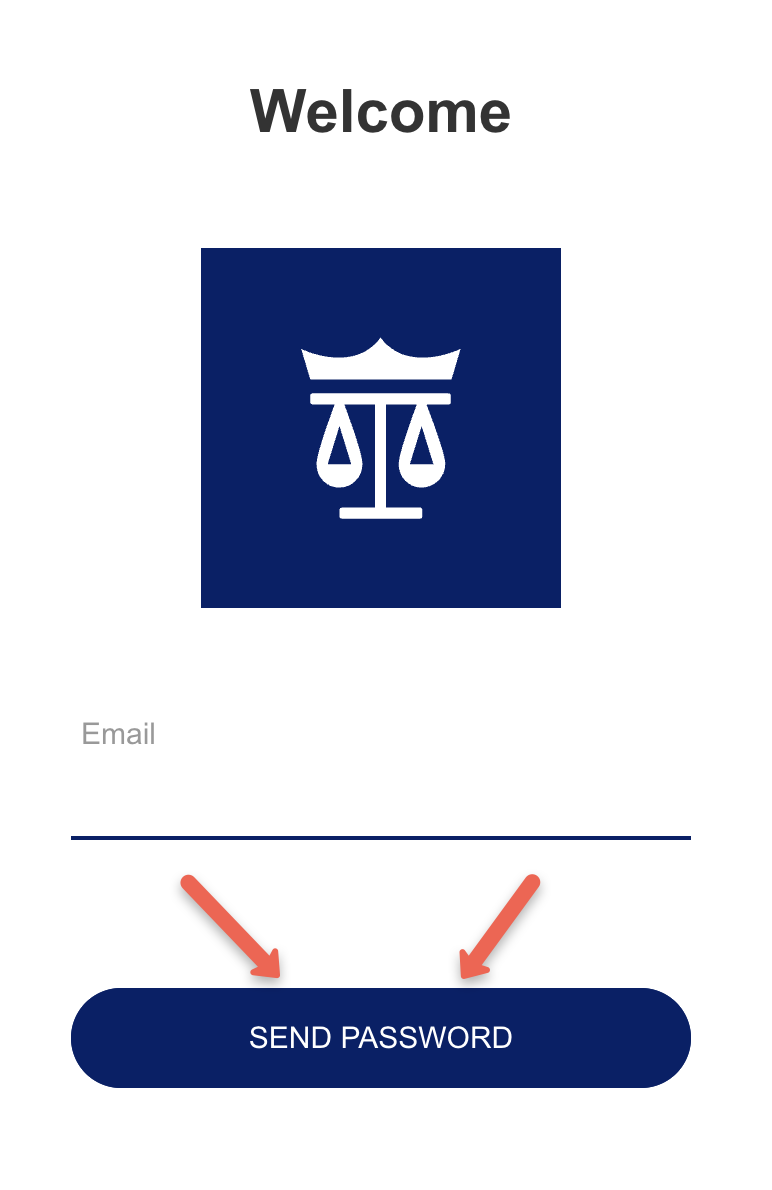
- Next, look for an email with the subject line “Password Reset Request”. Open the email and click the reset link inside, or copy and paste it into your browser.
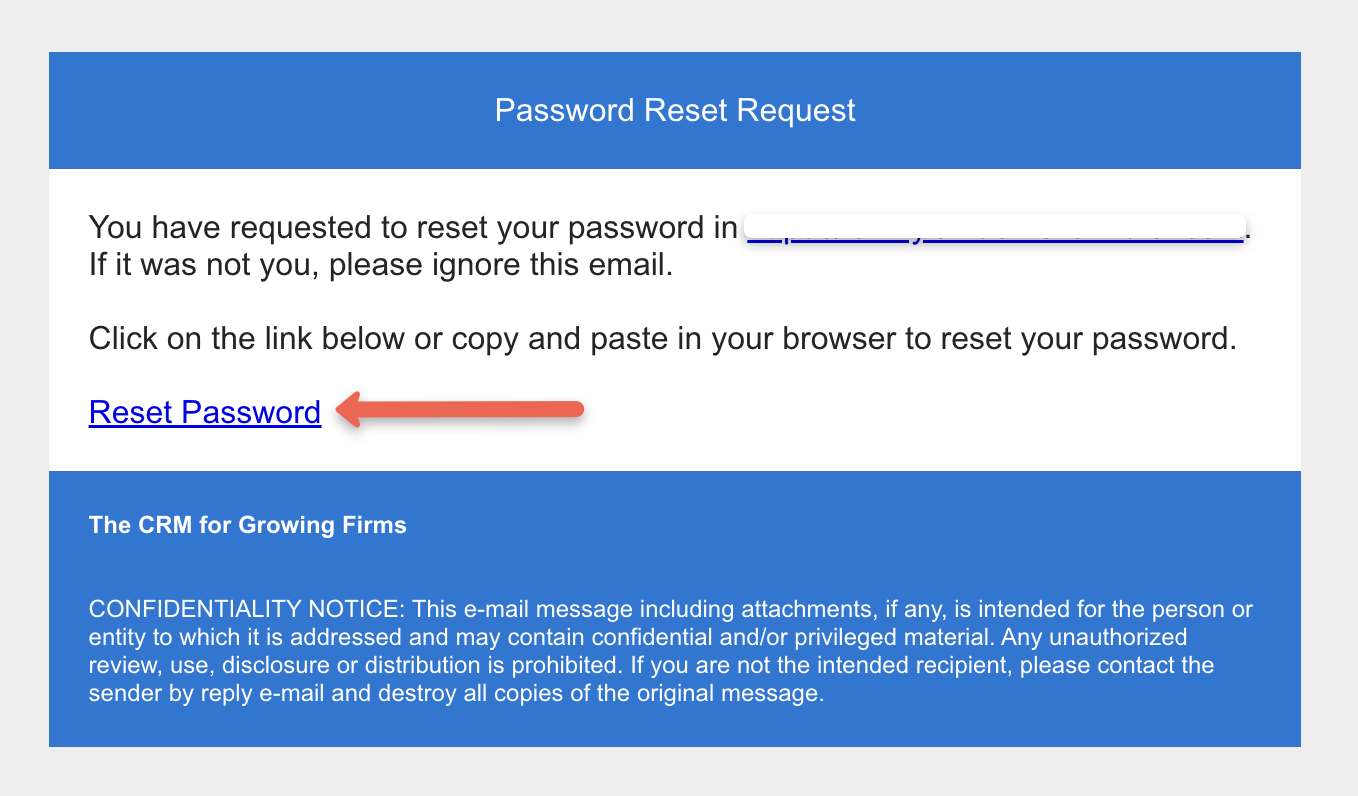
- You’ll be redirected to a screen where you can set a new password. Enter your desired password twice for confirmation, then click RESET PASSWORD.
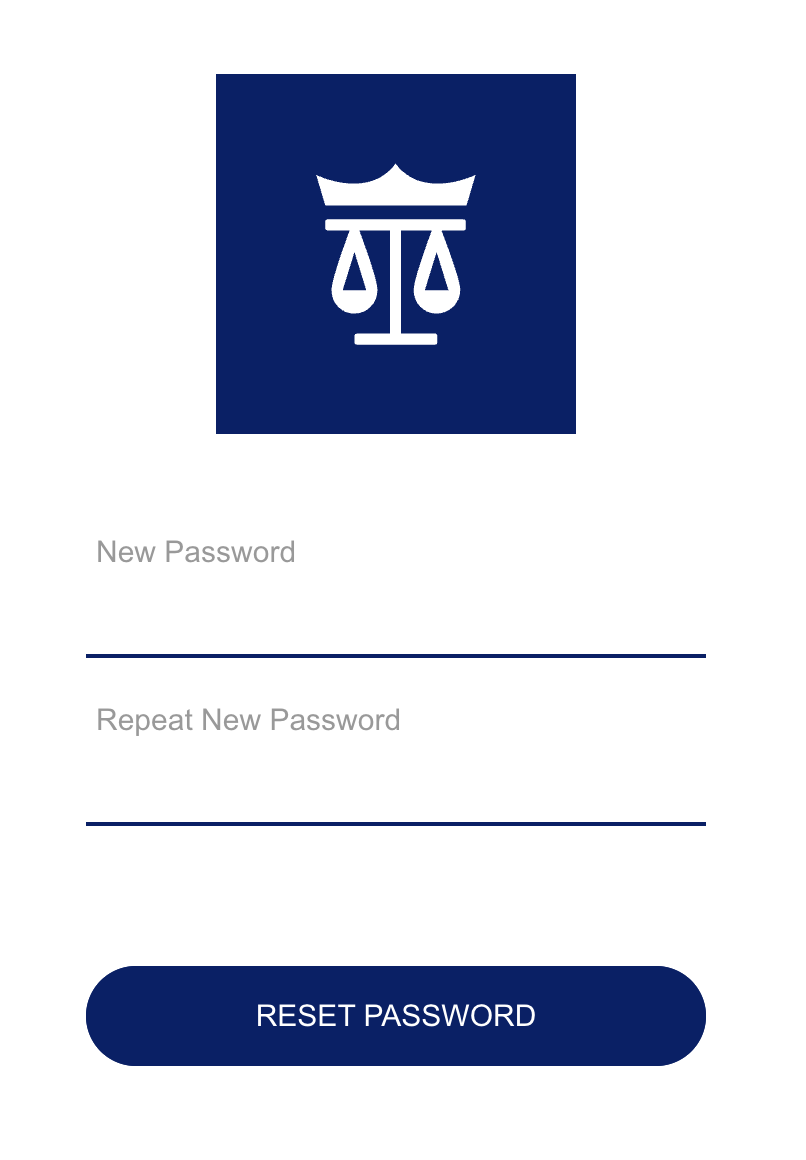
- After successfully resetting your password, you’ll see a confirmation message:
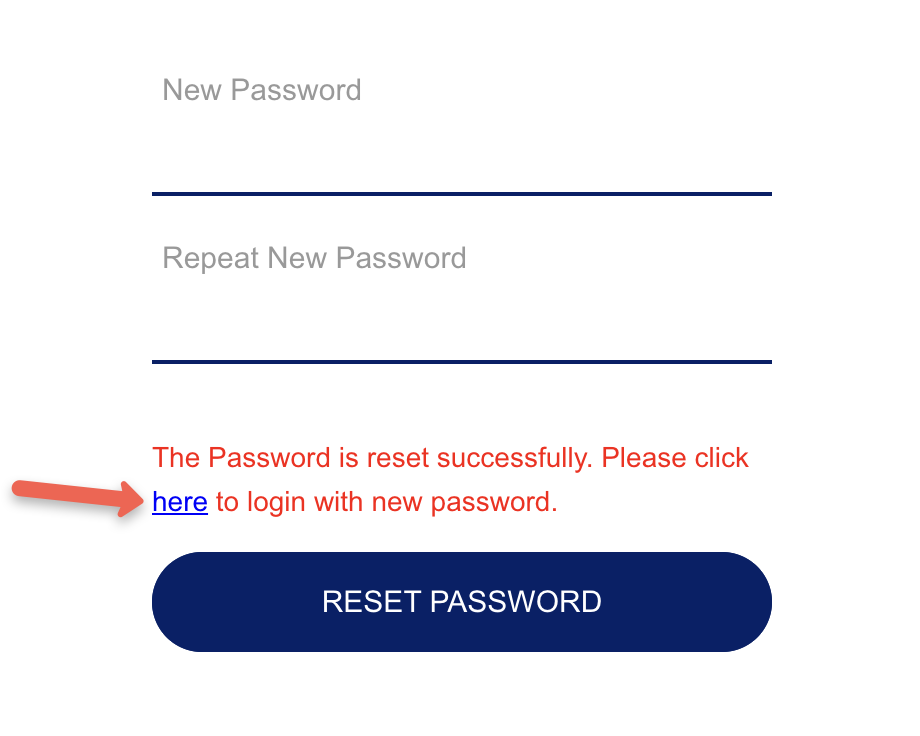
- Click the link in the message to return to the login screen.
- Once you're back on your portal's CRM Login screen, enter your email address and new password to log in.
That’s it! You’ve successfully reset your Rocket Matter CRM password.