Setting Up CallRail to Integrate with Rocket Matter CRM for Keyword Tracking from Google Analytics/Adwords
Connect CallRail to Rocket Matter CRM to automatically create leads and capture Google Ads keyword tracking data from inbound calls.
Rocket Matter CRM proudly supports our integration with CallRail call tracking software. This tutorial will also help familiarize you with how to set up and maintain the integrations for your firm’s workflow. The CallRail > Rocket Matter CRM integration is 1-way and it will create new leads/intakes in Rocket Matter CRM when a caller dials any of your CallRail call tracking phone numbers. If the lead/intake already exists in Rocket Matter CRM, then it will append the call information to the existing lead/intake based on Rocket Matter CRM duplicate checking rules.
At the time that the call is posted, any available UTM also known as keyword tracking data from Google Analytics/Adwords will automatically insert into Rocket Matter CRM when the lead/intake is created via the CallRail > Rocket Matter CRM integration.
If you have call recording enabled in CallRail for the CallRail company, then that will also insert into Rocket Matter CRM after the call is completed.
CallRail is a call tracking software that Rocket Matter CRM seamlessly integrates with to offer its clients improved functionality. Any trademarks, trade names, screenshots or company names referenced here are solely used for identification purposes and remain the property of their respective owners, other than Rocket Matter CRM.
What are the UTM/Keyword Tracking Parameters?
UTM is keyword tracking data from Google Analytics/Adwords and it is an acronym for Urchin Tracking Module. Urchin Tracking Module parameters are five variants of URL parameters used by marketers to track the effectiveness of online marketing campaigns across traffic sources and publishing media. They were introduced by Google Analytics' predecessor Urchin and, consequently, are supported out-of-the-box by Google Analytics.
Per Wikipedia.org, there are five different UTM parameters, which may be used in any order:[1]
| Parameter | Purpose | Examples |
| utm_source (required)[6] | Identifies which site sent the traffic, and is a required parameter. | utm_source=Google |
| utm_medium | Identifies what type of link was used, such as cost per click or email. | utm_medium=cpc |
| utm_campaign | Identifies a specific product promotion or strategic campaign. | utm_campaign=spring_sale |
| utm_term | Identifies search terms. | utm_term=running+shoes |
| utm_content | Identifies what specifically was clicked to bring the user to the site, such as a banner ad or a text link. It is often used for A/B testing and content-targeted ads. | utm_content=logolink or utm_content=textlink |
Setting Up CallRail Companies and Call Tracking Phone Numbers
For inbound call tracking, you will log in to CallRail to set up or edit existing call tracking number pools for each Ad Campaign.
First, you will select the company that you want to set up/maintain:
- Click the Account icon in the top left to open the My Account panel, then select Manage Account
- Click Create Company at the top of the page. A pop-up will appear to guide you through creating your company.
- Enter your company's name as well as the company's time zone (for reporting purposes). When you name each company, it is best practices dictate that you use the campaign name to keep this consistent across the systems in your tech stack.
After you set up a new company, you are ready to proceed to set up the phone number and integration to Rocket Matter CRM.
To add a new number in CallRail
- On the left-side menu in CallRail, you will click the + icon to add a new number.
- Click on Tracking > Phone Number.
- Choose the company where you'd like to add your new tracking number. The new number wizard will appear on your screen. Then, you will determine if you will use the number online or offline.
Integrating CallRail Companies and Call Tracking Phone Numbers with Rocket Matter CRM
If your CallRail phone numbers and companies are ready, then you can now integrate them with Rocket Matter CRM. You will need to set up a webhook in CallRail for both Pre-Call and Post-Call per the following instructions:
- Left-click on the Settings link at the top-right of your CallRail menu bar. This will open the CallRail Integrations menu for this company > phone number pool.
- Scroll down and click on the Webhooks integration tile to set up a webhook:
After that is complete, use the following steps to set up the webhook configuration for pre-call and post-call. This is required to integrate each company/number pool with Rocket Matter CRM. Without this, the two systems cannot communicate.
For the Pre-Call webhook, you will add the following webhook URL that includes the necessary parameters for Rocket Matter CRM > CallRail, as explained below.
⚠ Please note that when creating webhooks, you must have a ? symbol after your Site URL, before the parameters. Also, you must have an & symbol between each parameter to work properly. Double-check your URL parameters if the integration is not working. Also, do not insert any square brackets [ ]in your real webhook URLs since these are for explanation purposes only.
Example “Pre-Call” webhook URL:
https://yourfirmname.yourportaldomain.com/api-legalcrmapp.aspx?Key=[Your Rocket Matter CRM Secret Key]&operation=precallrail&CaseType=[Case type]
- Rocket Matter CRM API URL: You will add your Rocket Matter CRM site URL with the API filename (legalcrm-parsing.aspx) on the end of it. Example: https://legalcrm.myportaldomain.com/api-legalcrmapp.aspx? Note: this is not your real URL
- Secret Rocket Matter CRM API Key – this is the secret API key for your Rocket Matter CRM system. ⚠ Only share this secret key with vendors that you actively do business with. Example: Key= ABCDE123456A123ABC1A1B2C3D4EFG Note: this is not your real secret key. Go to “Setup” > “Third-Party Integrations” in Rocket Matter CRM for the real one
- Operation – set this to “precallrail” always since this tells the Rocket Matter CRM API that it is a new call to be processed
- CaseType – this should always be set to the “Rocket Matter CRM Case Type Name” or may be omitted from the webhook URL if you would like the leads to create as the default “Unassigned” case type.
Next, to add the Post-Call webhook for after the call is completed, you will add the following webhook URL that includes the necessary parameters for Rocket Matter CRM > CallRail, as explained below. This is necessary because CallRail may post some additional caller information after the call is completed. The additional caller information could include the call duration or a call recording if you have that feature enabled in CallRail.
Example “Post-Call” webhook URL:
https://yourfirmname.yourportaldomain.com/api-legalcrmapp.aspx?Key=[Your Rocket Matter CRM Secret Key]&operation=postcallrail
- Rocket Matter CRM API URL: You will add your Rocket Matter CRM site URL with the API filename on the end of it. Example: https://lrtraining.myportaldomain.com/api-legalcrmapp.aspx? Note: this is not your real URL
- Secret Rocket Matter CRM API Key – this is the secret API key for your Rocket Matter CRM system. ⚠ Only share this secret key with vendors that you actively do business with. Example: Key= ABCDE123456A123ABC1A1B2C3D4EFG Note: this is not your real secret key. Go to “Setup” > “Third-Party Integrations” in Rocket Matter CRM for the real one
- Operation – set this to “postcallrail” always since this tells the Rocket Matter CRM API that the new call is complete and it is to be processed to completion
How the Marketing Source is Set in Rocket Matter CRM from CallRail
The objective of Rocket Matter CRM is to accurately determine the marketing source and manage various call scenarios that may arise based on how different firms utilize the CallRail system.
- If "utm_source" exists in the CallRail data, then Rocket Matter CRM will use it as the Marketing Source.
- Rocket Matter CRM will use Callrail's "call source" parameter to set the value for the Marketing Source if "utm_source" is not included in the Callrail data.
- Rocket Matter CRM will use CallRail's "formatted_tracking_source" for the Marketing Source if the "call source" parameter is empty or equal to CallRail's "keyword" parameter (the name of a dynamic tracking pool).
- If all else fails, Rocket Matter CRM will use CallRail's "source_name" for the Marketing Source if the "formatted_tracking_source" is empty.
Call Rail Call Flows
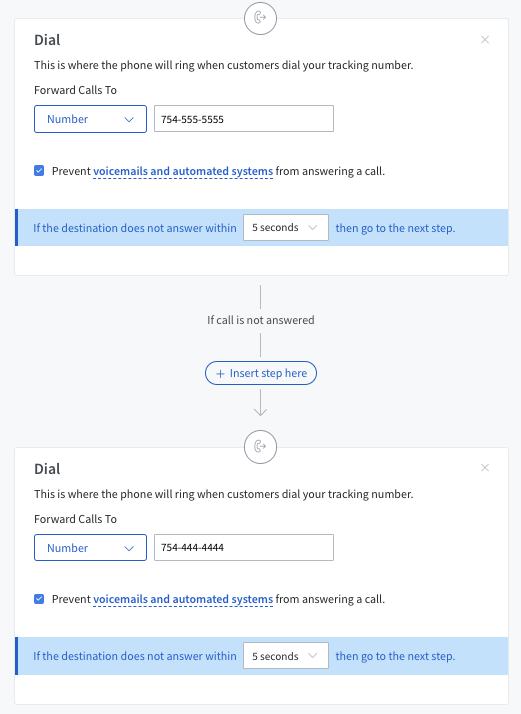
If you or your client are using advanced Call Rail forwarding please be sure that the Call Flows are tested before going live. To avoid issues we highly recommend to only have the simple call forwarding setup.
If the vendor has a low duration Call Flow ring time it will cause abandon and missed calls.
Also, is not recommended to use a call flow that has a last step which forwards calls away from the Rocket Matter CRM tracking numbers. This will cause issues for your dialer agents.
The Call Rail call flows can be setup to work in a step by step workflow, causing the caller to be dropped from the Rocket Matter CRM Dialer when the next step is automatically triggered.
Advanced Call Rail Integration using Zapier
Need more customization? Using Zapier you can connect with Call Rails direct native integration for a more user defined lead creation process. Just like how you can use Zapier to post to Rocket Matter CRM's open API from your web forms / etc, you can also connect to Call Rail and make a custom webhook to your Rocket Matter CRM using Call Rails data points directly.
Benefits such as:
- Posting Call Rail voice transcriptions to notes
- Custom mapping their lead source based on a different Call Rail data point
- Having a direct Call Rail link to their call recording
- and more!
Setup:
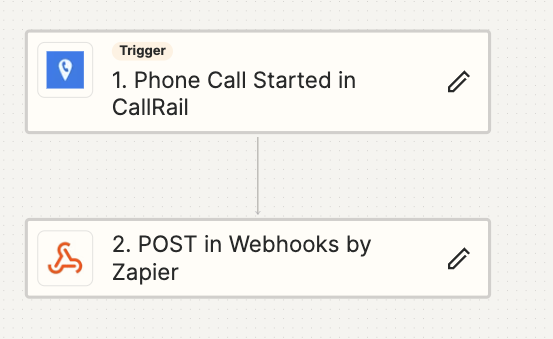
To replace our default integration using Zapier you will need to create 2 Zaps.
- One Zap for when the call is started.
- One Zap for when the call is completed.
How to create a Zap:
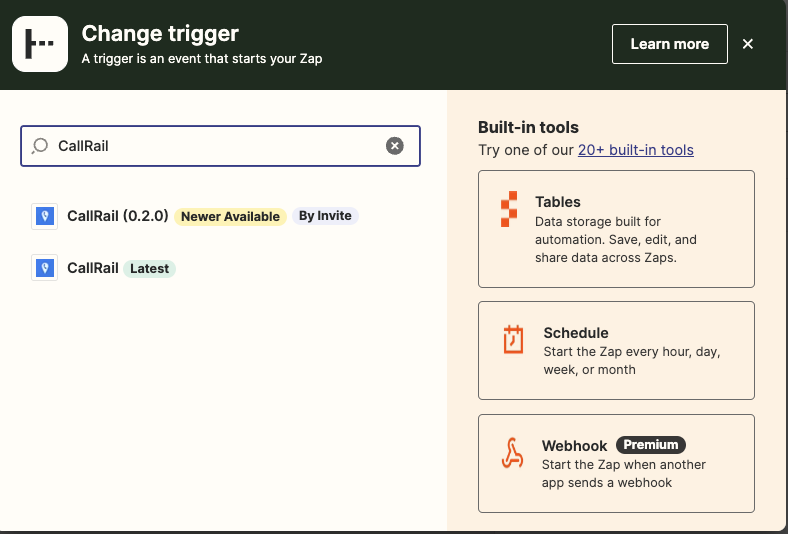
- Inside of Zapier create a new Zap and search for CallRail as the trigger:
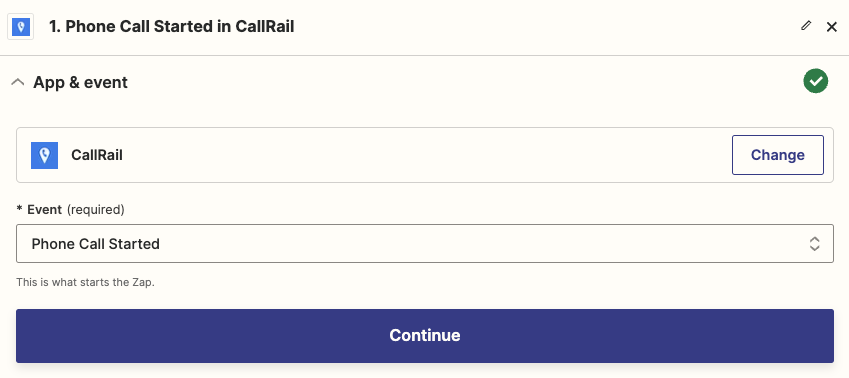
- Next choose the event "Phone Call Started in CallRail" or "and press Continue:
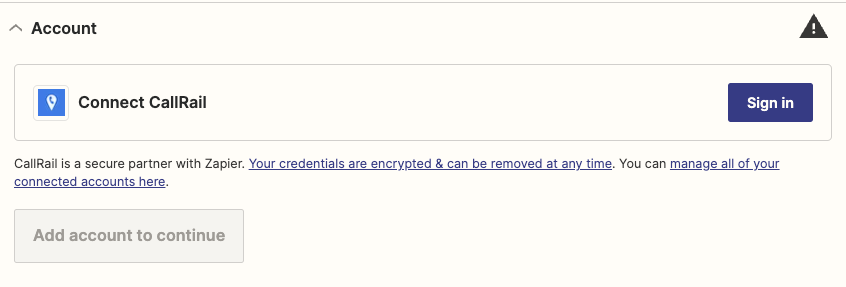
- Connect your CallRail account by Signing in:
- Once signed in, select your account and company:
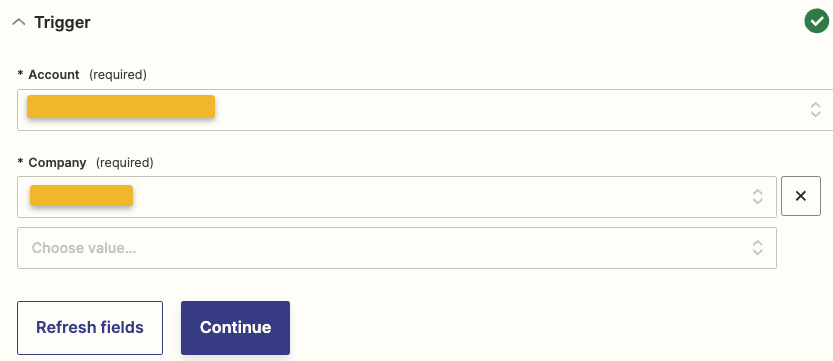
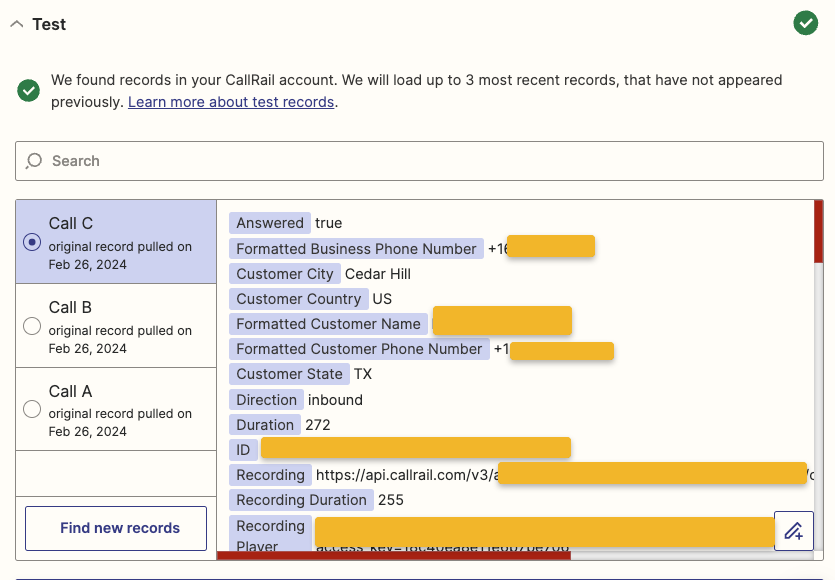
- Next you will need to fetch some data to setup the integration:
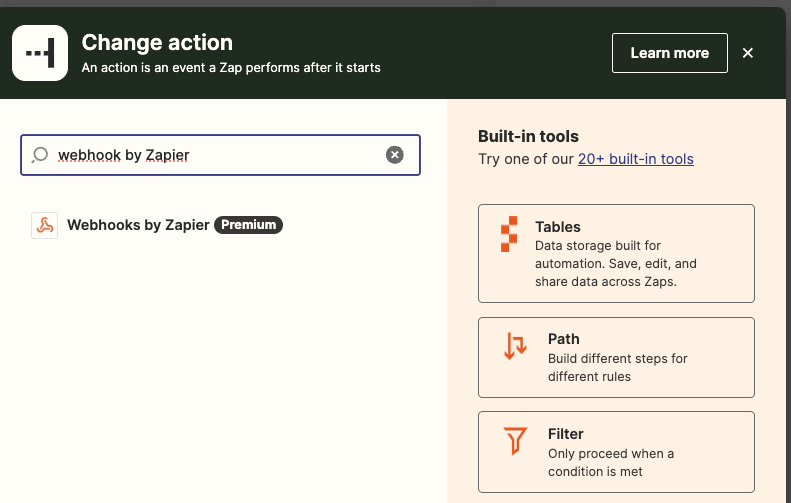
- After you selected a test record you will need create your Zap's action. Search for "Webhooks by Zapier" and press continue.
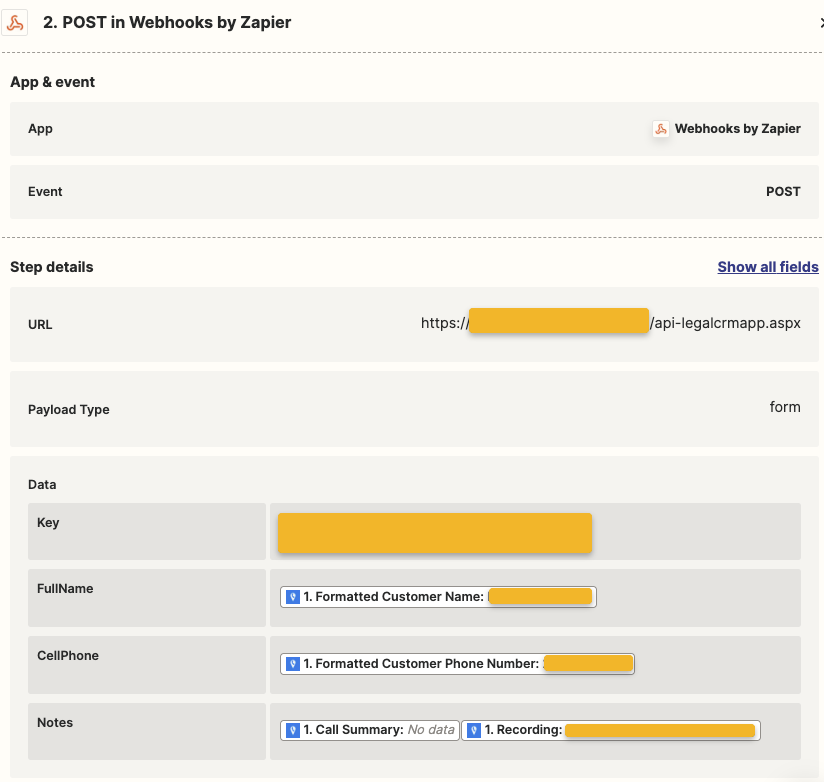
- In the webhook settings this is where you will add your Rocket Matter CRM Secret API Key and other required parameters to create leads/intakes in the CRM.
Required parameters:
- Key: (You can find this in Setup > 3rd Party Integrations > API Key)
- CaseType: (This must match the case types that are configured into CRM)
- LeadProvider: (Ex: Google Note: This is the Marketing Source, e.g. Google, Website Name, Facebook, etc)
- FullName: (or FirstName & LastName)
Mapping your additional data points (fields)
You now can add any other Call Rail data points that are supported in the API guide. On the left enter in the Rocket Matter CRM Parameter name and on the right click into the field to grab data points from your Call Rail data points.
Example:
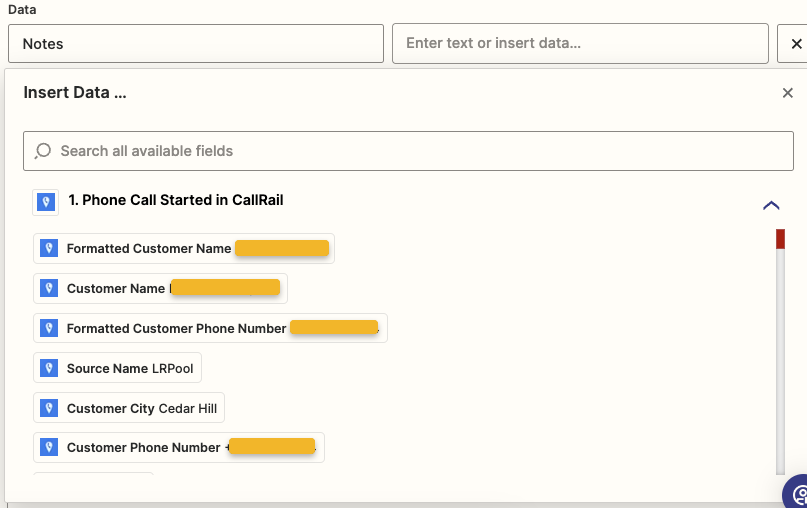
Make sure that the "Payload Type is selected as "Form since it must be encoded as form data.
When finished adding the Rocket Matter CRM API parameters, you will press the blue Done Editing button at the bottom of the screen. We recommend leaving the remaining settings inside of the Zap in place if you are unfamiliar with Zapier.
Finally, there are a couple of important steps left to get this Zap going. You will need to “Activate the Zap inside of Zapier after thoroughly testing the Zap before going livewith it in a production environment.
To finalize the CallRail to Rocket Matter CRM advanced integration you will need to follow the same steps above for second Zap using CallRail's "Phone Call Completed in CallRail" Trigger.
Please be aware that Rocket Matter CRM duplicate checking rules will not allow you to recreate test submissions with the same phone number/email address and will reject them as duplicates. Thus, when you are testing,use unique test phone numbers/email address data for each testfor optimal results!
Third-Party Integration Note
CallRail is a third-party application and is cloud-based call tracking software. Rocket Matter CRM is a legal case management software CRM that integrates with CallRail.
For any support needs regarding CallRail, please contact CallRail support directly since Rocket Matter CRM may assist with the integration process but they cannot support the CallRail service.