How to Clear Local Storage in Google Chrome
Clear Chrome’s local storage using Developer Tools to fix loading or caching issues in Rocket Matter CRM.
Clearing your browser’s local storage can help resolve certain loading or caching issues in Rocket Matter CRM. Follow the steps below to clear local storage in Google Chrome.
Step 1: Open Chrome Developer Tools
First, open a Rocket Matter CRM tab or window, then:
Windows: Press F12 on your keyboard while logged into Rocket Matter CRM.
Mac: Click the 3 dots to the right of the URL bar in Chrome, then go to More Tools > Developer Tools.
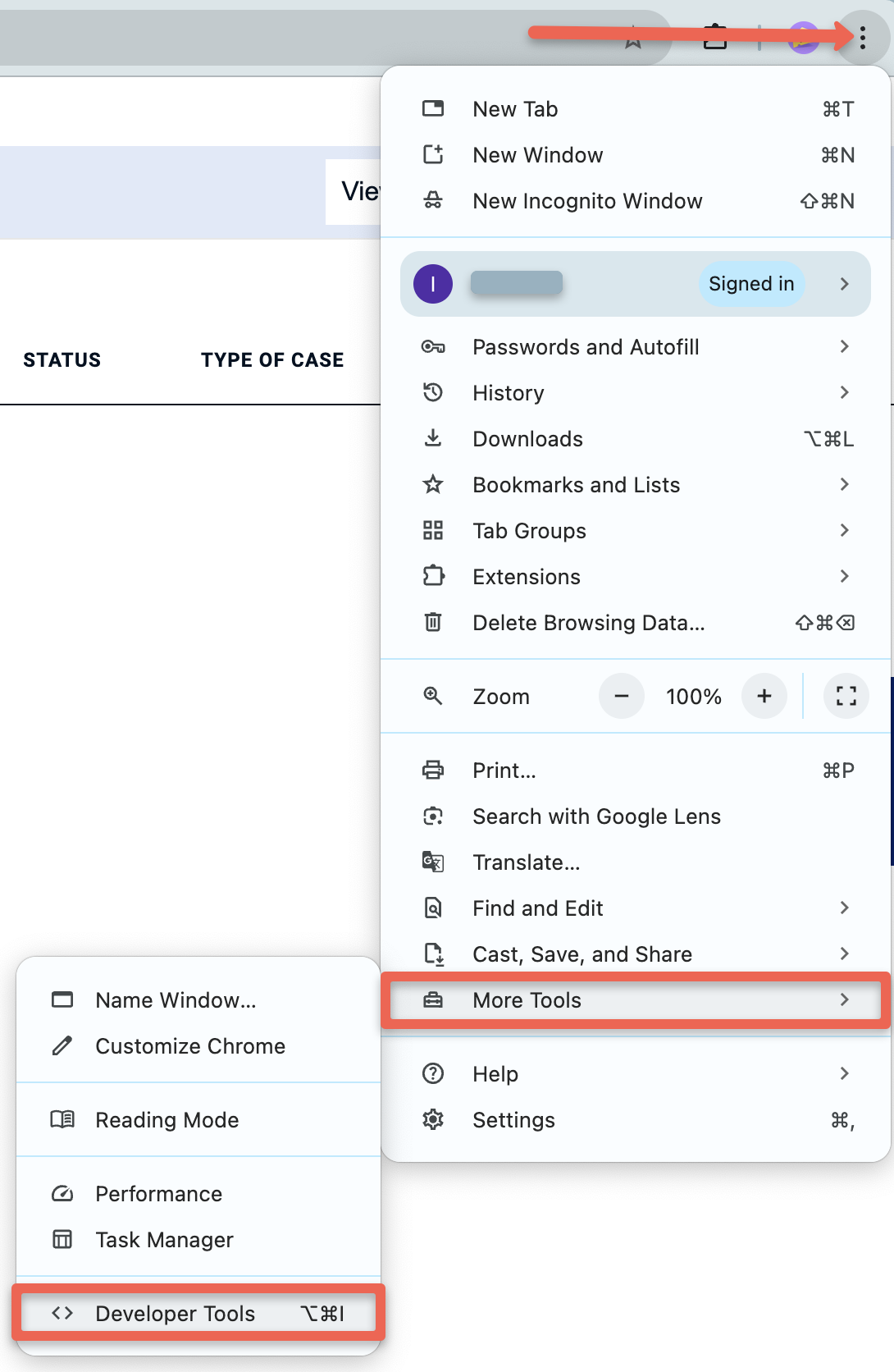
This will bring up the Chrome Developer Tools Console screen.
Step 2: Navigate to the Storage Settings
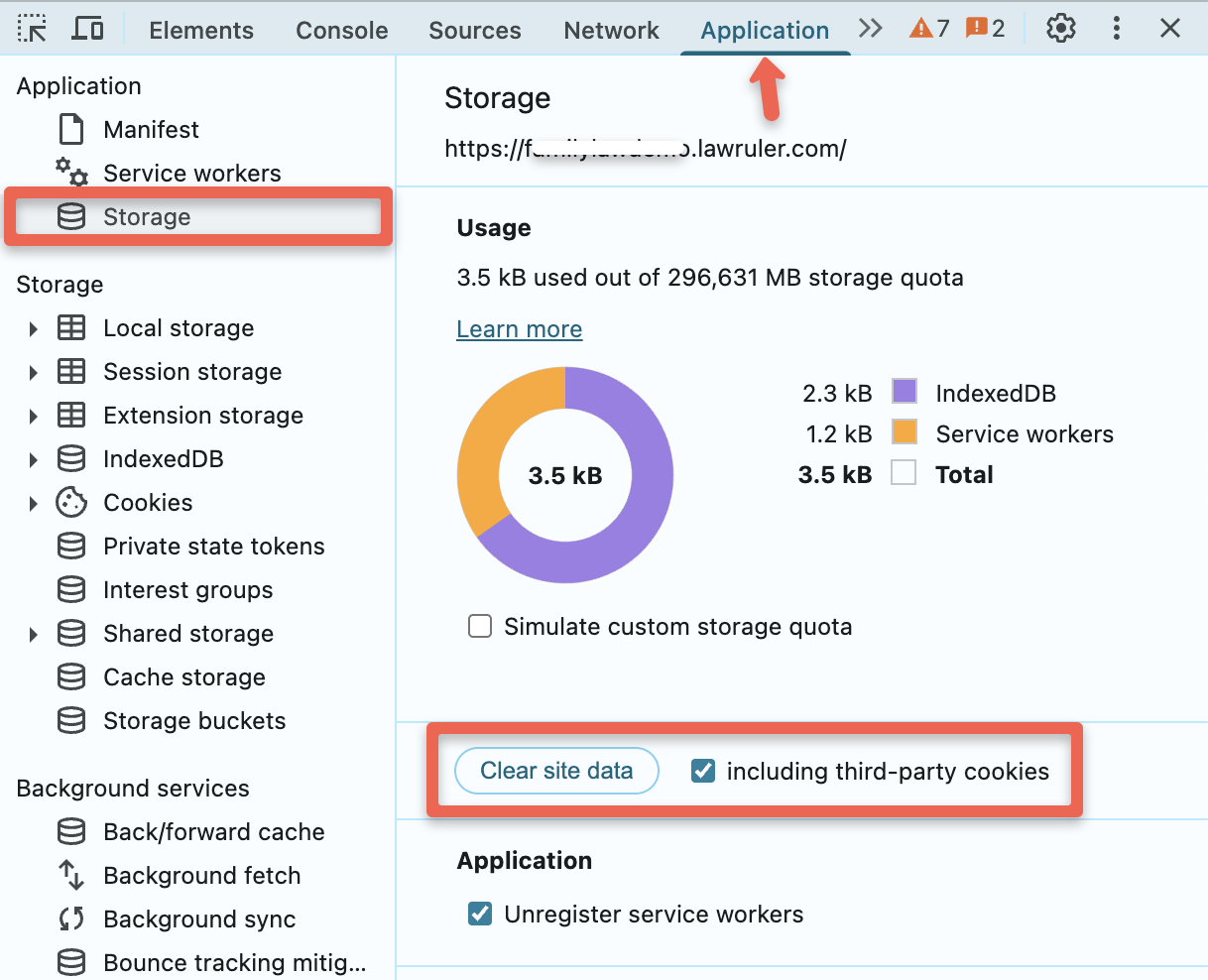
In the Developer Tools window, select the Application tab from the top menu.
In the left-hand sidebar, click on Storage. Then, click the Clear site data button (this will remove local storage and other stored data for the site).
Refer to the following screenshot for reference:
Step 3: Close Developer Tools and Restart Chrome
Close the Chrome Developer Tools window.
Then, you must restart the Google Chrome browser entirely. Please close all of your open tabs and windows, and then reopen the browser.
Once Chrome is restarted, any cached data from Rocket Matter CRM will be cleared, and you can log back in with a fresh session.