Setting Up Sync of Your Calendar and Email (Google, Microsoft Outlook/Exchange, Apple, Yahoo, and More)
Connect your Google, Outlook, Exchange, Apple, or Yahoo account to sync email and calendar events with the CRM.
Rocket Matter CRM proudly supports our highly secure calendar and email integration with Microsoft Office 365, Hotmail, Outlook Live, Microsoft Exchange, Google Calendar/Gmail, Apple Mail, Yahoo, and other compatible SMTP email systems.


How to Sync Your Calendar and Email Account with Rocket Matter CRM
Average time to implement this solution: Less than 5 minutes
Level of technical expertise needed: None
If you want to use the Rocket Matter CRM email and calendar sync, then you must pair your account.
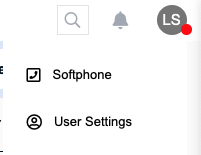
- To get started, on the top-right corner of the screen, click on your user initials to open the user menu, then click on the User Settings option.
- Inside of the User Settings screen, scroll down to the section labeled Sync Your Calendar and Email Account with Rocket Matter CRM > Click on Add New Account. After clicking Add New Account the screen below will pop up and you will choose your sync option. Note: when typing in your email, click the arrow icon on the right of the text box to continue. Pressing the Enter key will not submit your email.
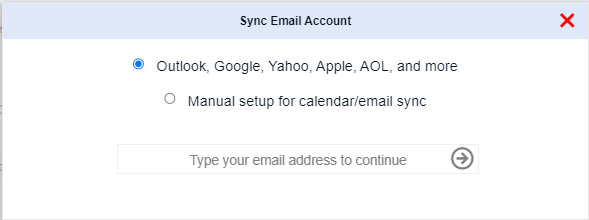
- Next, you will choose the provider you wish to integrate with. Please note, that the system will attempt to match you with the provider it believes you have:
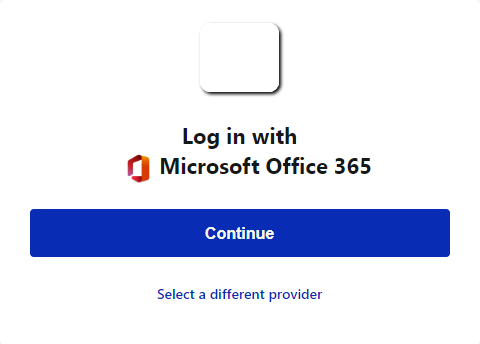
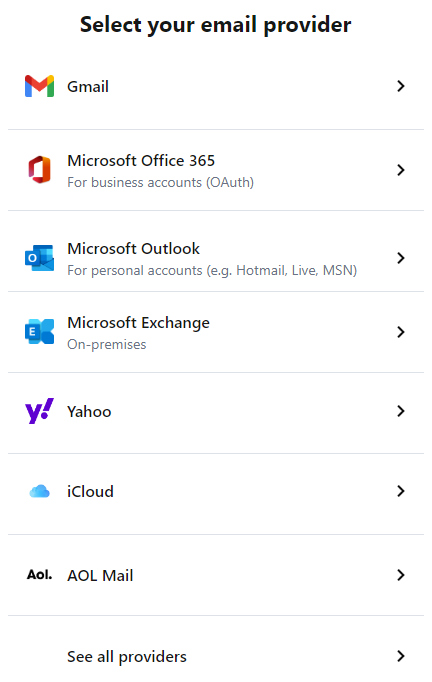
Note: Our Office and Exchange sync via Nylas does not support group/organization/shared calendars.
If you need support for shared calendars, then you must choose the option for "Manual setup for calendar/email sync".
> For manual setup, please review the Office 365/Outlook manual setup guide.
Syncing Office 365, Exchange, Outlook Live, and Hotmail
- For Office 365/Exchange/Hotmail, enter your sign-in email or phone number:
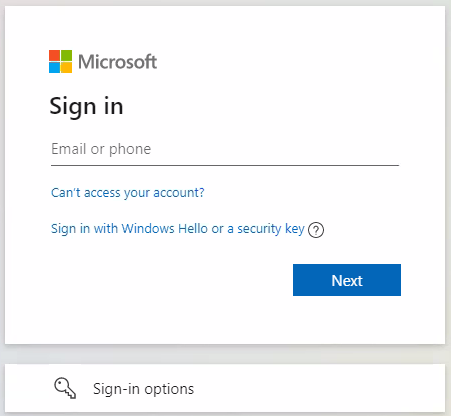
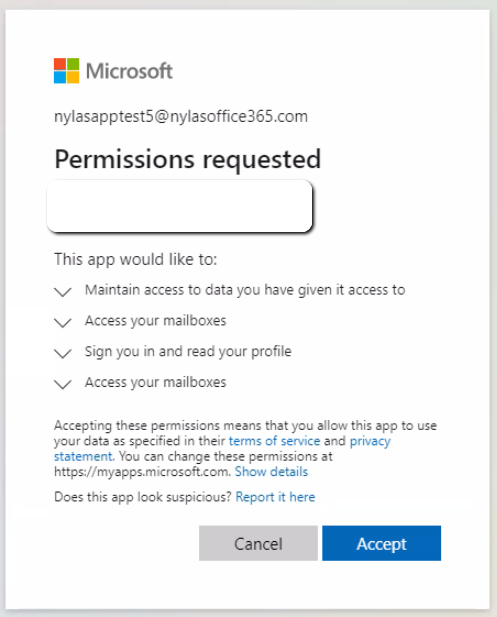
- After entering a valid email and password, you must approve Rocket Matter CRM and Nylas API to access your mailboxes. This is required or the sync cannot connect.
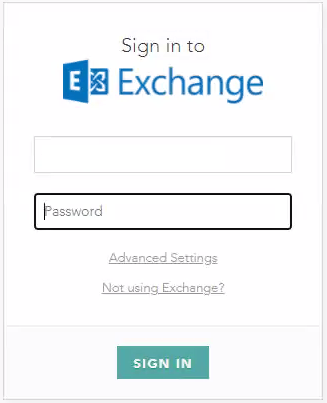
- For Microsoft Exchange, you must enter a valid login (with or without a domain) and password. If you need advanced settings for an Exchange Service URL, then choose Advanced Settings to proceed.
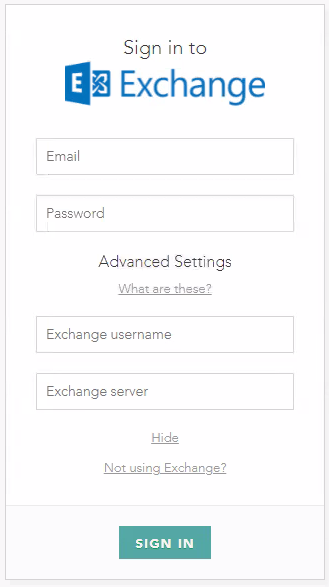
- (optional) If you need Microsoft Exchange Advanced Settings then it will appear similar to:
How to Whitelist Rocket Matter CRM Inside of G-Suite/Google Workspaces
You must have your G-Suite super administrator whitelist the Rocket Matter CRM application, or your users will not be able to successfully sync their Google accounts with Rocket Matter CRM.
After the super administrator whitelists the Rocket Matter CRM application, anyone at your company will be able to sync their accounts into the application.
How Do Google Super Admins Whitelist Applications Such as Rocket Matter CRM?
- Admins will need to sign in to admin.google.com and log in with their administrator credentials.
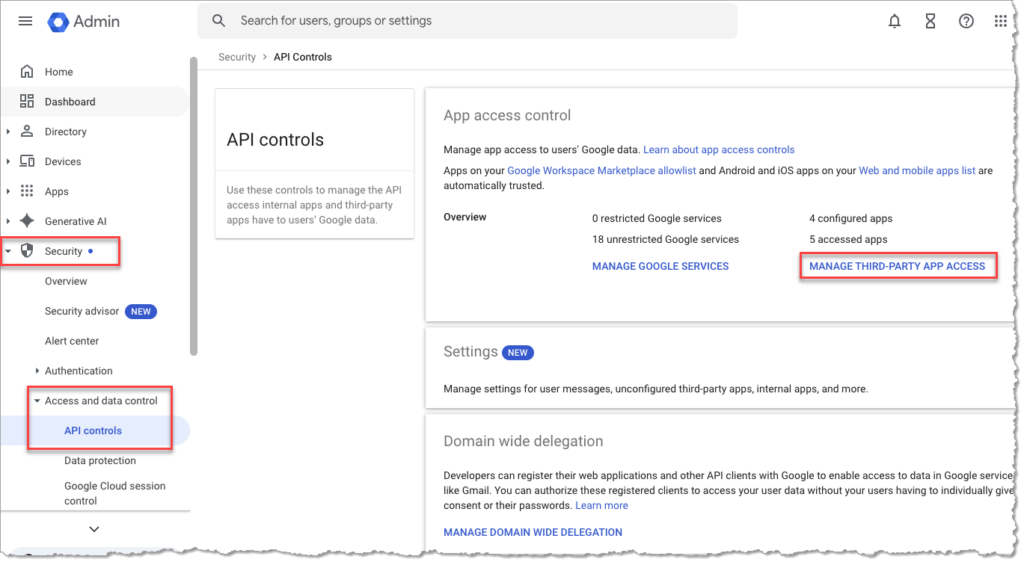
- From the Admin dashboard, use the left-side menu and go to Security > Access and data control > API controls
- Click on MANAGE THIRD-PARTY APP ACCESS
- Click on Configure new app
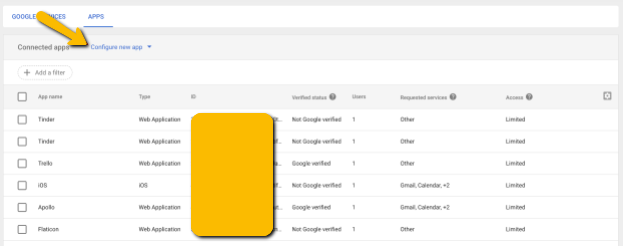
- Copy and paste the following into the Search for app search bar:
33792346501-8ktdch742odrjsv1ft0ni2hcrmilkvv5.apps.googleusercontent.com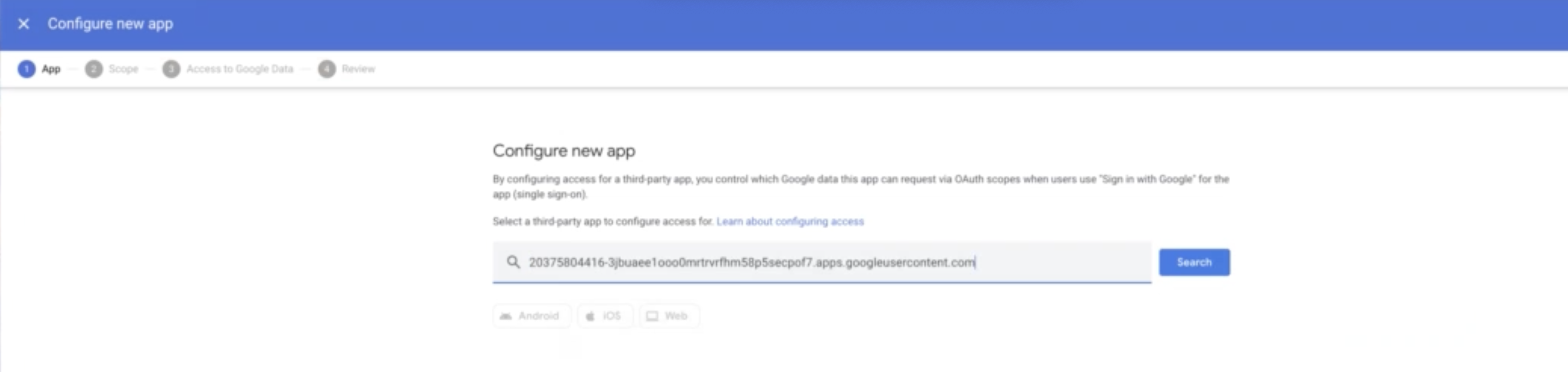
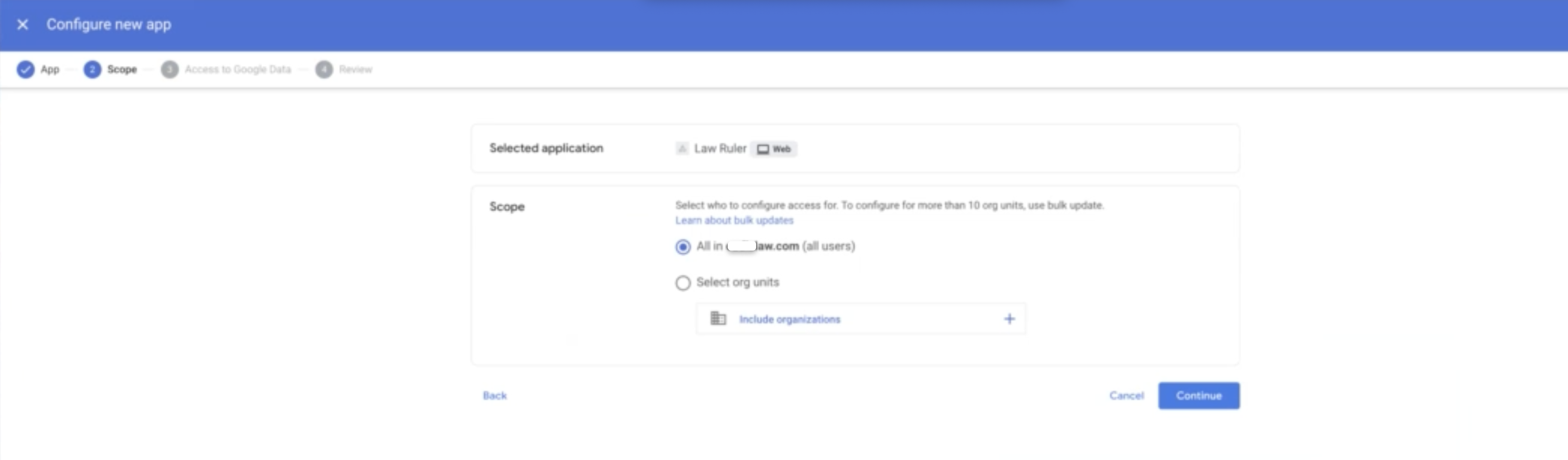
- Once you click the "Search" button, the Law Ruler app will appear. Click the app and, in the next screen that appears, ensure that All is selected in the Scope section. Then, click Continue.
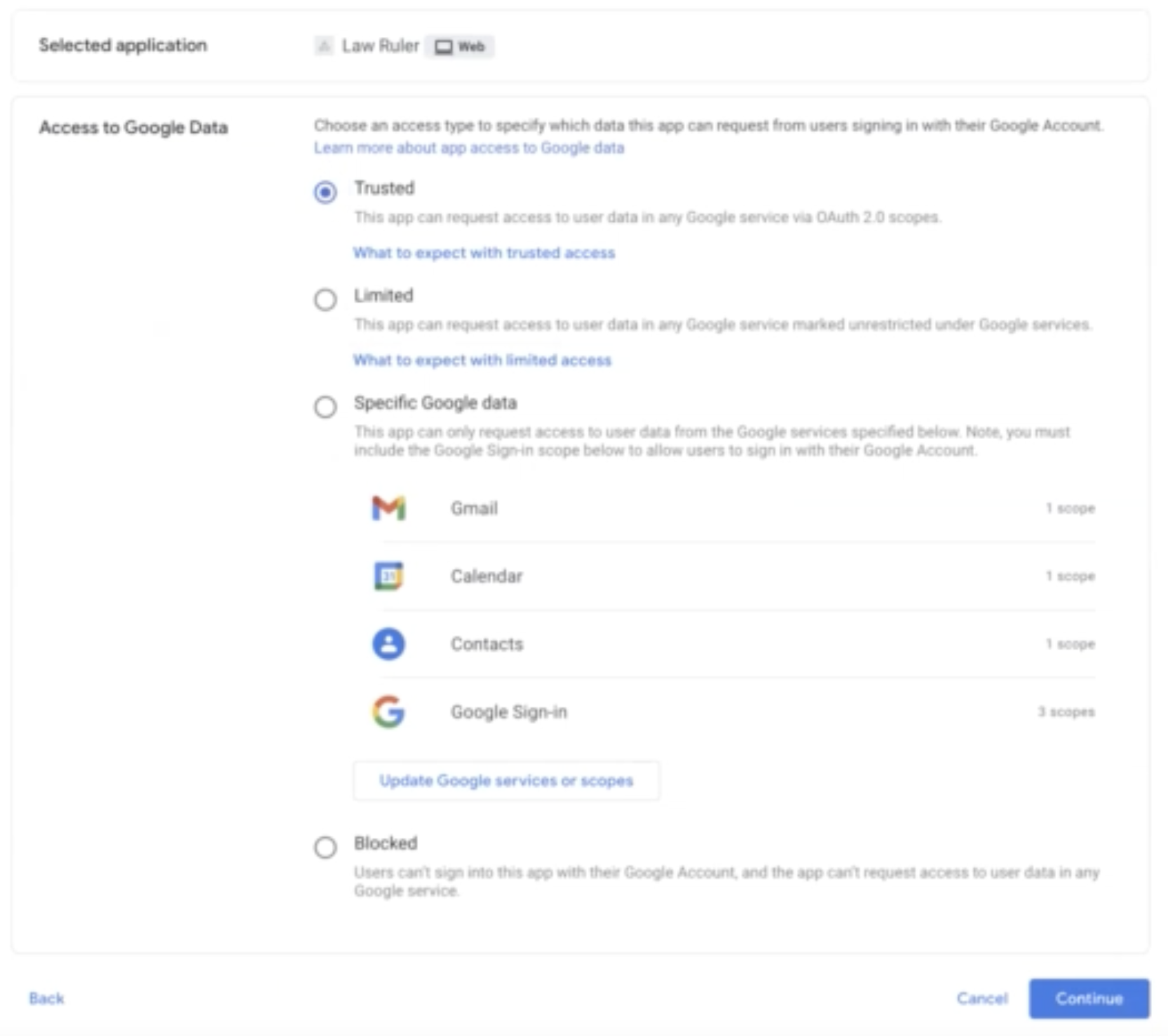
- In the following screen, click the Trusted option under the Access to Google Data section. Then, click Continue.
- In the next screen, click Finish.
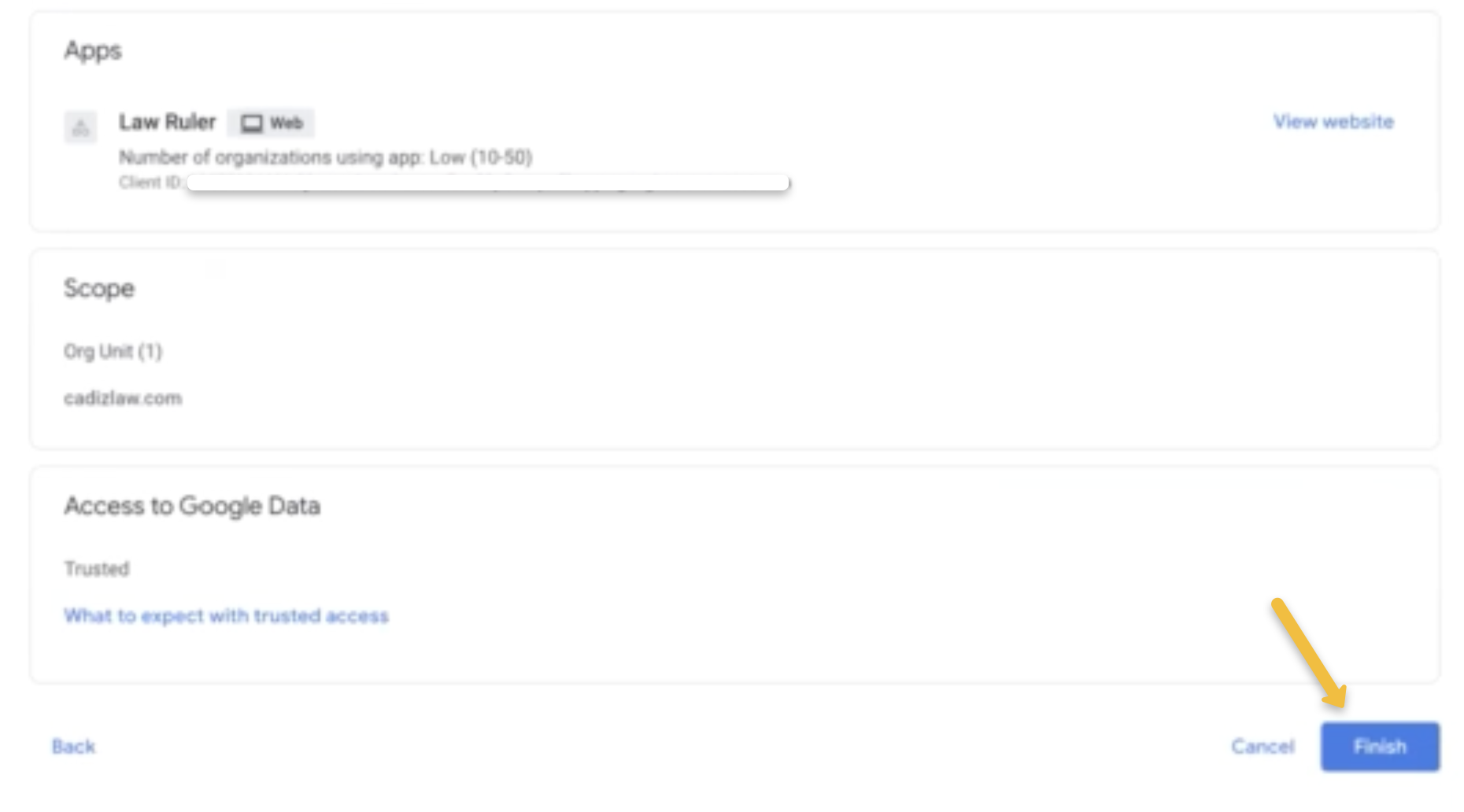
- You may now proceed with syncing each user's Google account with Rocket Matter CRM.
Sync Your Google Calendar and Gmail with Rocket Matter CRM
(G-Suite and Google Workspace)
- For Google Calendar and Gmail, you will see the following screen that will request a valid email address or phone and password:
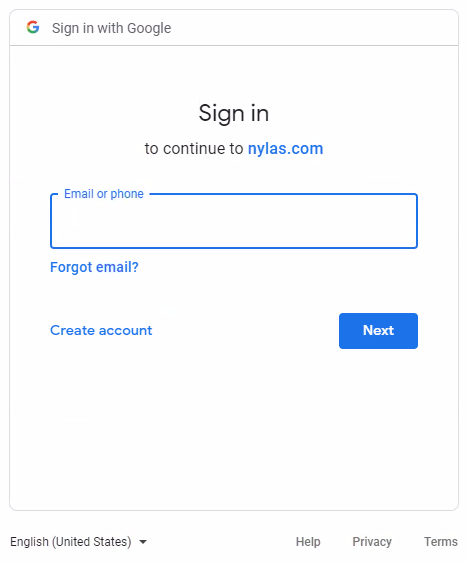
-
After entering a valid email and password, you must approve Rocket Matter CRM and Nylas API to access your mailboxes. This is required or the sync cannot connect.
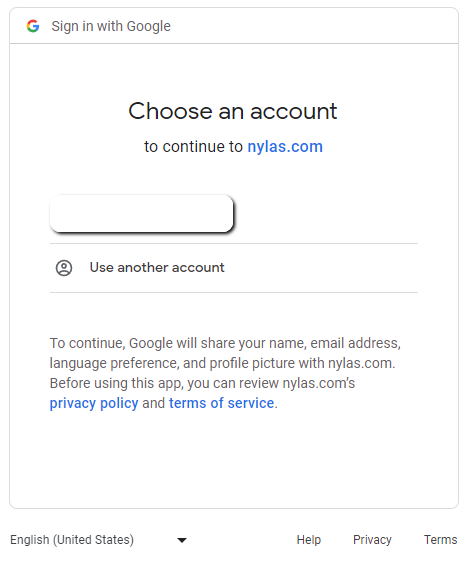
⚠ When pairing a Google Suite or Google Workspace account, first, you must have your IT administrator perform a whitelist of the Rocket Matter CRM application within the Google Admin Console, or your users will not be able to pair their accounts. This only needs to be done once per domain.
➡ Jump to How to Whitelist Rocket Matter CRM Inside of G-Suite/Google Workspaces
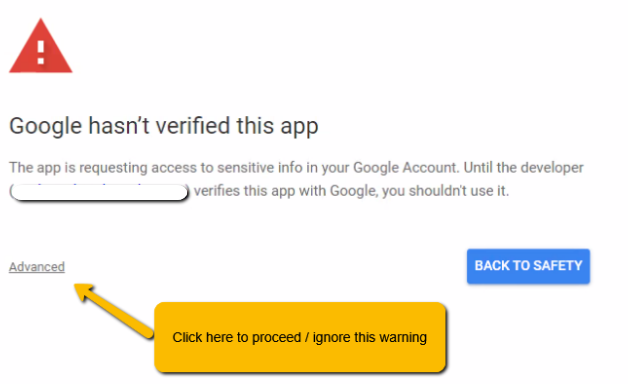
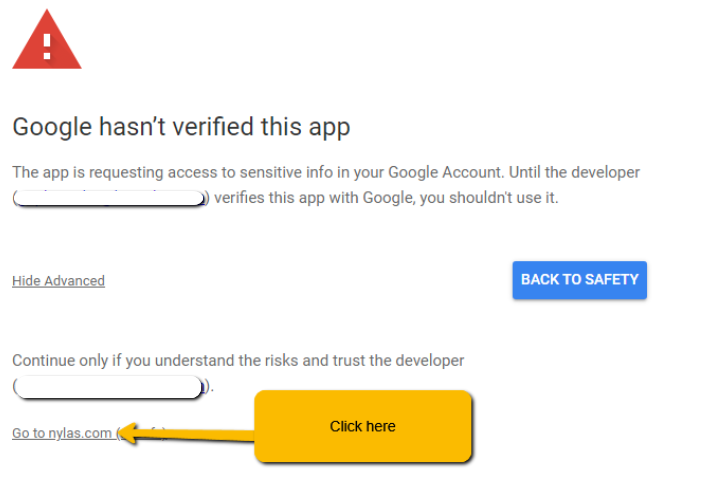
⚠ Note: After whitelising, the following "Google hasn't verified this app" message may still be prompted when pairing your account. It is okay to continue.
- Please click Advanced to resume pairing your account.
-
Click the Go to nylas.com link to proceed
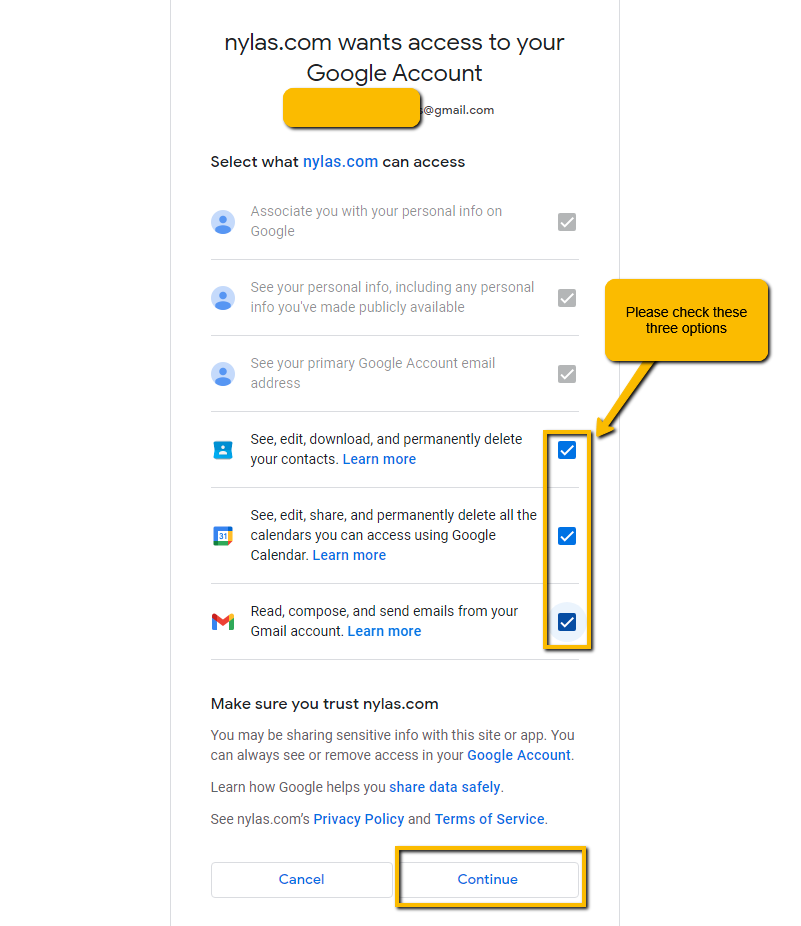
- To finalize the pairing you will need to select/check the three following options and press continue. These selections are required for the integration to work correctly.
After pressing continue, you will be redirected back to Rocket Matter CRM to add your signature (this can be done later) and press save.
Sync Apple Mail, Yahoo, or Another Calendar/Mail Client
For Apple Mail, Yahoo, or another calendar/mail client (SMTP Settings will be needed):
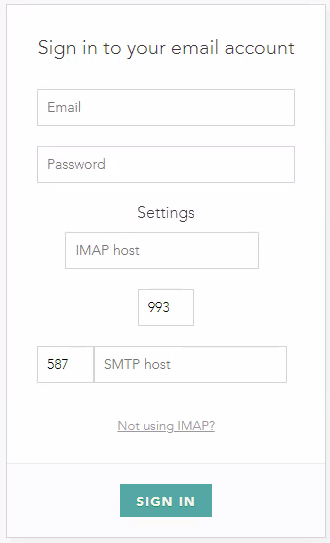
Note: Yahoo calendar sync only supports the default calendar only and not additional shared Yahoo calendars. Only the default calendar will show via sync.
Additional Account Settings and Email Signatures
If you would like to make this your Default Account for composing emails, then set the switch to the On position to set a default.
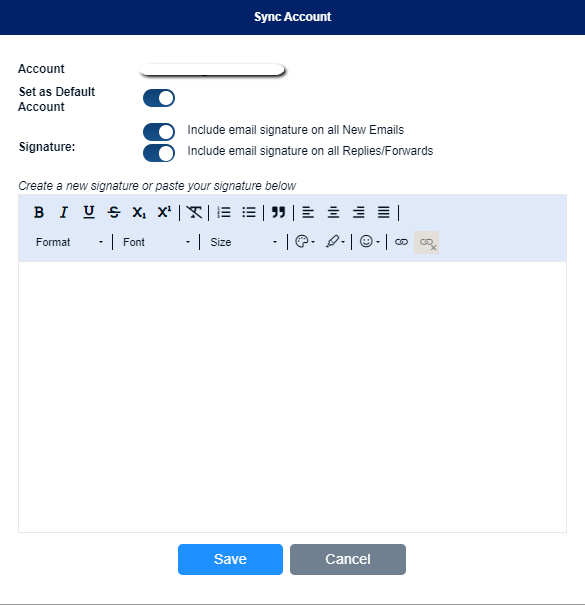
You may also add an e-mail signature for each paired Outlook account. Similar to how signatures in Outlook function, any configured email signatures will be automatically added to all outgoing mail that you compose from Rocket Matter CRM.
- Include an email signature on all new emails: set the switch to the On position to automatically include this email signature on all composed emails from inside of Rocket Matter CRM. It is Off by default.
- Include an email signature on all replies/forwards: set the switch to the On position to automatically include this email signature on all replies and forwarded emails from inside of Rocket Matter CRM. It is Off by default.
You can create a new e-mail signature just for Rocket Matter CRM, or you can copy/paste your e-mail signature from your existing e-mail account outside of Rocket Matter CRM.
Frequently Asked Questions
- What Type of Calendar Events are Supported in Outlook and Google?
- Rocket Matter CRM supports Shared Calendars but does not currently support group calendars or recurring events at this time
- How Long Does it Take for My Calendar Events to Sync the First Time?
- After you sync your Google, Outlook, Exchange, or another calendar with Rocket Matter CRM, the sync may take up to 24 hours (in some cases, it may only take 1-2 hours, or faster) to sync all of your past calendar events for the first time. After all of your events have been downloaded into Rocket Matter CRM, the sync will continue to update every 15-30 minutes. Only past events will take up to 24 hours to sync on the initial sync. The calendar sync will download up to 30 days of past events when your calendar is first synced. For events older than 30 days from the date that you sync, visit your calendar software.
Third-Party Integration Note
Nylas API is a third-party application and is a productivity infrastructure for modern software apps. Rocket Matter CRM is a legal case management software CRM that integrates with Nylas API to enhance calendar and email sync capabilities.
For any support needs regarding your email or calendar that do not relate directly to the Rocket Matter CRM service, such as password resets for your Google, Outlook, etc, please contact your email/calendar vendor directly since Rocket Matter CRM may assist with the integration process but they cannot support third-party calendar or email systems.