View status of your bank feed connection, use AI to filter across core grids, enhanced WIP summary report and email grid.
Enhancements
AI-Powered Filtering Across Core Grids
You can now filter any supported grid just by typing what you're looking for in plain English. No more building complex multi-criteria filters — just ask, and NextGen figures out the rest. Most prompts return results in under two seconds, saving you an estimated 40–60% of the time you'd spend filtering manually.
How to Access
Click the AI icon in the toolbar of any supported grid to get started.
Key Capabilities
-
Five Core Grids Supported: You can use AI filtering on Matters, Billing > Time/Expense, Banking > Transactions, Calendar > Grid View, Practice > Task > Grid View, plus Matter > Tasks and Matter > Banking > Transactions.
-
Natural Language Prompts: Ask the way you'd ask a colleague — for example, "show open matters for Acme Corp with unbilled time over $5,000" or "show all my unbilled time entries this month over 5 hours."
-
Filter Preview and Confirmation: Before returning results, NextGen always shows you what it understood from your prompt — so you stay in control and can verify the interpretation.
-
Domain Understanding: You don't need to use special syntax. The system understands legal and finance language out of the box, including terms like timekeepers, trust, unbilled, overdue, and reconciled.
-
Permission-Aware Results: Your results will always respect your firm's data permissions — you'll only see records you already have access to.
-
Performance: Most prompts return matching records in under two seconds.
To learn more, read Using AI Filtering.
Bank Feed Status and Notifications
Bank feeds connected via Plaid can silently fail when passwords change, MFA settings update, or tokens expire — leaving you to discover missing transactions only after reconciliation falls behind. This release surfaces bank feed connection health directly in the Banking grid and Bank Details screen, and proactively alerts your firm the moment a feed disconnects, so you can re-link and resume syncing before transactions pile up.
Bank Feed Status on the Banking Grid
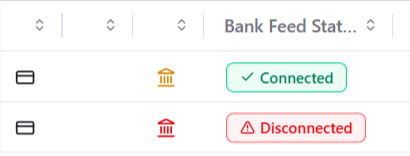
A new Bank Feed Status column on the Banking grid (Banking > Bank) shows the current connection state of every Plaid-linked account at a glance. Accounts display either a Connected or Disconnected badge. Accounts without a Plaid feed show no badge. The column is sortable and can be pinned, hidden, or reordered. It is also included in CSV exports.
Filter by Connection Status
A new Bank Feed Status filter lets you isolate accounts by All, Connected, Disconnected, or Unlinked (accounts without a Plaid feed). This filter combines with existing filters — Bank Type, Account, and others — for more precise lists.
Connection Visibility in Bank Details
The Bank Details screen (Banking > Bank > 3-dot menu > Bank Details) now displays a Bank Feed Status badge alongside the Last Fetched Transaction Date, giving you immediate confidence in data freshness without leaving the page.
In-App Notifications
When a bank feed disconnects, an alert appears in the bell-icon notification center for every user with permission to view that bank. The notification persists until the feed is re-linked or un-linked. If more than one feed disconnects, notifications stack in the order they occurred so nothing gets lost behind the first alert.
Email Alerts to Your Firm
When a disconnection is confirmed, an email is sent to your firm's address (configured in Setup > Firm Information) within five minutes. The email explains why the feed disconnected, shows the last successful sync date, and walks through the re-linking steps. Reminder emails are sent every 24 hours until the feed is re-linked or unlinked.
Status badges, notifications, and email alerts respect existing Banking permissions — users only see information for bank feeds they are already authorized to view.
Things to Know
- Detection cadence. Bank feed connection status is checked every 2 hours. After a feed disconnects, it may take up to that long for an alert to appear.
- Plaid-connected accounts only. These features apply to Plaid-connected accounts only. Accounts without a Plaid feed do not display a Bank Feed Status badge or a Last Fetched Transaction Date.
- How to re-link a disconnected feed. Clear any synced transactions on the bank feed first, then from the Banking grid click the 3-dot menu next to the bank, select Unlink Bank Feed, click the 3-dot menu again, and select Link Bank Feed to re-authenticate with Plaid.
- First-sync delay after re-linking. After a successful re-link, it can take 48 to 72 hours for the first batch of new transactions to appear. This is normal Plaid sync behavior.
- Keep the firm address current. Email alerts are sent to the address listed in Setup > Firm Information. Make sure that address is current so the right people receive the notifications.
Others
WIP Summary Report — Performance Improvements
The WIP Summary report (Reports > Billing > WIP Summary) has been re-engineered to handle large time and expense datasets significantly faster. Firms with high volumes of time entries — where the report previously took up to several minutes to render — should see substantially reduced run times.
Report results, grouping options, filter behavior, and PDF/Excel output remain the same. Only the run time has changed.
Email Grid — Date and Time in Received Column
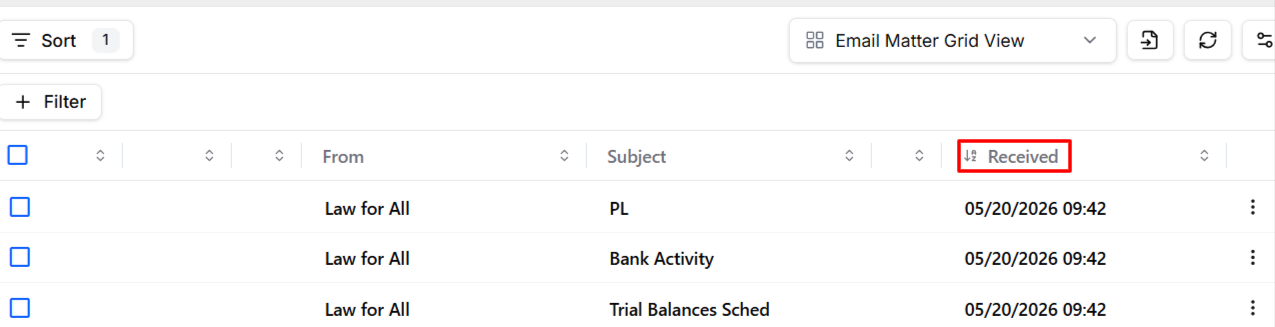
The Received column on email grids now displays both the date and the time an email was received, in your local timezone. Previously the column showed only a date, making it impossible to determine the order of emails that arrived on the same day without opening each one. Sorting by the Received column now orders same-day emails correctly by time.
This change applies to both the Practice Management > Communication > Emails grid and the Matter > Communication > Emails grid.