All major grids across the platform - Matters, Billing & Invoices, Time & Expense, Task Management, and Banking are now upgraded with a redesigned interface.
Watch a Video
Enhancements
New Grid Design
All major grids in the system have been redesigned with a new interface, focused on consistency, speed, and discoverability.
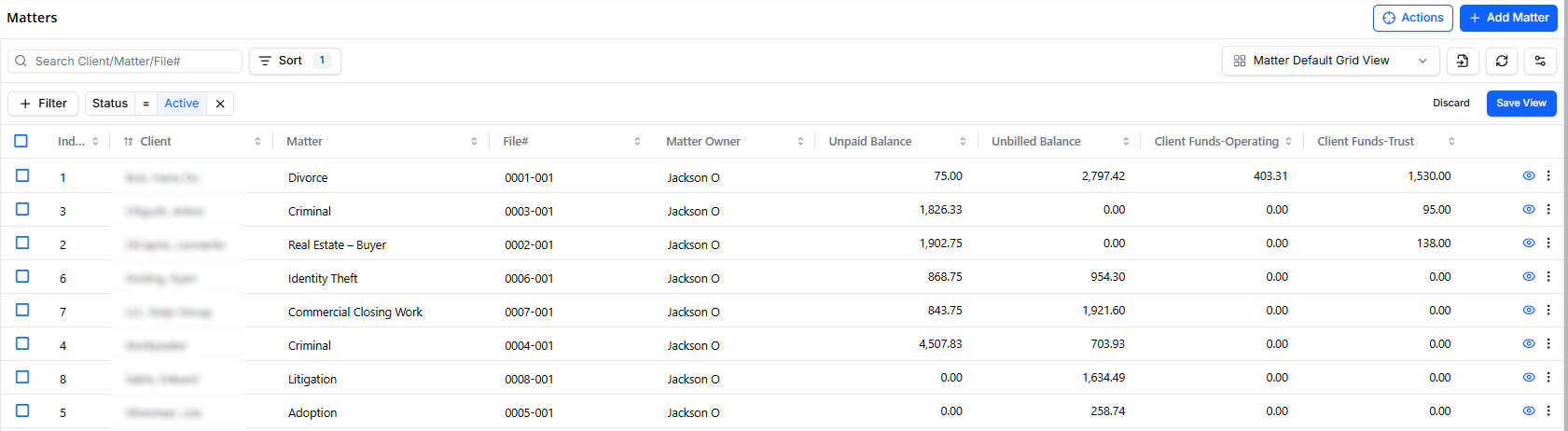
The new grid design gives you:
-
Consistent grid toolbar: The toolbar has been unified across major grids, with Quick Search, Filter, Save View and Export options now being accessed in the same place every time.
-
Header and footer: The header and footer of each grid are now locked in place, for easier scrolling.
-
Consolidated Actions menu: Common actions like Print Invoices, Send Reminders, Download Invoices, and Payment are now grouped together under a single Actions menu.
-
Quick search: The quick search tool is now available across all grids.
-
Inline quick filters: Easily add, remove, or change filter values on or off directly from the active filter icons, such as “Active,” without reopening the filter panel.
-
Pinned key columns: Important columns now stay fixed on key screens, so essential information like Matter Name or Invoice Number remains visible as you scroll. You can unpin or change pinned columns yourself.
-
Matter hover card: Hover over a matter name anywhere in the system to quickly see the client name, unpaid balance, and unbilled balance.
-
Quick access from the hover card: Use the Eye icon to open the matter details, click the Unbilled Balance to go directly to Time & Expense, or click the Unpaid Balance to open Billing & Invoices.
-
Enhanced date filtering: Date filters now allow manual entry, selection from a calendar picker, or quickly choosing Today.
-
Session-based filter persistence: Filters and view changes stay applied while you move between tabs during the same session, even if you have not saved the view.
-
Smart view saving: When you change filters or adjust column settings, the system will prompt you to save the view so you can reuse it later.
-
Improved icon clarity: Sort, Export and Settings icons now display descriptive labels when you hover over them.
NOTE: A few secondary screens, such as Matter Templates and the Send Invoice screen, still use the previous grid layout and will be updated in future releases.
Redesigned Hard Cost Expense Form
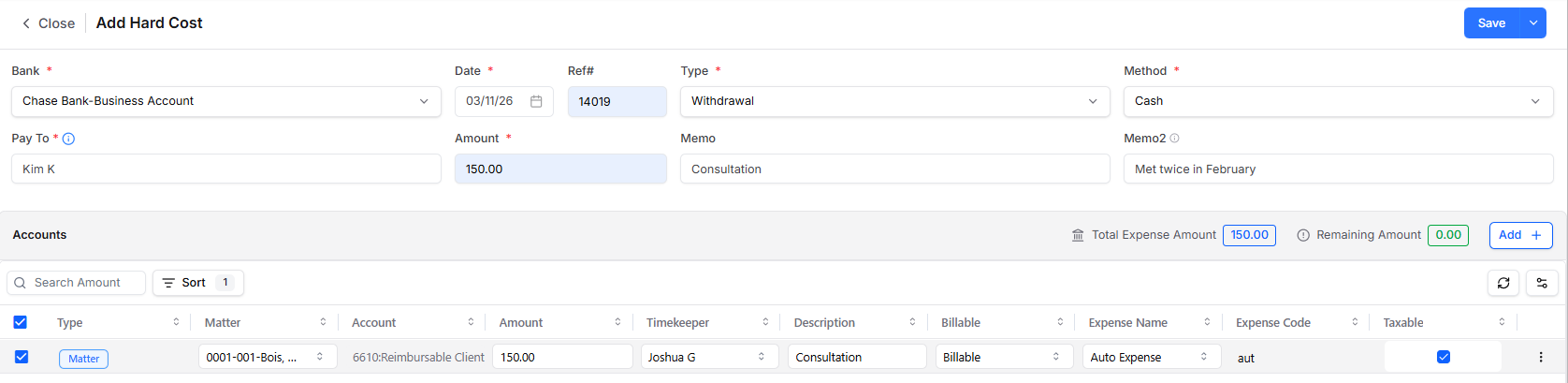
The Hard Cost Expense modal has been redesigned, to improve clarity, reduce errors, and simplify expense allocation.
As part of our ongoing commitment to make your daily operations more efficient, we have redesigned the hard cost expense form.The new Add Hard Cost form now gives you:
-
Full Expense Allocation View
Bookkeepers can now capture the entire allocation on a single screen, making it easier to review or document expenses. -
Simplified Allocation Workflow
The new type-first allocation flow (Firm vs. Matter vs. Soft Cost) removes confusion about whether to enter values in the Account or Matter fields. -
Reduced Data Entry Errors
Read-only fields, context-aware pre-fill, and a red/green balance indicator help prevent incomplete or incorrect allocations. -
Improved Tax Handling
A clearly labeled toggle makes it obvious whether tax is auto-calculated or manually entered. -
Expanded Description Field
An expandable description field provides more space for detailed notes and review. -
Cleaner Payee Lookup
A side drawer displays full payee details without cluttering the main form. -
Modern, Consistent Design
The updated modal aligns with the platform’s new grid design for a consistent, modern experience.
Additional Enhancements
-
Improved invoice download experience: The Download Multiple Invoices window now opens in full-screen with all options displayed at the top so you can easily see and adjust advanced options.
-
Selection summary banner: When you select items in a list, a banner appears showing how many items are selected and the total unpaid amount.
-
Task priority indicators: Tasks now display color-coded priority badges so you can quickly identify Low, Medium, and High priority work.
-
Banking improvements: The banking summary is now more compact, with headers that stay visible as you scroll. Banking Transactions and Deposit Slip tabs also include a Quick Search to help you find items by amount, reference number, or payee.