You can create a desktop shortcut for convenient access to the login page.
Create a Desktop Shortcut
PC Users
To create a desktop shortcut:
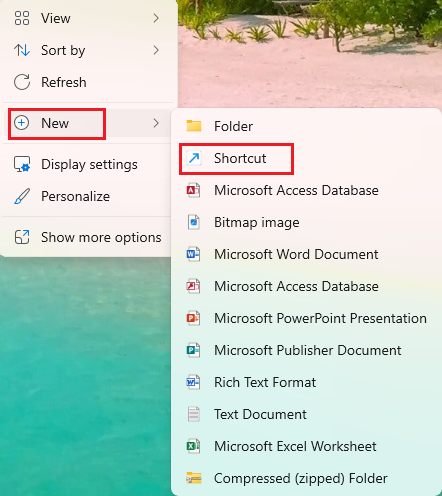
- Right-click on a space on your system's desktop.
- From the drop-down menu, click New > Shortcut.
The Create Shortcut screen opens.
- In the Type, the location of the item field, enter or paste Rocket Matter
- In the lower right corner, click Next.
- In the Type, enter a name for this shortcut field.
- In the lower right corner, click Finish. Your system adds the shortcut to your desktop.
Change the Desktop Shortcut's Image
To change the desktop shortcut's image:
- Right-click the shortcut.
- On the drop-down menu, click Properties.
- On the Properties screen, toward the bottom of the screen in the middle, click Change Icon.
- On the Change Icon screen, browse to your preferred image.
- Click OK.
Your system updates the shortcut's image.