The Timekeeper Targets feature allows firm administrators to set annual or monthly billable hour goals for individual timekeepers. Timekeepers can then monitor their own performance against those goals in real time.
Watch a Video
Set Firm Level Timekeeper Targets
Note:
-
Only users with the appropriate admin role can set or edit timekeeper targets. Custom roles can also be granted this permission.
-
If an administrator changes the firm’s fiscal year, the system warns them that existing targets will be reset and need to be reconfigured manually.
Set Up Timekeeper Target
To set global timekeeper targets:
- From the toolbar, click your Profile icon.
- From the drop-down, click Setup.
- From the Setup left navigation, click Timekeeper.
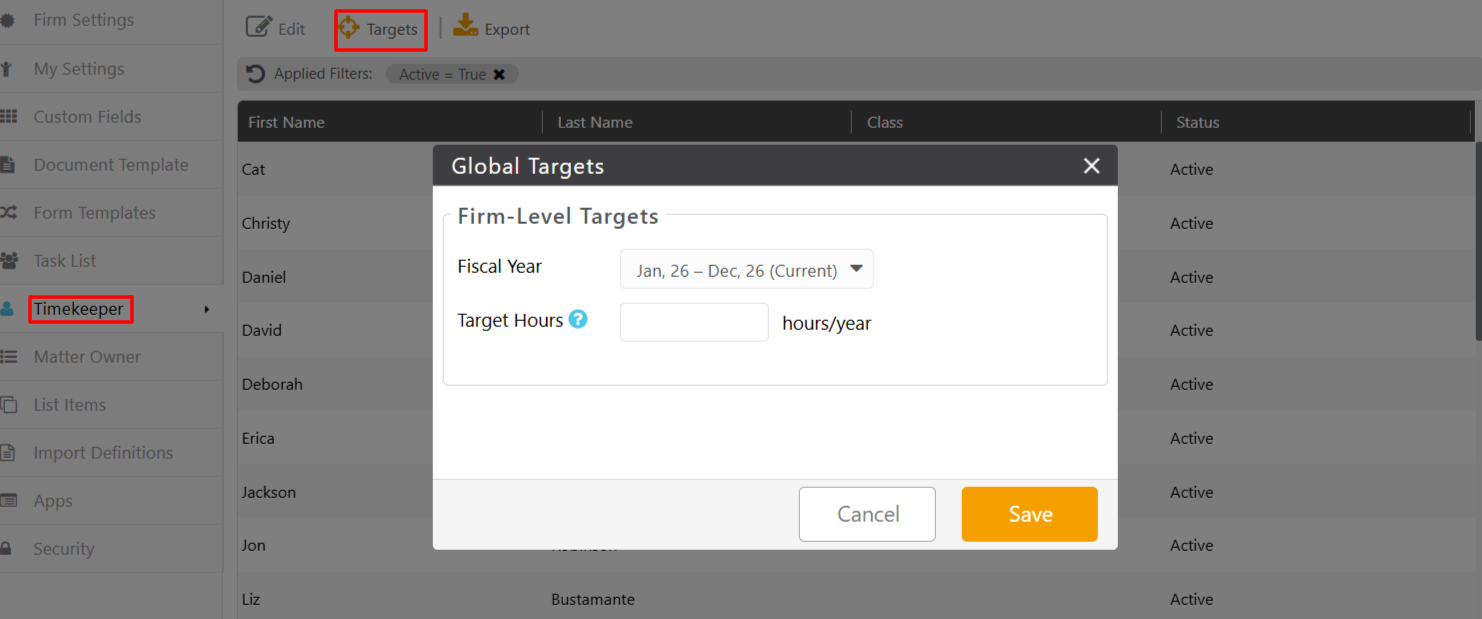
- From the toolbar atop the Timekeeper screen, click Targets.
- On the Global Targets window, from the Fiscal Year field's drop-down, click the fiscal year.
Note: The fiscal year will be displayed based on your firm's default settings under Setup > Firm Settings > Accounting > Accounts Book Settings. - In the Target Hours field, enter the global default billable hours target that applies to every timekeeper in your firm.
Note: Target hours include Billable and No Charge hours.
Set Individual Timekeeper Targets
You can set individual timekeeper targets by navigating to Setup > Timekeeper > Edit or:
- From the toolbar, click your Profile icon.
- From the drop-down, select Account > Account Management.
- From the tabs atop the Account screen, click User.
- Either double-click a user or single-click and from the toolbar, click Edit.
- On the Edit User window, click the yellow View User icon beside Default Rate to open Edit User - Timekeeper window.

- On the Edit Timekeeper screen, the Target Hours field will show the firm default. You can override the firm default by entering the target hours for the specific timekeeper.
- In the lower right corner, click Save.
Set Monthly Target Hours
Targets don't have to be evenly distributed through the year. To set monthly target hours:
- Navigate to Timekeeper Target from Setup or Account Management.
- In the Timekeeper Target section, click Set Hours by Month.
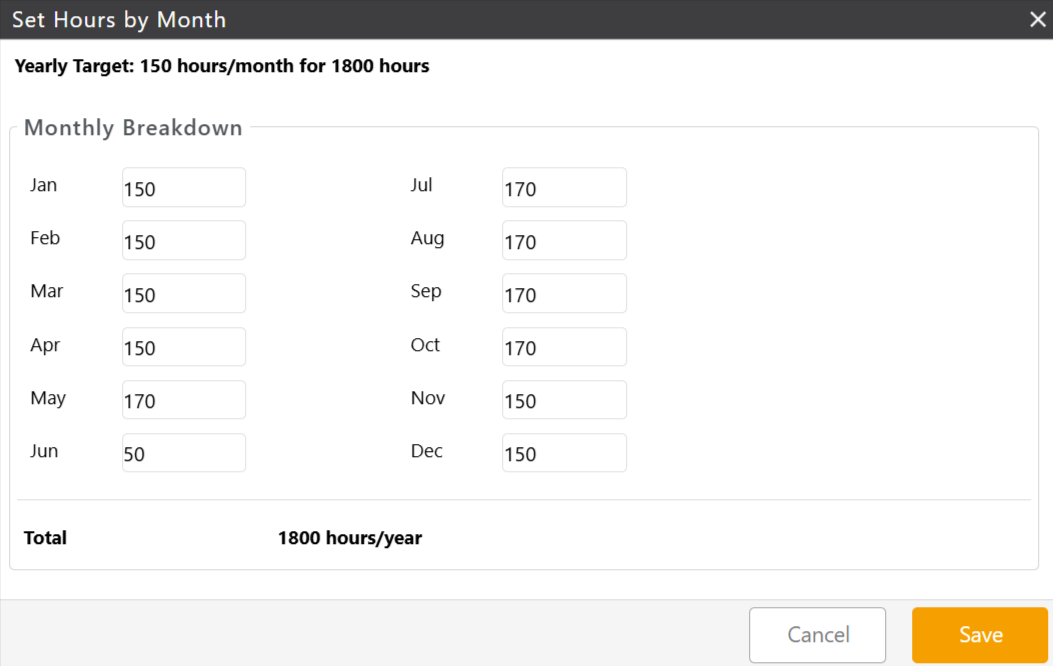
- In the Set Hours by Month window that opens, you can override the firm default and set the monthly targets for the specific timekeeper.
- Click Save.
The system saves the monthly target for that timekeeper.
My Target Dashboard Widget
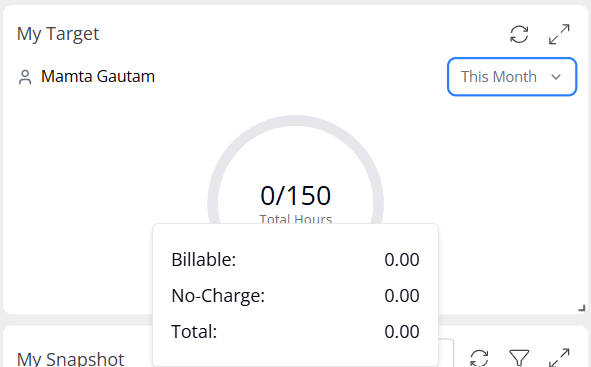
If you navigate to the Me Dashboard, you can access the My Target widget which shows you:
-
Your actual hours worked against the target for the month.
-
A hover breakdown of billable hours, no-charge hours, and total hours.
-
A period selector to toggle between the current month, quarter, or full fiscal year.
Timekeeper Target Report
To access the report, navigate to Reports > Financial Productivity > Timekeeper Target Report