Allow a Negative Ledger Balance
The built-in safeguards are designed to prohibit negative trust ledger balances.
Here's an example of the warning the system generates when a transaction is likely to lead to a negative trust ledger balance:
Negative Balance Allowed - Matter Level
To allow a negative ledger balance:
-
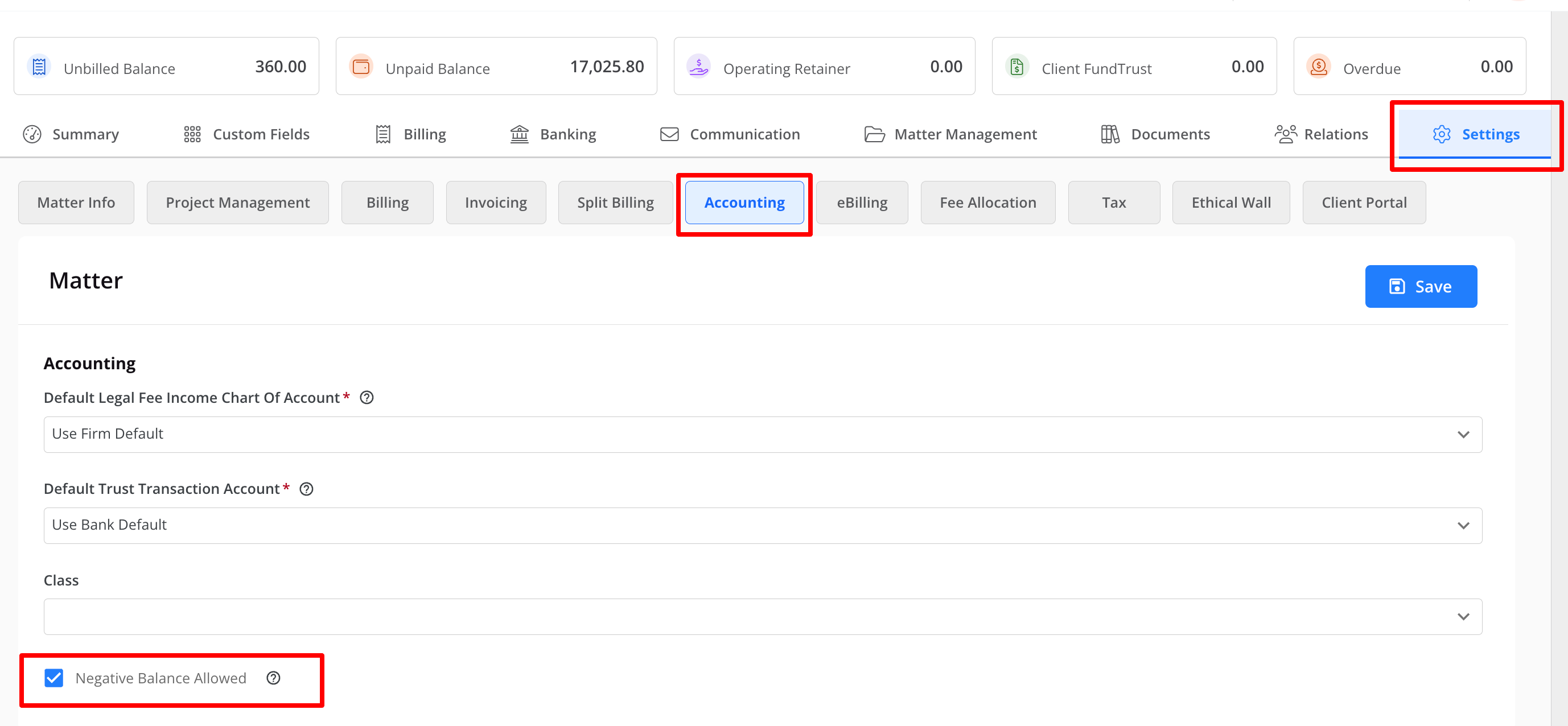
While viewing the relevant matter, click on the matter's Settings.
-
From the tabs atop the Settings section, click Accounting.
-
Check the box next to Negative Balance Allowed. By doing so, negative account balances will be permitted for this particular matter.
Negative Balance Allowed - Existing Bank Account
To allow a negative ledger balance:
- From the left navigation panel, click Banking.
- Click the three dots located to the right of the Trust account, and then choose the Edit option.
- Scroll down to view the Trust Safeguard options.
- Check the box to the left of the Negative Balance Allowed.
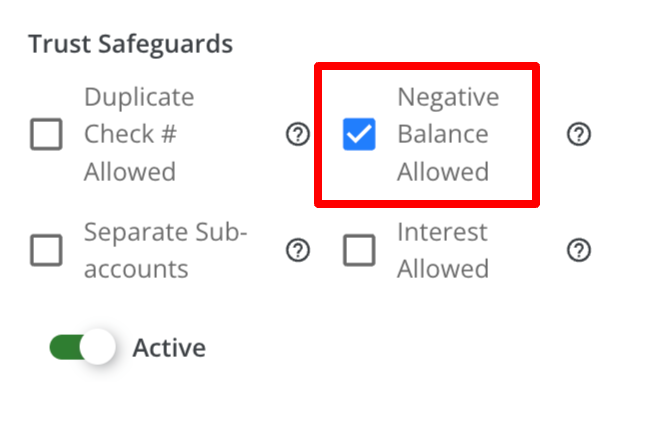
- Scroll up, and click Save. Negative balances are allowed for this bank.
- An icon appears on the left of the bank's row, signifying that matters associated with this bank account now have the option to permit a negative ledger.

Negative Balance Allowed - New Bank Account
To allow a negative ledger balance:
- From the left navigation panel, click Banking.
- In the top right, click on +Add Bank.
- Choose Trust from the Bank Type options, and input the Bank Name, Account Name, and any additional information.
- Scroll down to view theTrust Safeguard options.
- Check the box to the left of theNegative Balance Allowed.
- Scroll up, and click Save. Negative balances are allowed for this bank.
- Anicon appears on the left of the bank's row, signifying that matters associated with this bank account now have the option to permit a negative ledger.
Duplicate Check Numbers Allowed for Your Trust Account
This is the warning the system produces for duplicate check numbers:
To allow duplicate check numbers in your trust account:
- From the left navigation panel, click Banking.
- Click the three dots located to the right of the Trust account and then choose the Edit option.
- Scroll down to view the Trust Safeguard options.
- Check the box to the left of the Duplicate Check # Allowed.
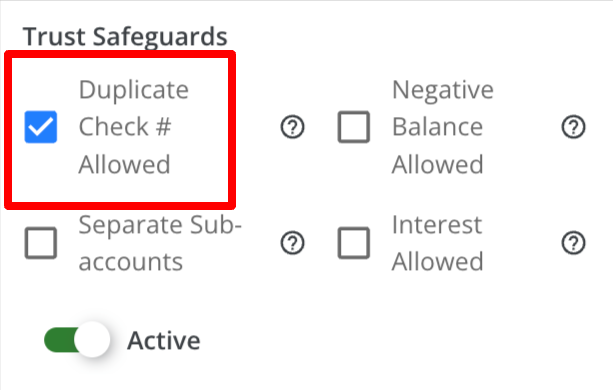
- Scroll up, and click Save.