Billing clients depends on a number of factors ranging from who they work with, how much time and resources are required for a particular matter, how many matters the firm is handling for the client, and more.
Firm admin users can set up each firm user's billing rate. Each timekeeper in the firm can have up to eight different rate levels. However, you can override the firm rate levels. There are several areas within the application from where you can set rate levels.
Watch a Video
Set Rate Level for Timekeeper
Firm admins can assign up to 8 different rate levels for each timekeeper. These can be assigned while adding or editing the timekeeper. To edit a timekeeper:
- From the toolbar, click your Profile icon.
- From the drop-down, click Setup.
- From the Setup left navigation, select Timekeeper.
- From the toolbar atop the Timekeeper screen, click Edit.
- On the Edit Timekeeper screen, from the Title field's drop-down, click the timekeeper's title. You can customize the Title drop-down list.
- Under the Billing Rate Settings section's Rate field, you can edit the timekeeper's default rate.
- Under the Advanced Settings section's Rate Settings tab, enter the timekeeper's rates.
- In the lower right corner, click Save.
Setting Firm Level Default

At firm level, admins can decide if they want to bill by Timekeeper or Task and what rate level and billing method the firm chooses. To select rates at firm level:
- From the toolbar, click your Profile icon.
- From the drop-down, click Setup.
- From the Setup left navigation, select Firm Settings.
- From the tabs atop the Firm Settings screen, select Financial.
- Under Billing Settings, select the Apply Rate, Rate Level, and Billing Method from the drop-down.
Set a Matter Specific Rate
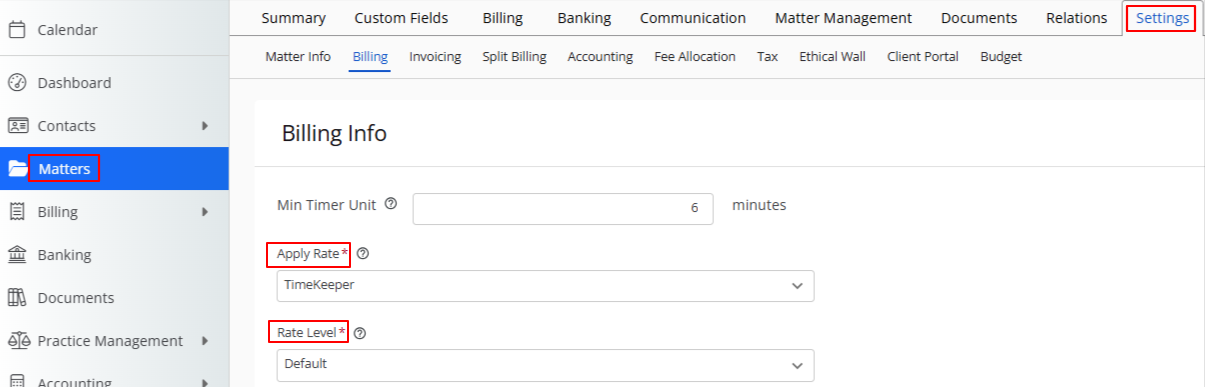
After adding a matter, you can override the firm default rate level:
- From the left navigation panel, click Matters.
- On the Matters screen, double click on the matter and scroll down to its Summary.
- From the tabs atop the Summary section, click Settings.
- From the tabs atop the Matter Info section, click Billing.
- From the Apply Rate drop-down, select Timekeeper.
- From the Rate Level drop-down, select the timekeeper's rate level you wish to apply for this matter. You can choose from the 8 different rate levels configured for the timekeeper.
Set Rate for a Timecard
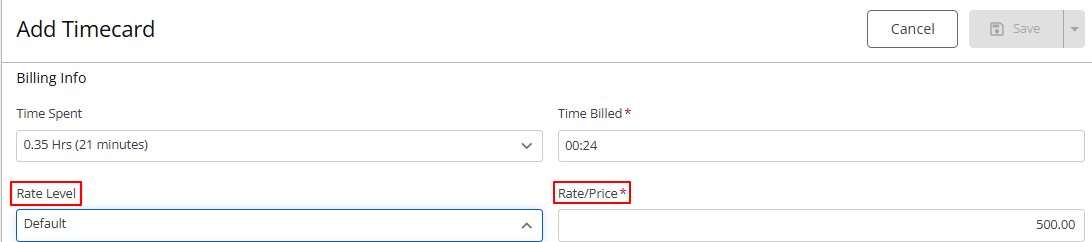
- You can choose to override the firm or matter default rate level when adding a timecard.
- The value of the rate levels will depend on the timekeeper chosen.
- From the Rate Level dropdown, select the level you wish to apply. You can see that value in the rate/price field.
- In the Rate/Price field, you can enter an amount that is different from the 8 listed rate levels.