Delete an Unbilled Timecard
From Matters
To delete an Unbilled timecard:
- From the left navigation panel, click Matters.
- On the Matters screen, double-click the matter, or single-click the matter to highlight it.
- Scroll down to view the matter details.
- By default, you'll see the matter summary. Click on the Billing tab.
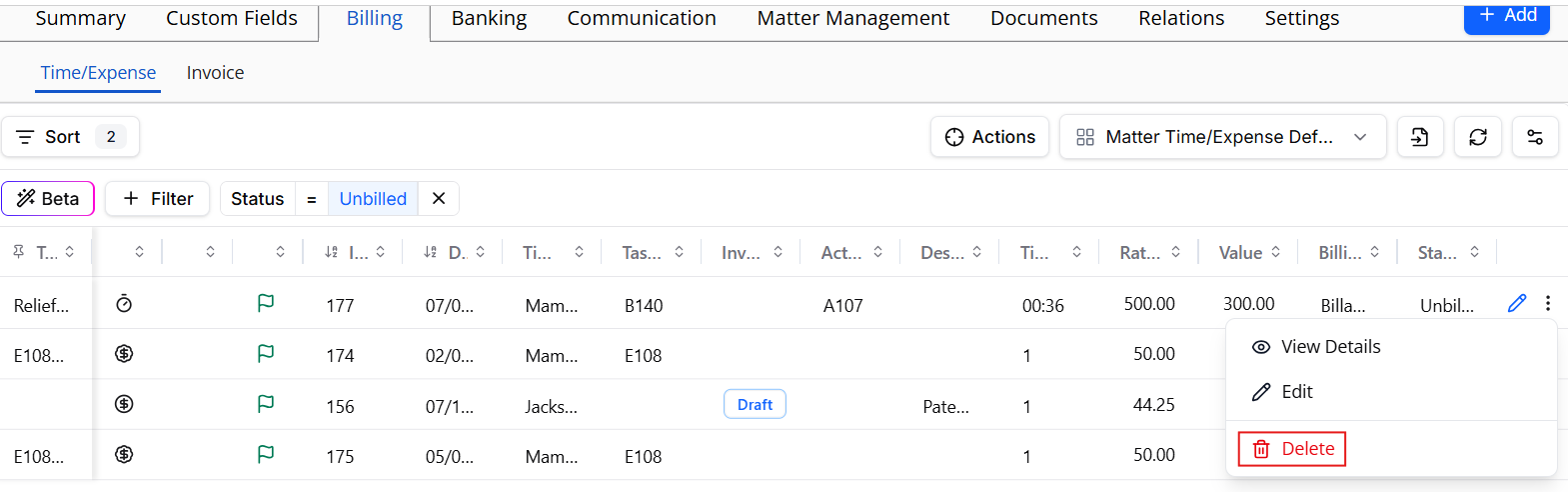
- On the selected Time/Expense, double-click the timecard. You can also single-click to highlight the timecard, then click on the 3 dots to the right of the timecard.
- Select Delete.
- The Delete Time/Expense message box displays: Are you sure you want to delete the Timecard?
- Click 'Yes'.
- The listing updates with the timecard's deletion.
Delete a Billed Timecard
From Matters
- From the left navigation panel, click Matters.
- On the Matters screen, double-click the matter, or single-click the matter to highlight it.
- Scroll down to view the matter details.
- By default, you'll see the matter Summary. Click on the Billing tab.
- From the tabs atop the billing screen, select Time/Expense.
- Use the filter to select Billed.
- Single-click the impacted timecard to highlight it, then click on the 3 dots to the right and select Delete.
- You'll be prompted with the following: "Timecard is linked to the Approved Invoice...revert the associated invoice to draft."
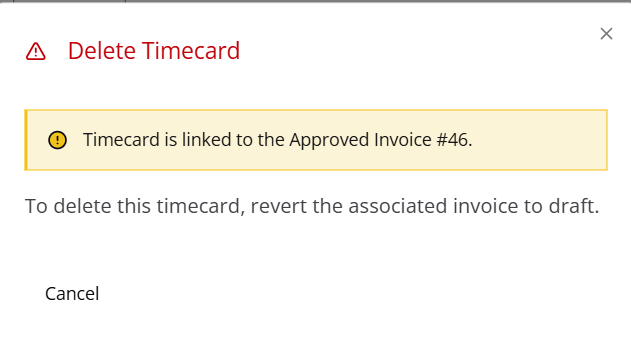
- Click on the Invoice tab and use the filter to select the specific invoice.
- Click on the three dots to the right of the invoice and select Delete.
- You'll be prompted with the following: "Are you sure you want to delete the selected invoice?" Select Yes.
- Your invoice will be deleted and the timecard will go back to unbilled status.
- Use the steps above to delete and unbilled timecard.