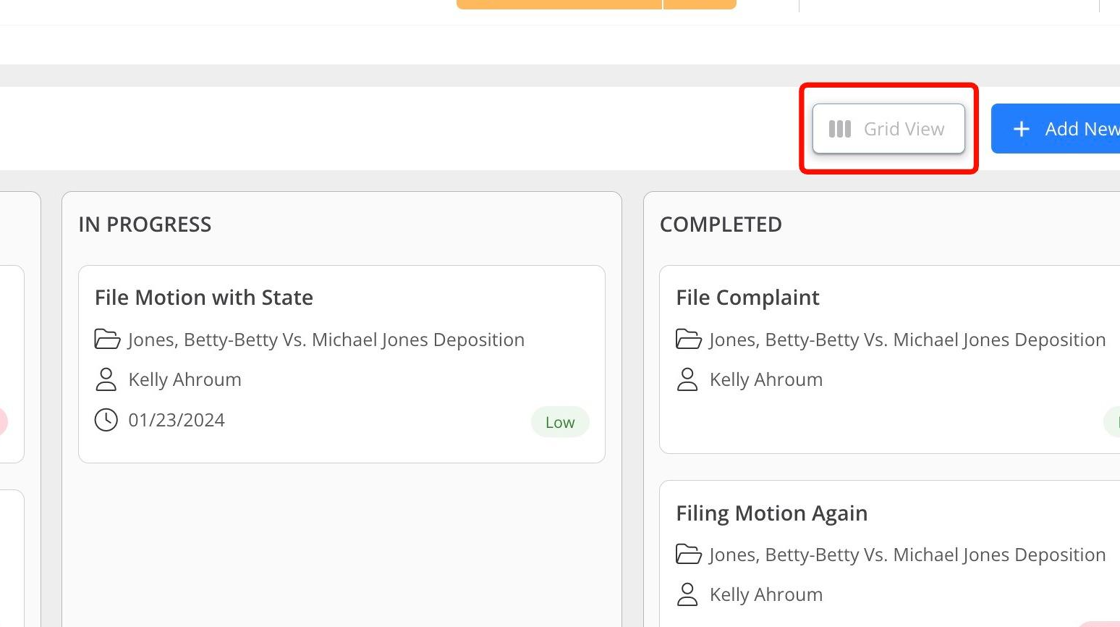
Tasks serve as a tool for creating, delegating, and monitoring work among firm users. With NextGen, you can leverage the Kanban Task View to visualize and organize your tasks, completing them based on their priority.
Tasks are ordered chronologically, and the oldest tasks are displayed at the top within each column. Each task is associated with one of the following predefined statuses: Not Started, In Progress, and Done.
Kanban Task View
- Navigate to the left-hand panel and click on Practice Management.
- Once there, choose Tasks to access the task management section.
- The default view is the task grid. To switch to the Kanban Task View, click on the Settings gear icon located in the top right corner.
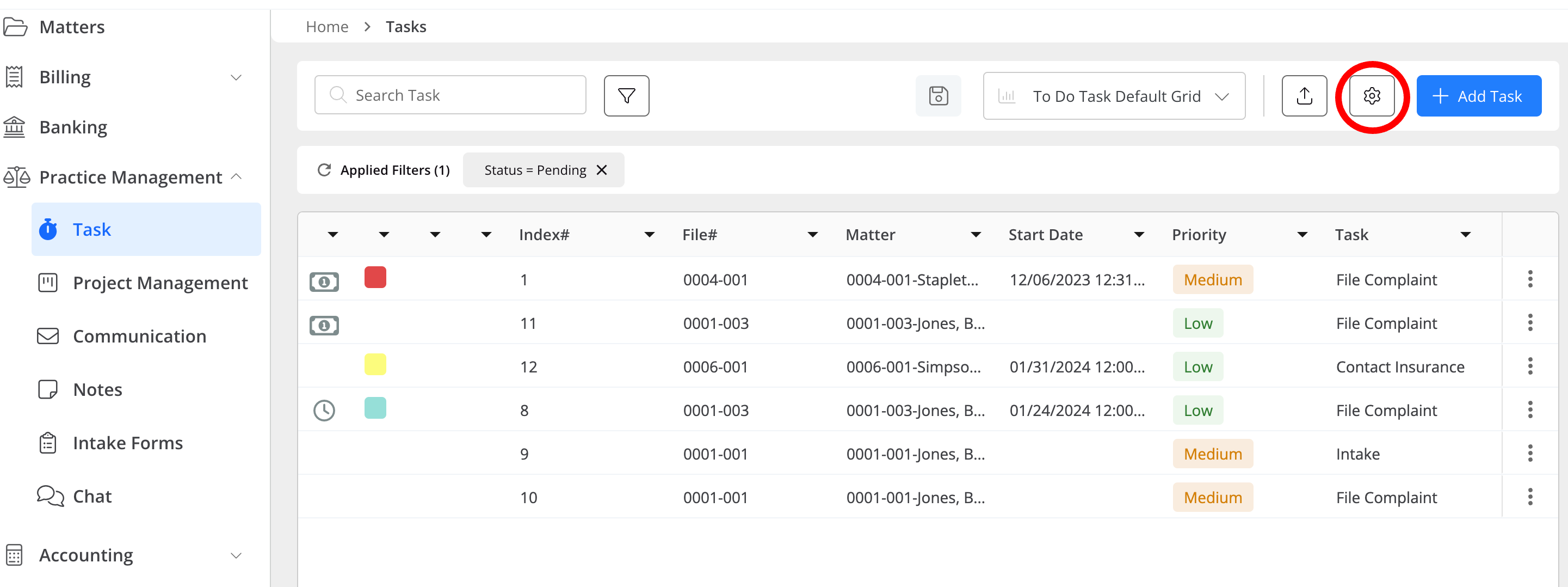
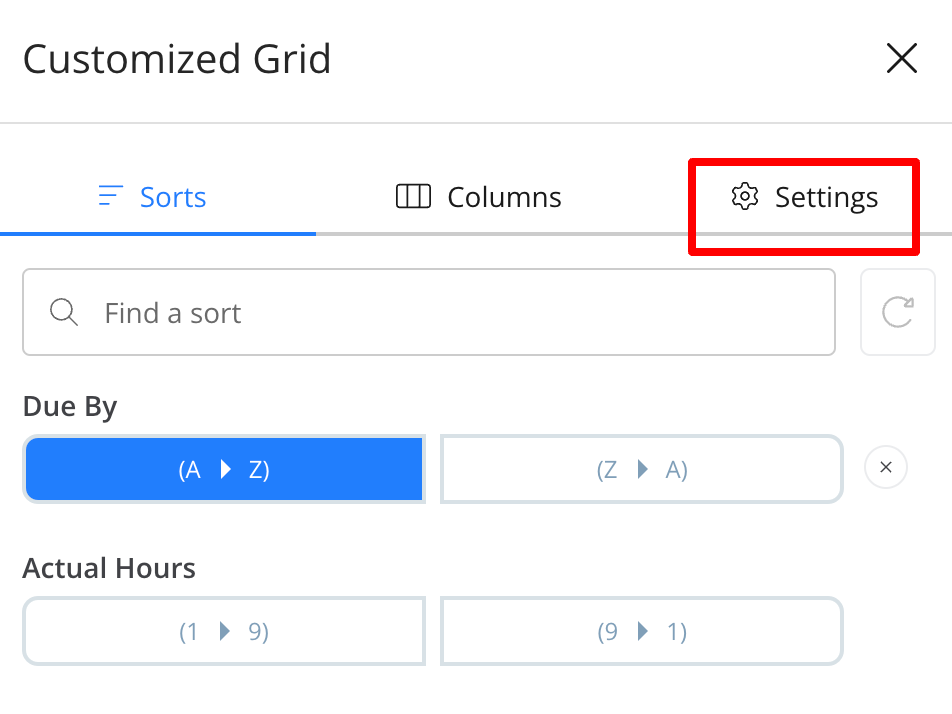
- Click on Settings.
- Expand the options by clicking on "View" and choose "Kanban" from the menu.
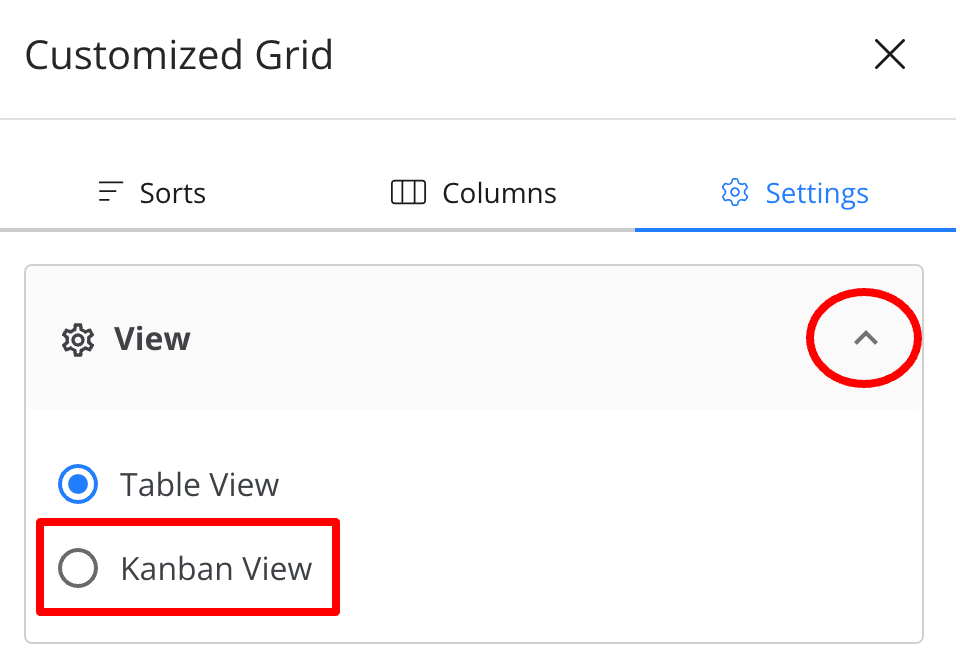
- The Task Kanban view will be updated instantly.
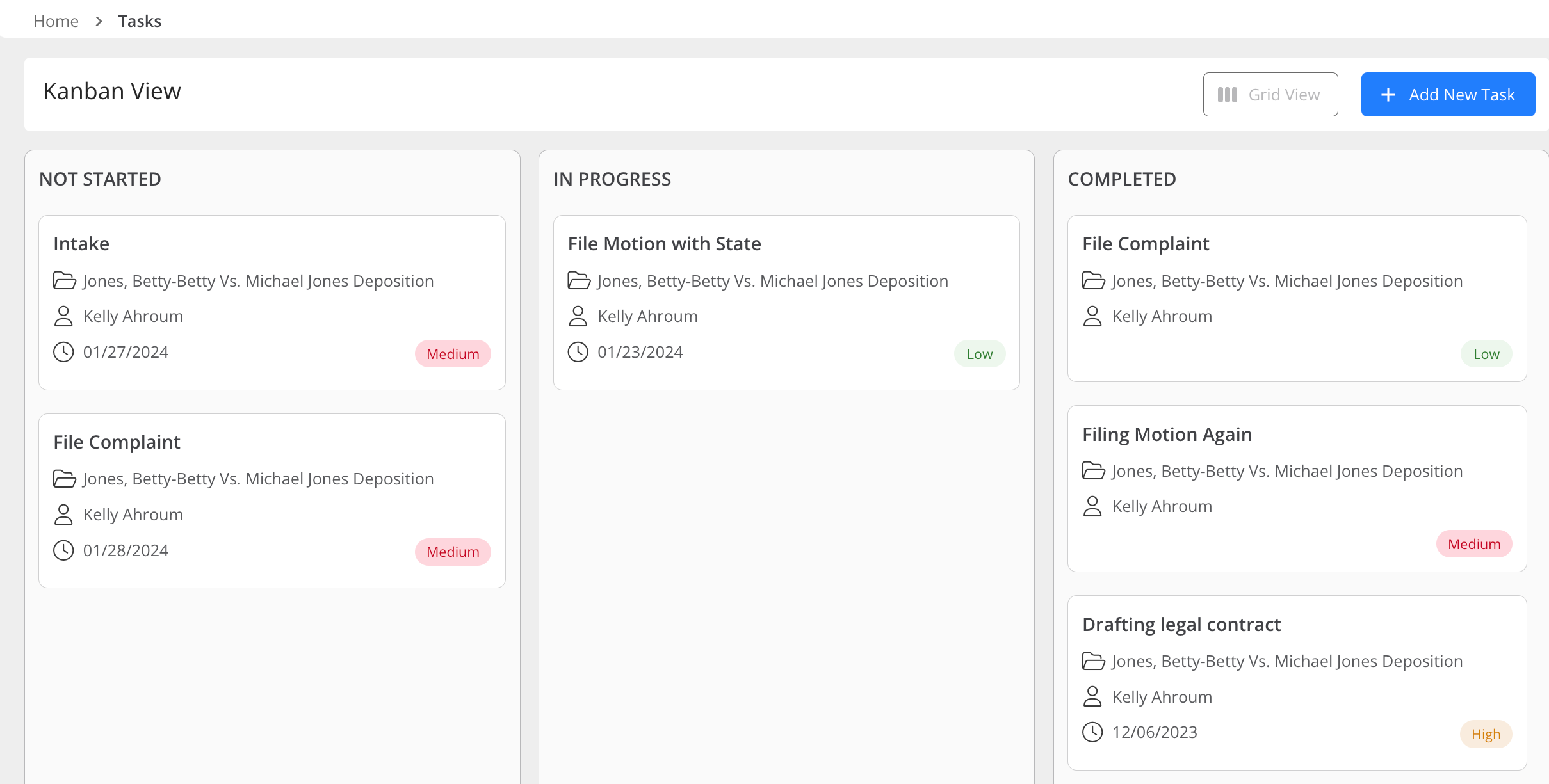
- Tasks are ordered chronologically, and the oldest tasks are displayed at the top within each column. Each task is associated with one of the following predefined statuses: Not Started, In Progress, and Done. The names of these statuses cannot be modified.
- In the Kanban view, effortlessly drag and drop tasks from one status to another as needed. Alternatively, double-click on a task to access the Edit Task screen and make any necessary changes.
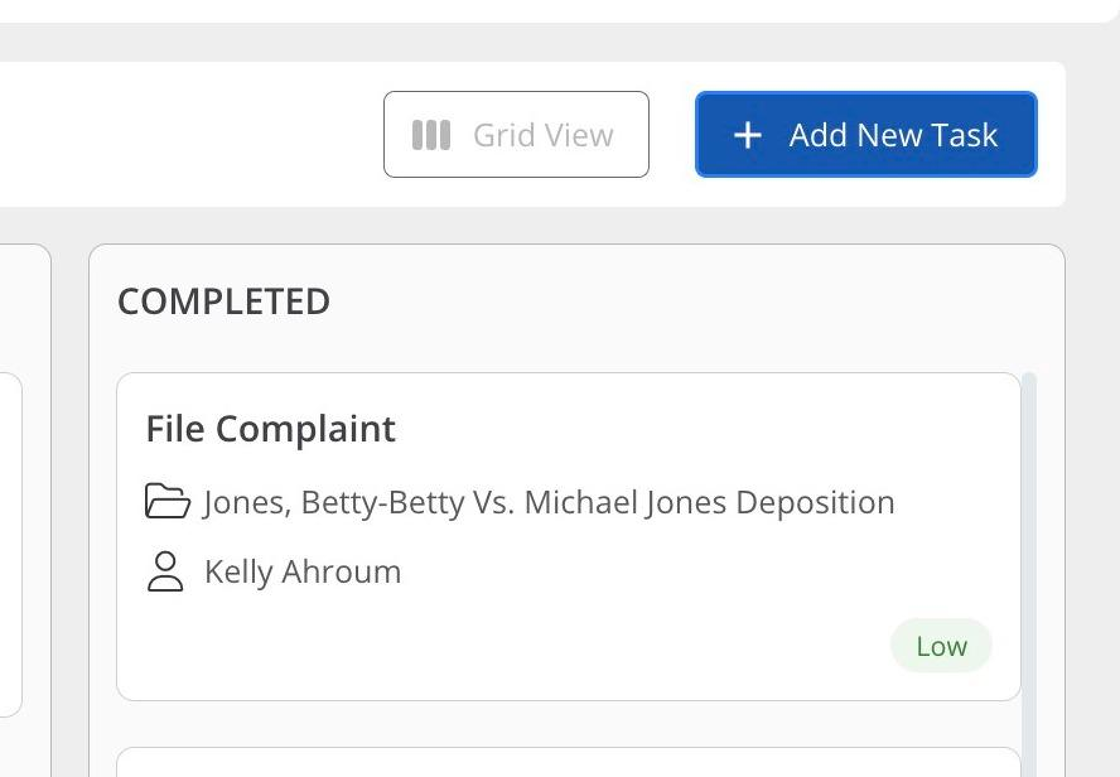
- In addition, from the Kanban view, you can utilize the "+ Add Task" option located at the top right.
Switch Back to Grid View
- To return to the grid view, click on Grid View located in the top right corner.
- The Task Grid view will be updated instantly.