Upgrading to a subscription is quick and easy.
Upgrade to a Subscription
To upgrade your trial:
- From the toolbar, click your Profile icon.
- From the drop-down, select, select Account > Account Management.
- From the Account left navigation, click User Management.
- From the tabs atop the User Management screen, click User.
- Confirm the user list includes everyone for whom you want to provide system access. Use the toolbar icons to update your list as needed.
- Note the number of users in your list. You will confirm this total later.
- Atop the left navigation, click Upgrade Now.
The Subscription Information screen opens.
- Confirm the firm's user account total matches the number of users you noted earlier. You can add or remove users, if desired.

- Under the Billing Cycle section, click the radio button for either the Monthly or Annual billing option.
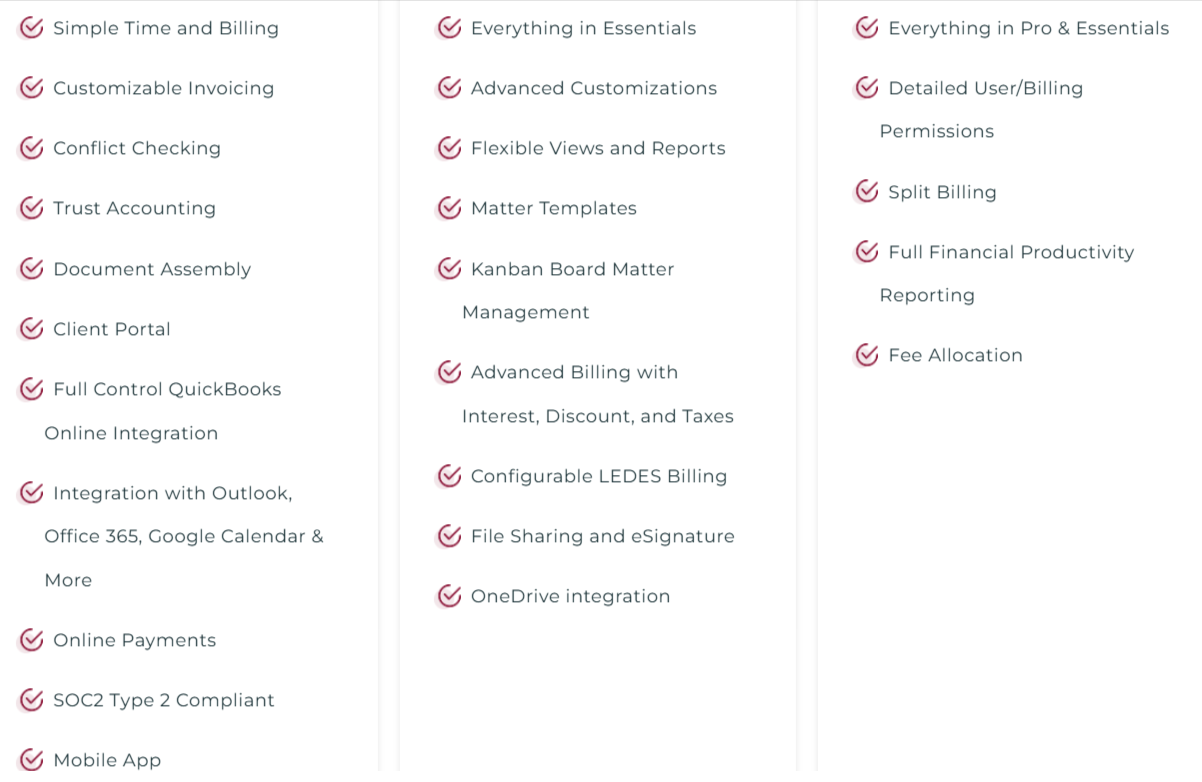
Note: An Annual subscription gives you a saving of 9 percent. - In the Subscription Tier section, select from the listed plans.
- On the Billing and Shipping Information page, enter your billing address.
- If your shipping address is the same as your billing address, check the box beside, Shipping address same as billing.
- Click Review Selection.
- On the Confirm Your Enrollment page, verify the details of the plan for which you have opted. Review the billing and shipping address, which can be edited on this page.
- Once you have confirmed the entries, click Continue to Payment.
- On the Add a payment method page, choose whether you would like to pay by Credit card or ACH.
- If you selected Credit Card, enter the card details and click Add.
- If you selected ACH, enter the bank details and click Proceed to Review.
- The Payment Methods page will display your stored payment information. If you wish to add another card or Bank Account, click Add New. If not, click Go to app.

- You will be directed back to the application. Your account will ONLY be charged after your trial ends.