You can archive or delete phone messages.
Archive Phone Messages
Once you have added a phone message, you may wish to archive it. You can archive phone messages from a few different places in the application.
Note: Any messages that are archived remain in the system. To view an archived message, go to the filter panel and under the Archived option, select Yes or, to view both archived and unarchived messages, select All.
From Practice
To archive your phone messages from Practice:
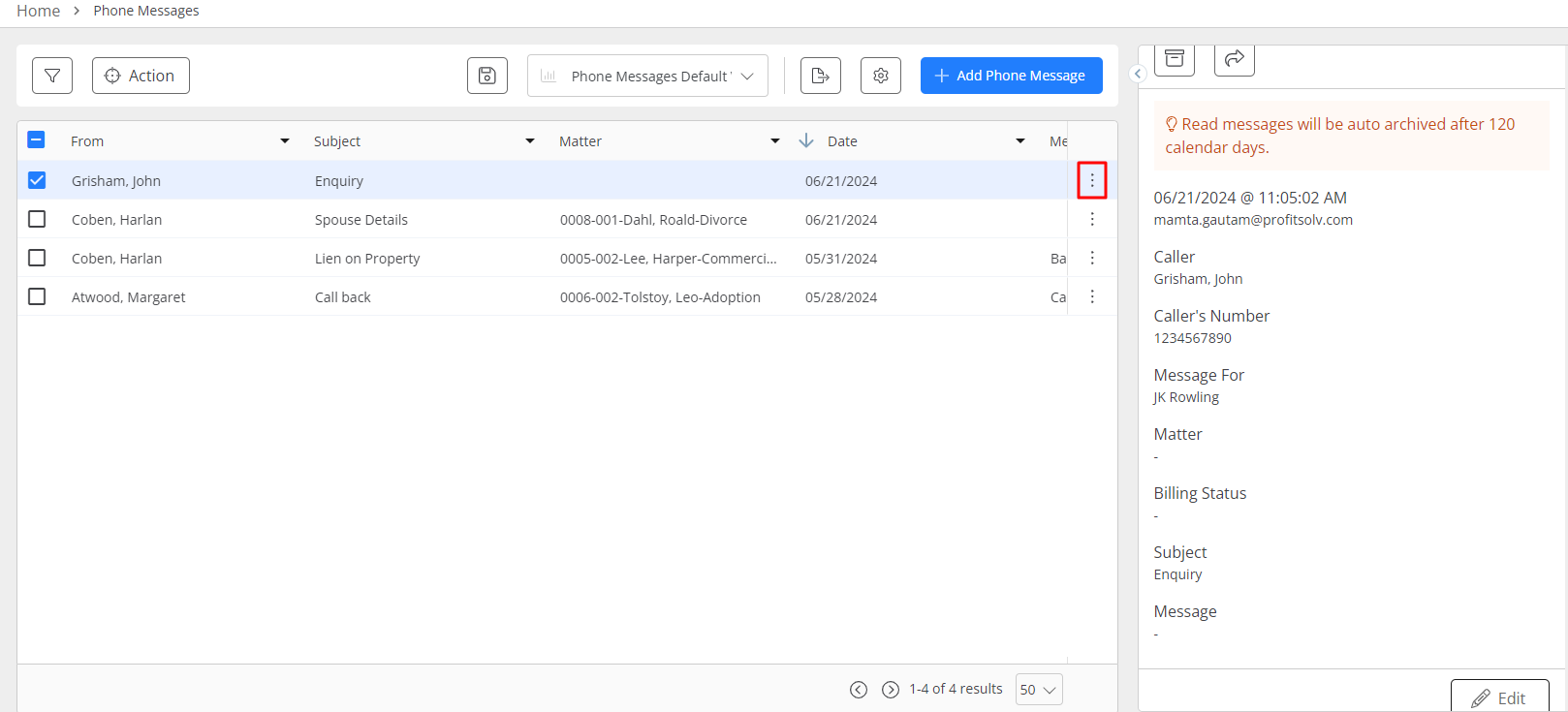
- From the left navigation panel, click Practice.
- From the Practice menu, click Phone Messages.
- From the list of messages on the screen, select a message and click on the three dots at the end of the row. From the list of options, select Archive. or
- From the drop-down, select View Details.
- From the tabs atop the message details panel click Archive.
From the Action Menu
YOu can access the Action menu from:
-
Practice > Phone Messages or
-
Matter > Matter Management > Phone Messages
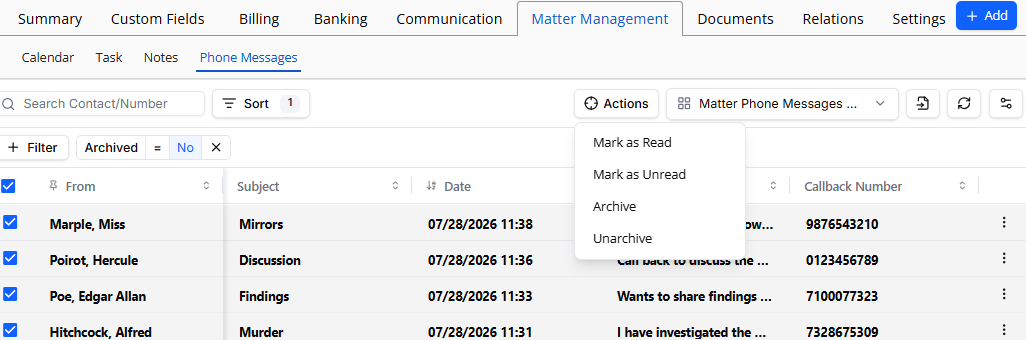
- From the list of messages on the screen, select a message and from the toolbar, click Action.
- From the drop-down, select Archive.
From Contacts
To archive a phone message from Contacts:
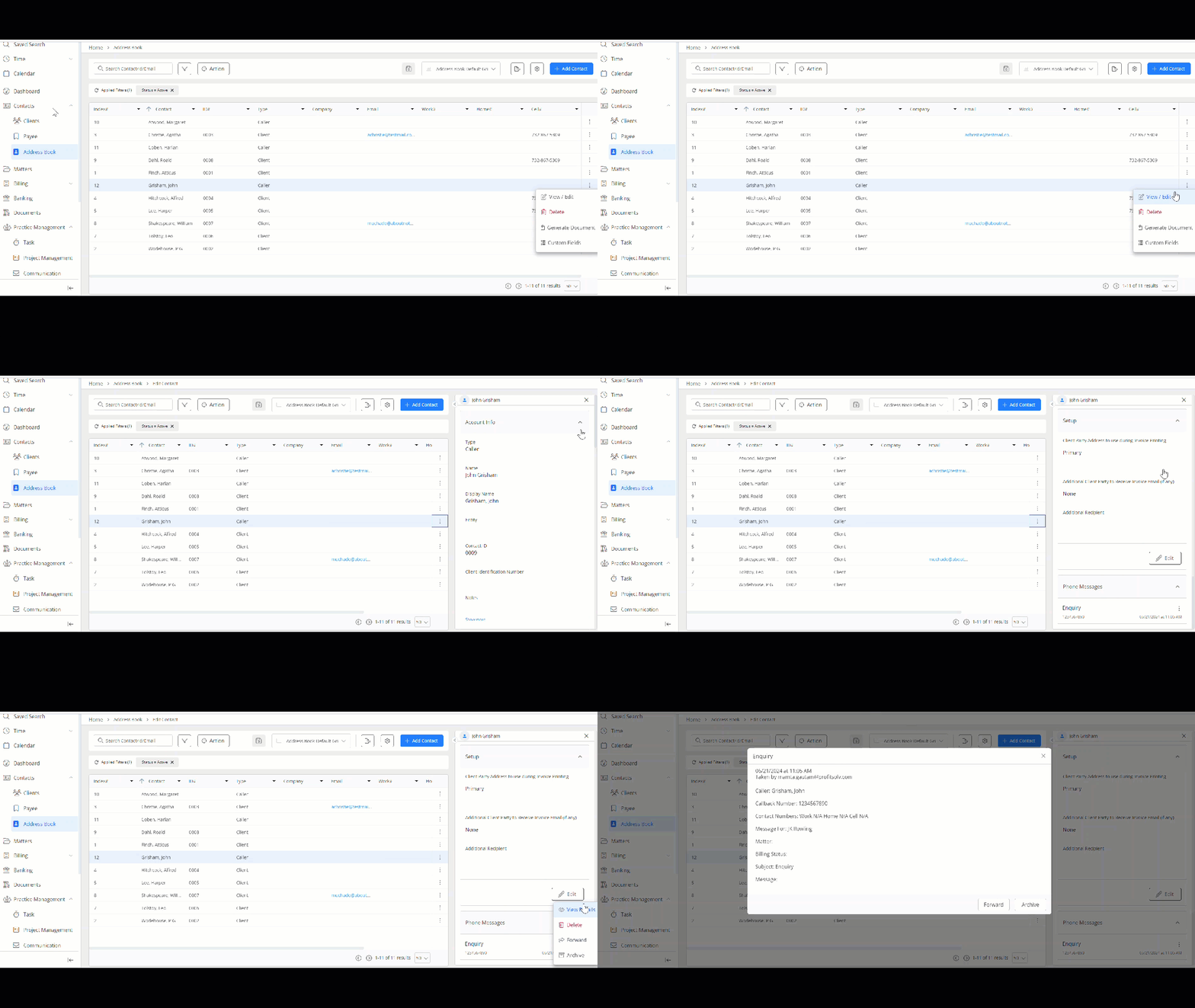
- From the left navigation panel, click Contacts.
- From the Contacts menu, click Address Book.
- In your address book, under the Type column, the person who called will be listed as Caller.
- Click on the three dots at the end of the row and from the drop-down, click View/Edit.
- On the panel that opens, scroll down to the Phone Messages section and click on the three dots beside the message. From the list of options, select Archive. or
- From the drop-down, select View Details.
- In the lower right corner of the message window that opens, click Archive.
Unarchive Phone Messages
You can unarchive your phone messages from:
-
Practice > Phone Messages or
-
Matter > Matter Management > Phone Messages
- To unarchive a single message use the filter atop the grid to select your archived messages.
- From the list of messages on the screen, select a message and click on the three dots at the end of the row.
- From the drop-down, select Unarchive.
From the Action Menu
- To unarchive a multiple messages use the filter atop the grid to select your archived messages.
- From the list of messages on the screen, select the messages you wish to archive and from the toolbar, click Action.
- From the drop-down, select Unarchive.
Delete Phone Messages
You can delete phone messages from:
-
Practice > Phone Messages or
-
Matter > Matter Management > Phone Messages
- From the list of messages on the screen, select a message and click on the three dots at the end of the row.
- From the drop-down, select Delete.
- You will receive a warning Are you sure you want to delete selected phone message? Click Delete.
Your phone message will be deleted.