Linking your bank feed allows you to automatically import transactions from your bank statement.
Watch a Video
Link Your Bank Feed
To link your bank feed to your bank account:
- From the left navigation panel, click Banking.
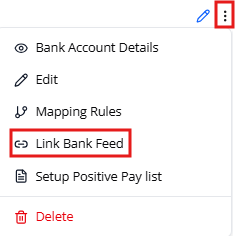
- On the Bank screen, single-click the bank and click on the three dots at the end of the row.
- From the drop-down, click Link Bank Feed.
A pop-up screen displays through which to link your bank account. - Click Continue.
The Select your bank screen opens. - Scroll or use the search box to locate and click your bank.
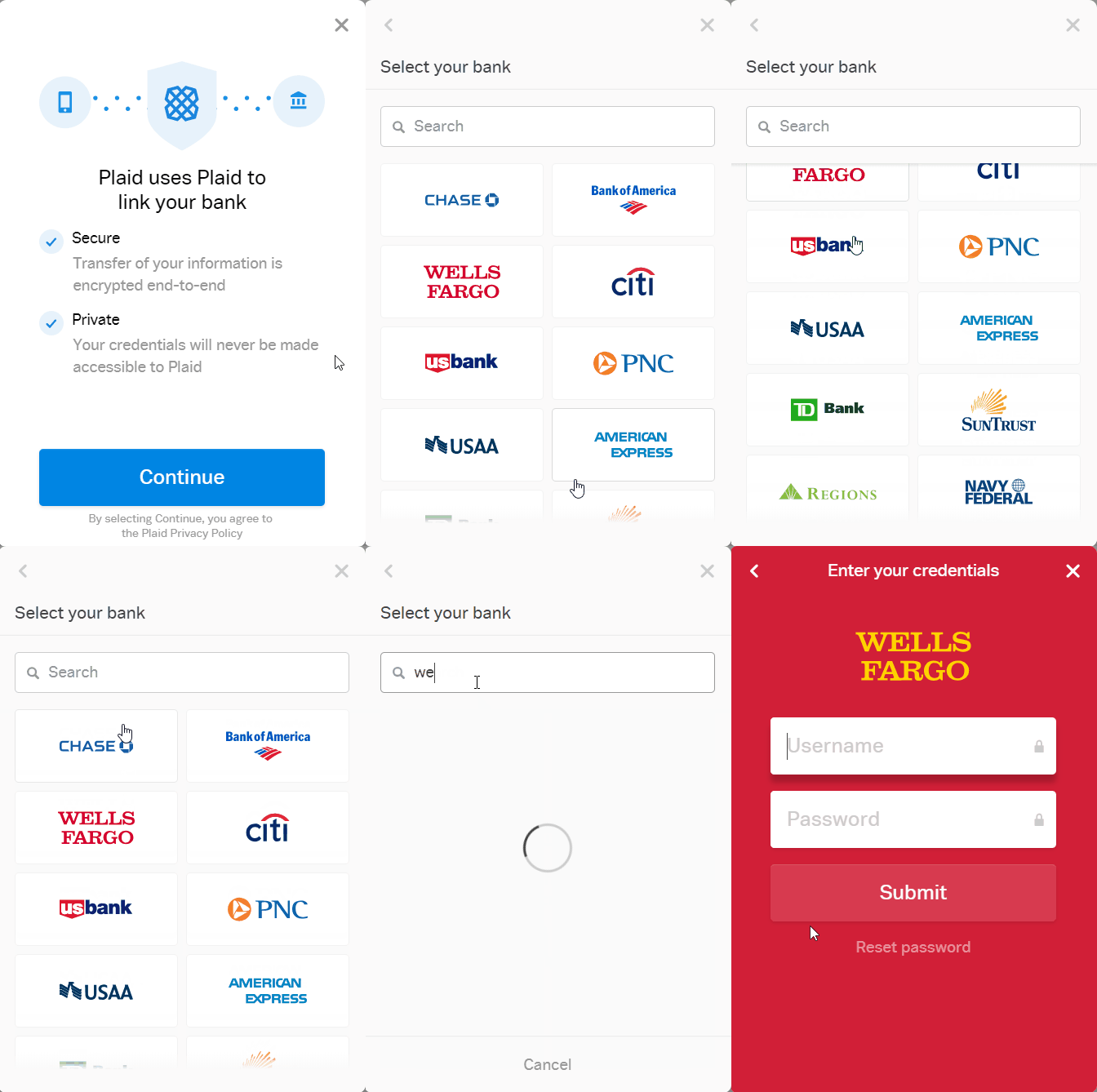
The bank prompts you to log in.
- Enter your credentials and click Submit.
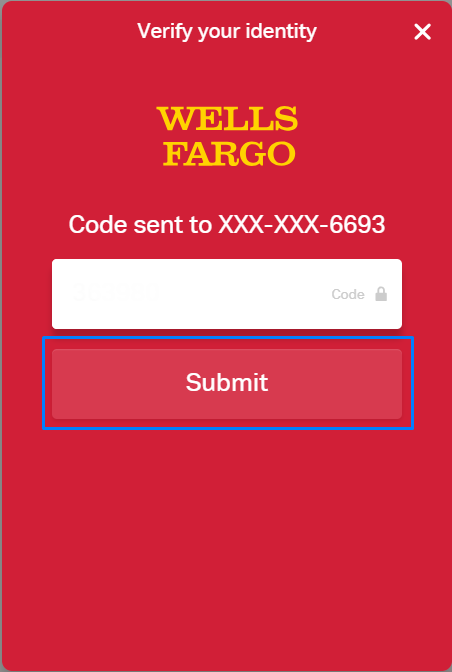
- Select the account to which you want to connect.
The system highlights the account. - Click Continue.
In the Bank screen, the bank icon displays next to the account to confirm the linked bank feed and its status.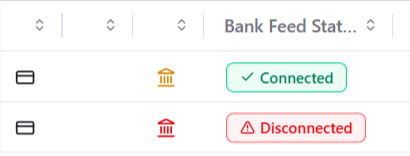
- Your bank feed may get disconnected if your bank login details changed, your token expired, or your bank updated security settings.
To continue importing transactions automatically, please re-link your bank feed using these steps:- Go to Banking.
- Click the three dots next to the bank account.
- Select Unlink Bank Feed.
- Click the three dots again.
- Select Link Bank Feed.
- Choose your bank and complete the linking process.
Once re-linked, you will resume receiving new transactions, which may take 48 to 72 hours.
If you need assistance reconnecting your bank-feed, please contact our support team at support@cosmolex.com.