You can import transactions from your operating, trust, and credit card accounts.
Your firm would likely import bank transactions when:
- Migrating to Rocket Matter for the first time
- Transferring transaction history from another source rather than just starting with the correct chart of account balances
- Importing monthly credit card statement transactions
Step 1: Export the Transactions from Your Bank/Accounting Program
The two most common sources of firm transaction exports are:
- Exporting an Excel or CSV file from your firm's previous accounting program
- Exporting a QBO statement from your bank's website. Almost all banks offer this file format, and it is the easiest format to import.
If your bank does not offer the QBO file format, you can use any of these options to convert your file:
- A third party utility
- Our support team
Step 2: Import the File
To import your file:
- From the left navigation panel, click Banking.
- From the Bank screen, double-click the bank and scroll down to its Transactions area.
- From the toolbar atop the Transaction screen, click Action > Import Transactions.
- From the Import Transactions screen, Click Choose File.
- On the browser window, locate your file and either double-click it, or single-click it to highlight it, and then click Open.
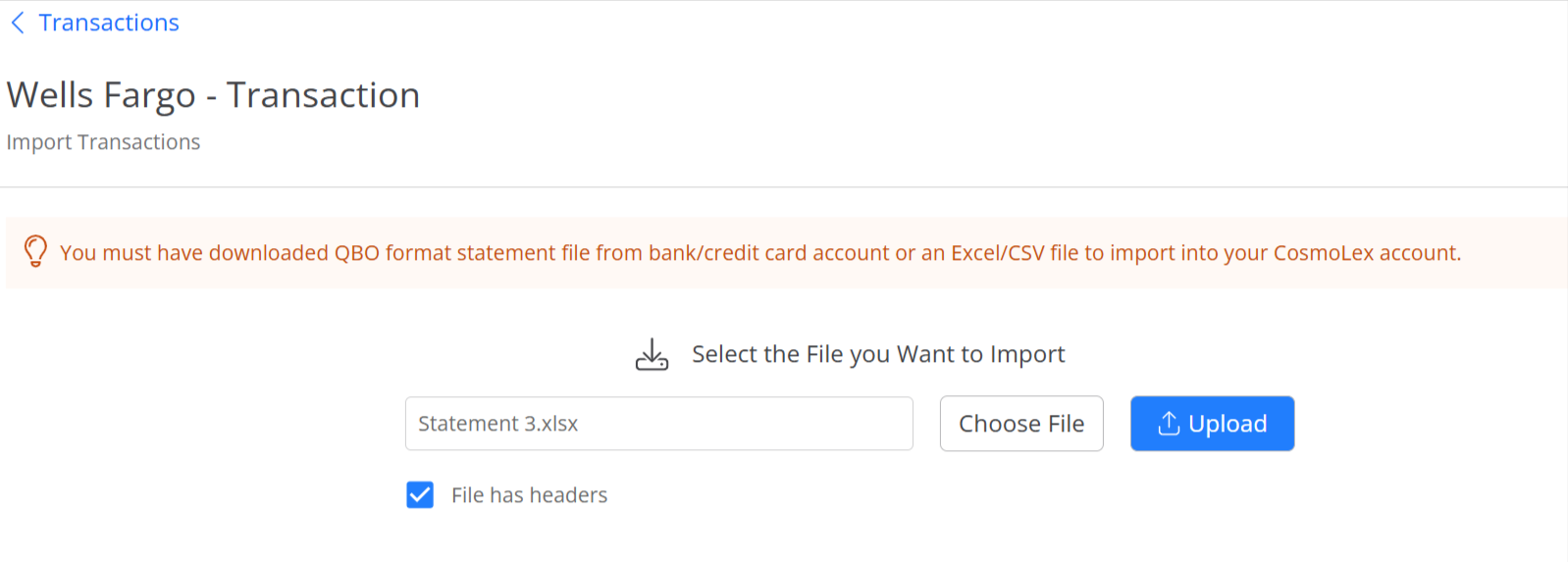
- The file name populates the Choose File field. Click Upload.
The Raw Data Mapping screen opens, displaying the transactions.