Efficiently monitor emailed invoices and ensure their delivery by reviewing the email history, including confirmation of download status.
View An Invoice's Email History From a Matter
To view an invoice email history for a specific matter:
- From the main left navigation, click Matters.
- On the Matters screen, double-click on a matter and scroll down to access the Matter Summary.
- From the tabs atop the summary screen, click Billing.
- From the tabs atop the Billing screen, click Invoice.
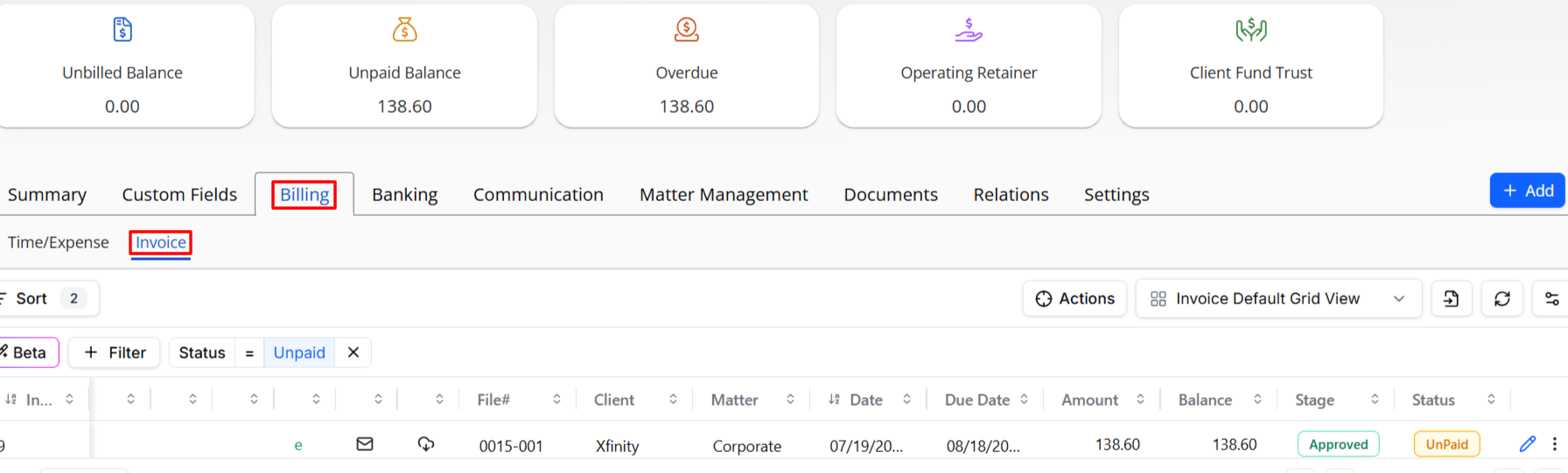
- You'll notice different icons to the left of each email:
SYMBOL MEANING 
The envelope indicates that the invoice has been emailed. 
The cloud denotes that the invoice was opened or downloaded from the client's email. - For more email details, click on the three dots to the right of the email and select View Details.
- Scroll down to access more email details.
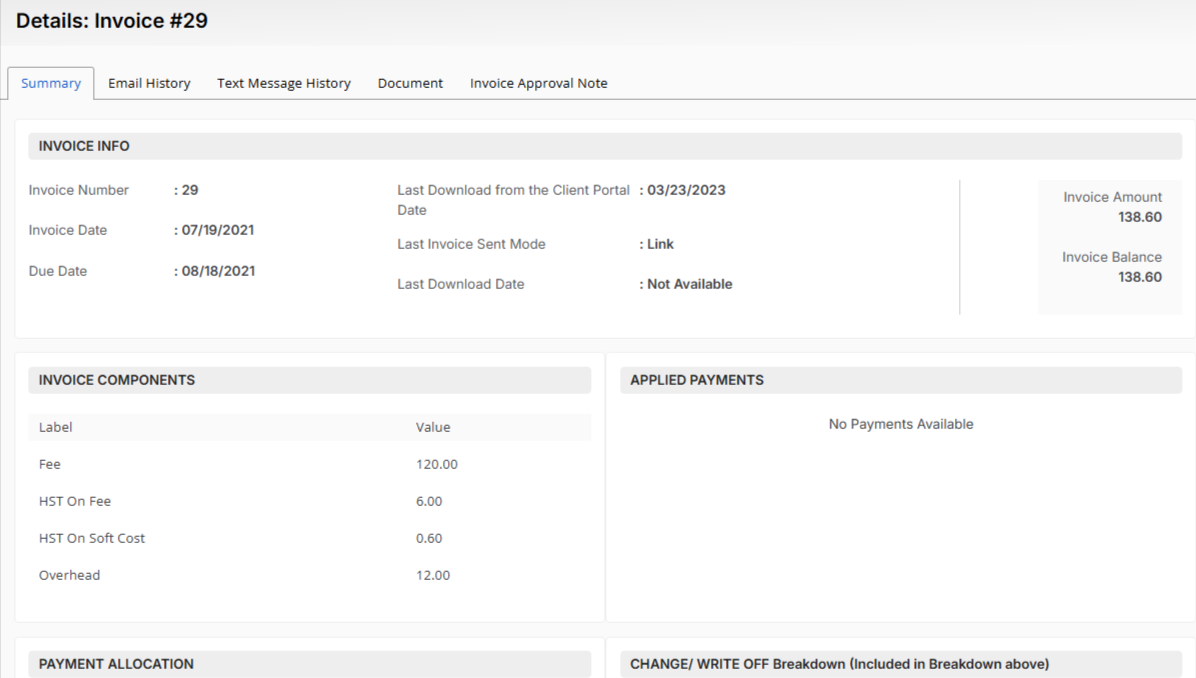
- Now while viewing the Invoice Summary, you'll find the following details:
Invoice Number
Invoice Date
Invoice Due Date
Last Download Date
Last Invoice Sent Mode
Last Printed Date
Invoice Amount
Invoice Balance **INVOICE COMPONENTS:** Fees (if applicable) **APPLIED PAYMENTS** (if applicable) **PAYMENT ALLOCATION** (if applicable)
CHANGE/ WRITE OFF Breakdown (Included in Breakdown above, if applicable)
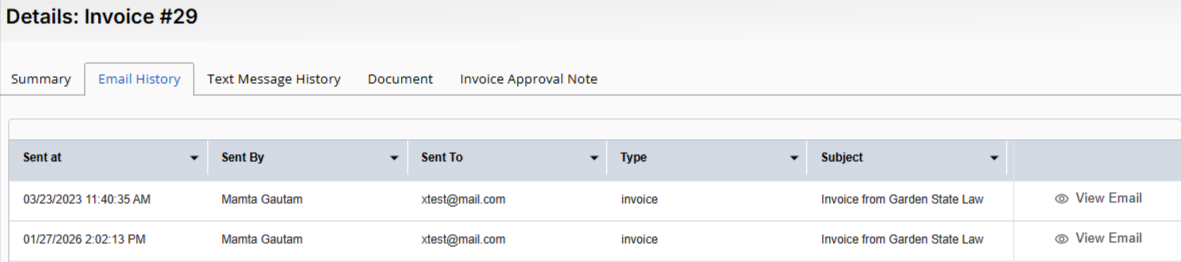
- From the tabs atop the screen, click Email History.
- Here, you will find information on the email's sending time, sender, recipient, email type, and subject.
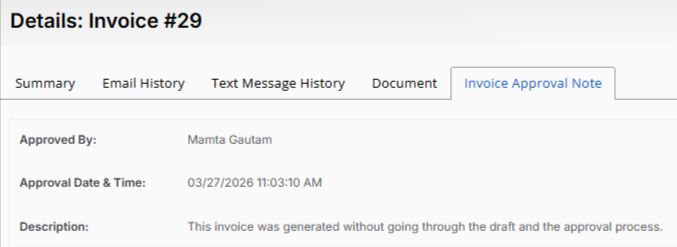
- To view other details related to the invoice, you can also click on the other tabs including Text Message History, Document, and Invoice Approval Note.
View Email History From the Invoice Section
- From the main left navigation, click Billing.
- From the Billing menu, select Invoice.
- Here, you'll find a list of all invoices. Use the filters if applicable.
- You'll notice different icons to the left of each invoice:
SYMBOL MEANING The envelope indicates that the invoice has been emailed. The cloud denotes that the invoice was opened or downloaded from the client's email. - For more email details, click on the three dots to the right of the invoice and select View Details.
- Scroll down to access more email details.
- Now while viewing the Invoice Summary, you'll find the following details:
Invoice Number
Invoice Date
Invoice Due Date
Last Download Date
Last Invoice Sent Mode
Last Printed Date
Invoice Amount
Invoice Balance **INVOICE COMPONENTS:** Fees (if applicable) **APPLIED PAYMENTS** (if applicable) **PAYMENT ALLOCATION** (if applicable)
CHANGE/ WRITE OFF Breakdown (Included in Breakdown above, if applicable)
- From the tabs atop the screen, click Email History.
- Here, you will find information on the email's sending time, sender, recipient, email type, and subject.
- To view other details related to the invoice, you can also click on the other tabs including Text Message History, Document, and Invoice Approval Note.