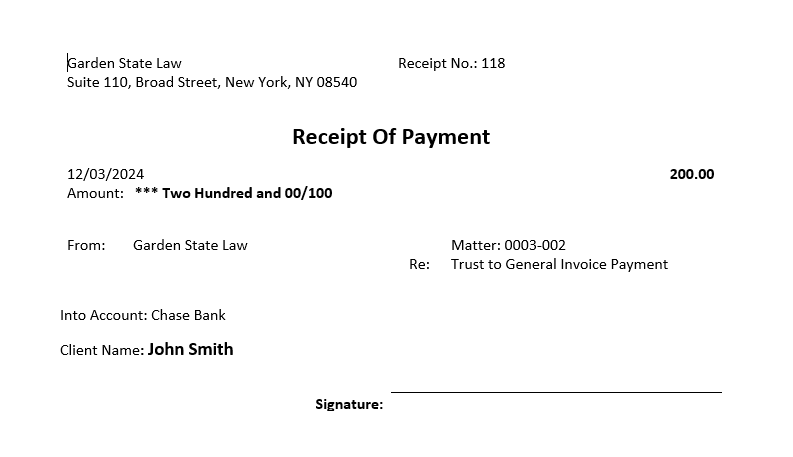
In order to generate a receipt for a transaction in Rocket Matter, you must use the document template and document assembly functions. We provide a payment receipt template, which you can locate and edit by going to Setup > Document Template > Transaction. Once you are ready to generate a receipt template for the desired transaction, follow the steps below.
Locating a Transaction
- From the left navigation panel, click Banking.
- Double-click the bank account to access its transactions screen. The transaction list will display.
Generating Receipt
- Select the desired transaction (if you can't find it here, make sure you have the appropriate filters applied).
- Click on the three dots at the end of the row and from the drop-down, click Generate Document.
The Generate Document screen opens, displaying the selected transaction's transaction type in the Transaction field.
- From the Document Template field's drop-down, click the Sample Payment Transaction template.
- The Generate As field pre-fills with MS-Word (.docx).
- Click Generate.
The Word document either saves to your downloads folder or automatically opens in MS Word.
Sample Receipt
Delivering & Archiving Receipt
- Print the receipt document.
- Attach it to an external email to send to the client.
- Upload to the documents area of that matter.