While you can add a cover page to individual invoices, all invoices, or none, there may be times you want to remove a cover page.
From One Invoice
You can remove cover pages from individual invoices when:
- Adding a matter from the Matters screen
- Editing a matter from either the Matters or Billing screen
To remove a cover page from a specific invoice:
- In the lower left corner of the Add Invoice or Edit Invoice screen, locate the Invoice Settings section.
If you used the Billing screen to access the Edit Invoice screen, click the down arrow to expand the Invoice Settings section. - Un-check the box beside Include Cover Page.
- Click Generate.
The invoice generates without a cover page.
From All Invoices
To remove cover pages from all invoices at the firm level:
- From the toolbar atop the screen, click your Profile Icon.
- From the drop-down, click Setup.
- From the Setup left navigation, click Firm Settings.
- From the tabs atop the Firm Settings screen, click Invoice Settings.
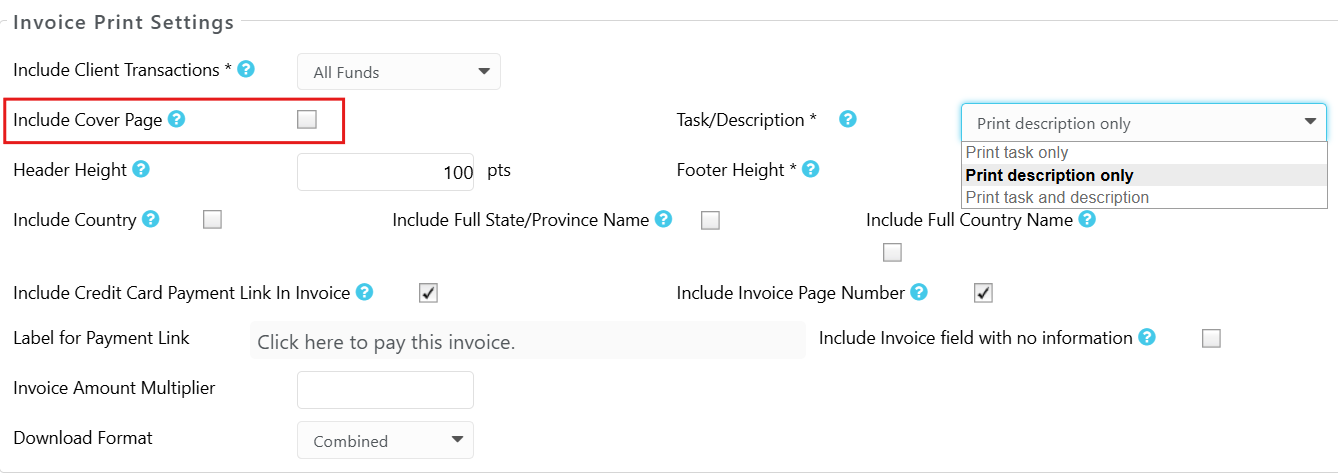
- Under the Invoice Print Settings section, un-check the box beside Include Cover Page.
- Click Save.