At the matter level, you can give internal and external users permission to view and send client messages.
Allow an External User Client Portal Access
To allow an external user Client Portal access:
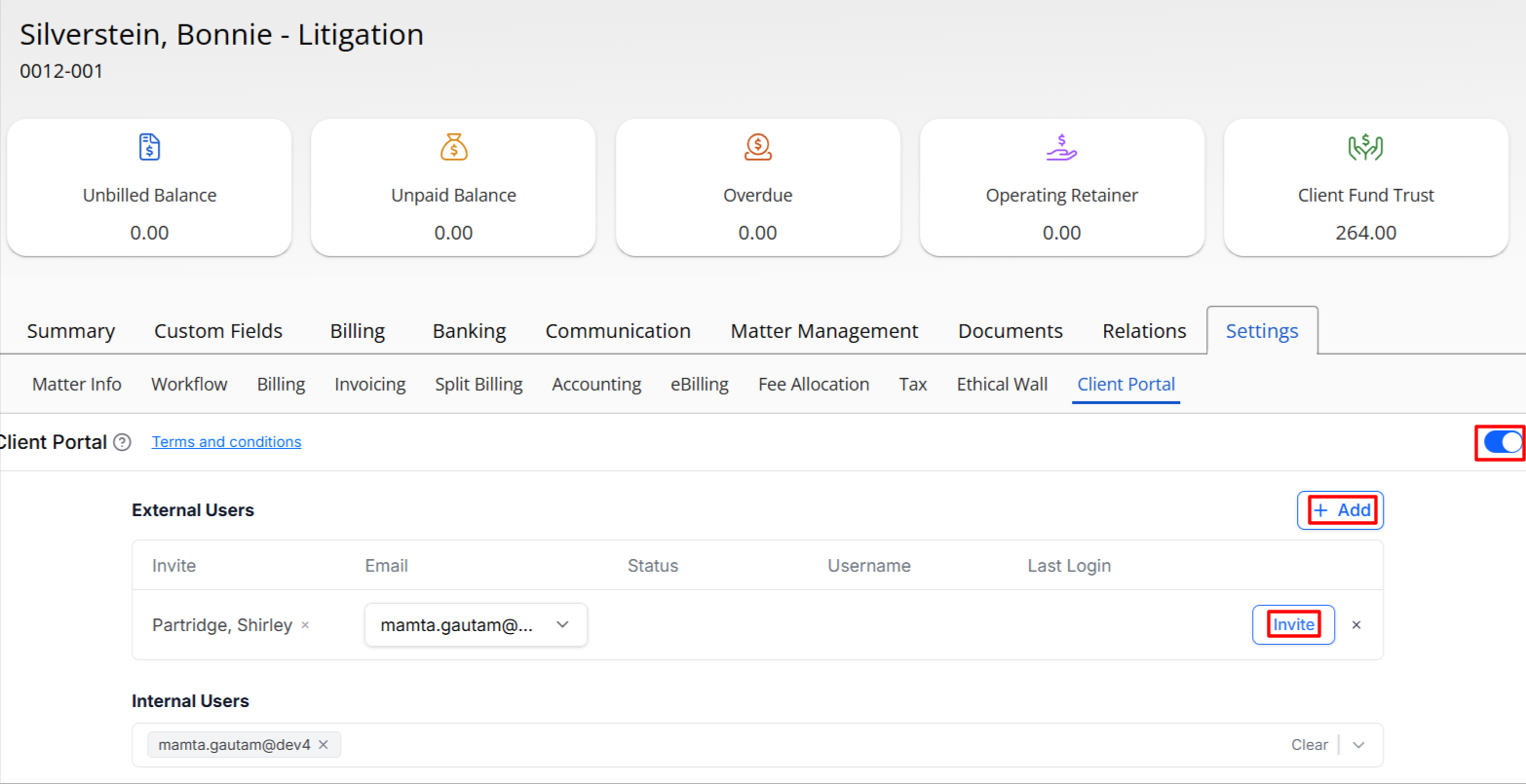
- From the left navigation panel, click Matters.
- On the Matters screen, double-click the matter and scroll down to its Summary section.
- From the tabs atop the summary screen, click Settings.
- From the tabs on settings section, click Client Portal.
- To enable the Client Portal, toggle the button On.
- To invite a user, in the External Users section, type at least two characters in the search field.
- Select the user from the drop-down and click Invite.
If the user does not have an email, you can enter the email address in the space provided.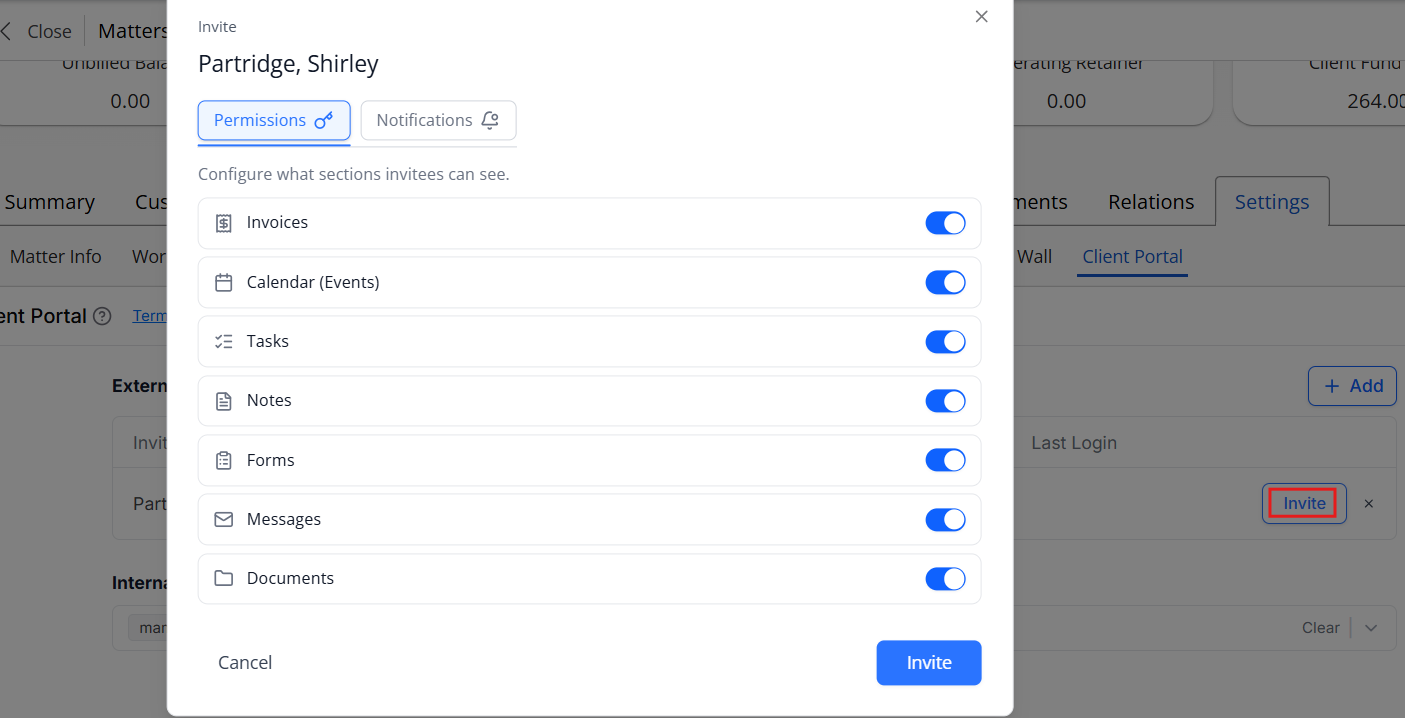
- Clicking Invite will allow you set the permissions and notifications for the selected user. Check or uncheck items you wish to share with the user.
- Check or uncheck what notifications you want the selected user to receive.
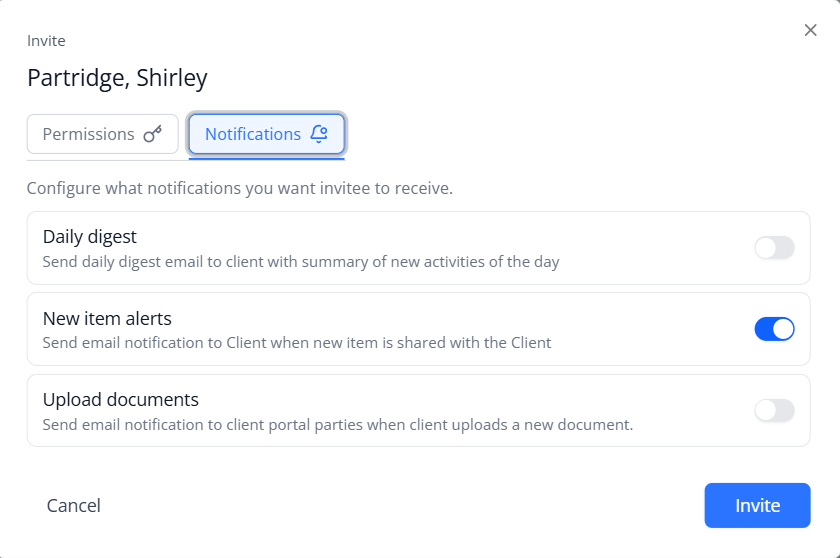
- Once you have made your selections, click Invite.
- To invite more users to view the client portal, click Add.
Note: There is no limit to the number of external users you can invite to the client portal.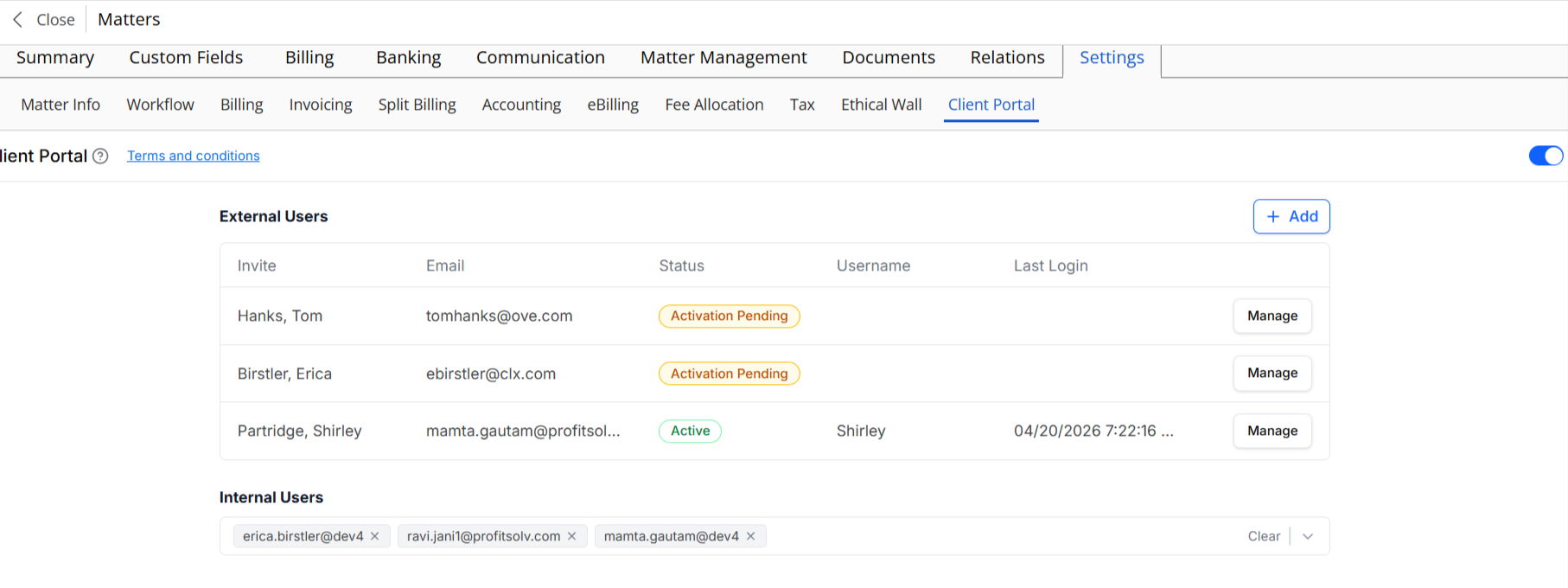
Allow an Internal User Client Portal Access
To allow a firm user Client Portal access:

- From the left navigation panel, click Matters.
- On the Matters screen, double-click the matter and scroll down to its Summary section.
- From the tabs atop the summary screen, click Settings.
- From the tabs on settings section, click Client Portal.
- To enable the Client Portal, toggle the button On.
- To invite a user, in the Internal Users section, click in the space beside your email.
- From the list of firm users that displays, check the box(es) beside the users you want to invite.