Watch a Video
Your dashboards are the first thing you see when you log in to your account.
Your ability to view dashboards depends on your user access. To learn more, see Dashboards Overview.
Your me dashboard displays useful information based on the user who has logged in. Focuses more on Practice Management and Time-related items
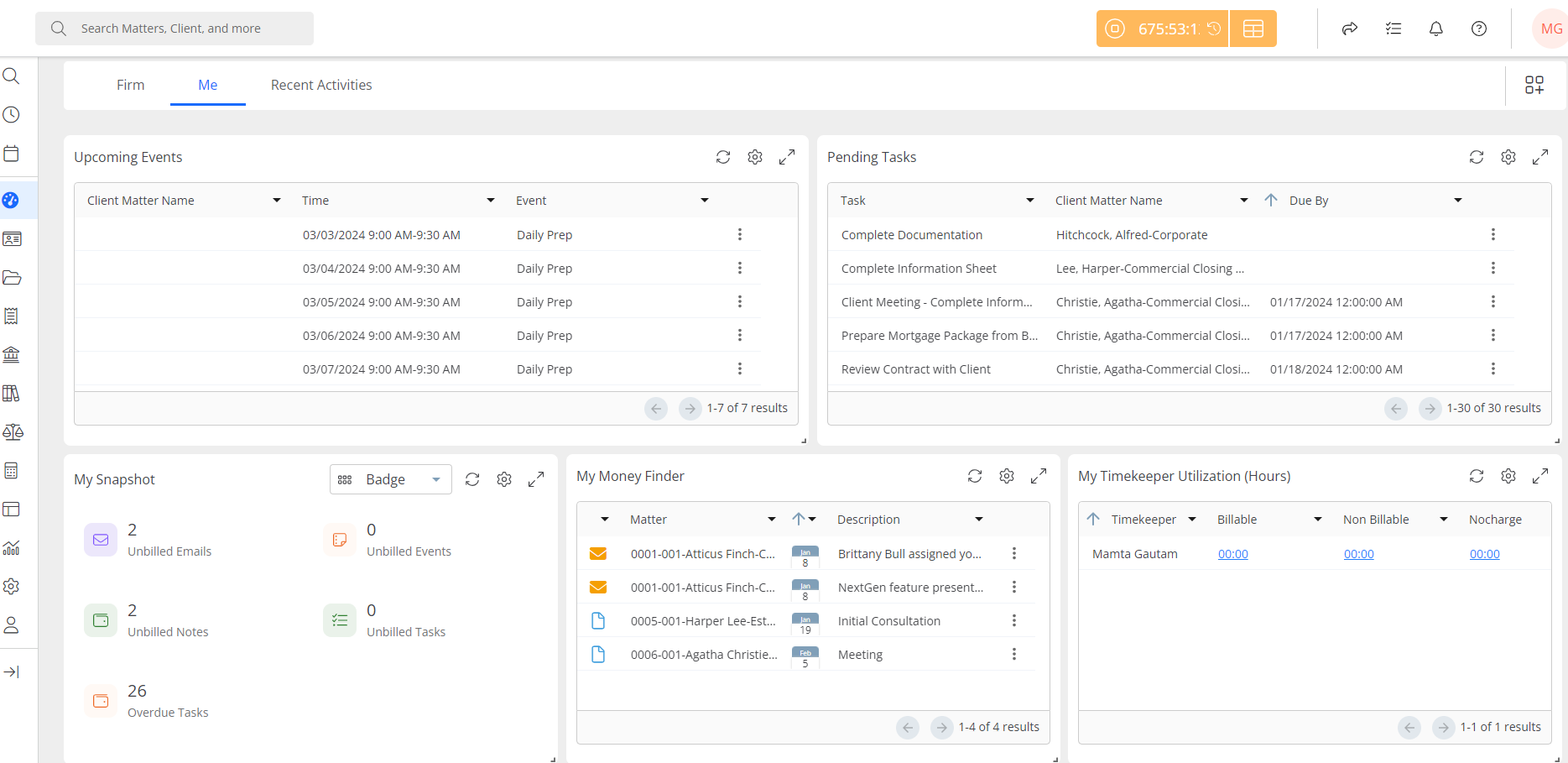
Upcoming Events
The Upcoming Events section lists your upcoming events based on their due date. You can click the gear icon to change the date range, or click the three dots to the right of an event to edit the event.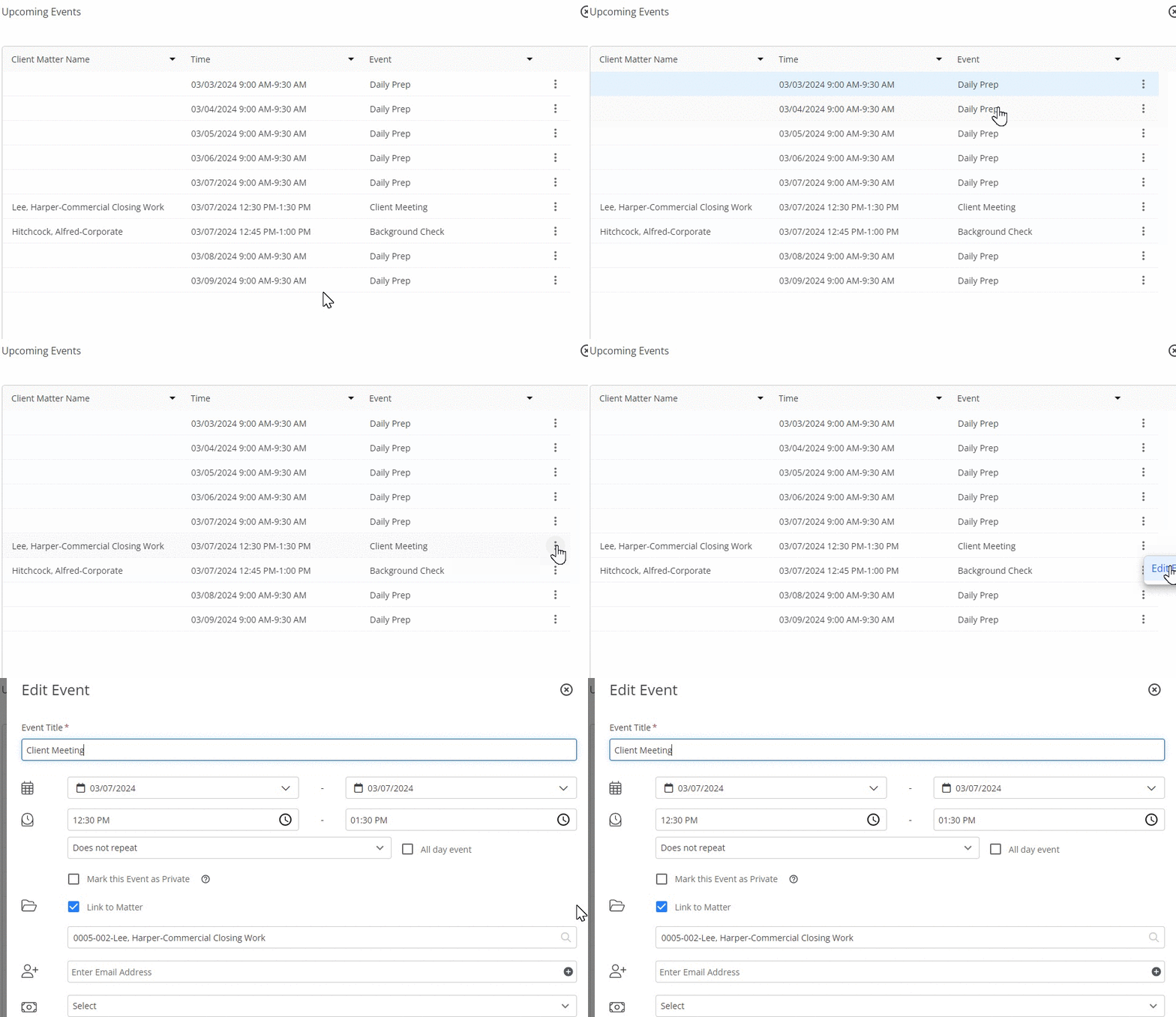
Pending Tasks
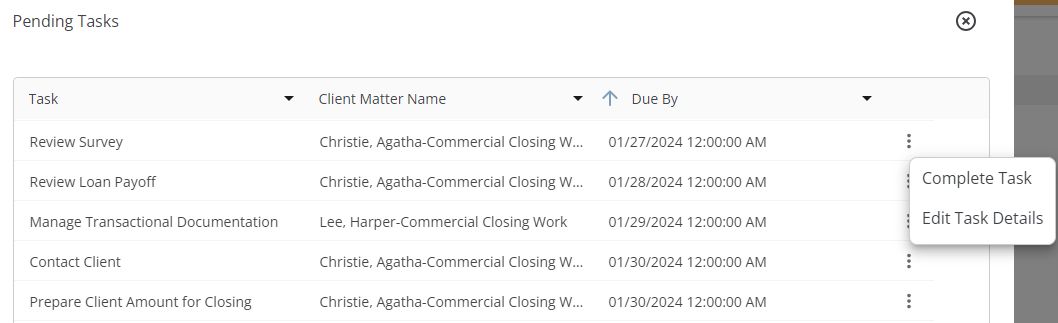
The dashboard's Pending Tasks section lists your pending tasks based on due date. On the far right, you can click the three dots to either edit a task, or mark it complete.
My Snapshot
The Snapshot section provides counts related to unbilled, unpaid, and overdue items.
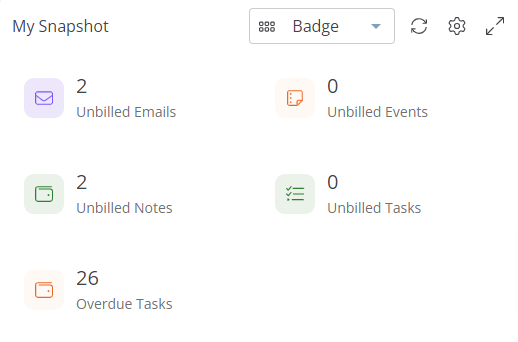
Unbilled Emails
When you receive emails, you can mark them as Billable items. Once marked Billable, the emails will display in this list: emails you can invoice, but for which no time entry exists.
Click Unbilled Email to view a list of your firm's unbilled emails. To the far right of an unbilled email, click the three dots to add a timecard to the email, removing it from Unbilled status and preparing it for inclusion on your next invoice.
Unbilled Events, Notes, and Tasks
These three items work the same as Unbilled email, with one exception: clicking the three dots not only lets you add a timecard, you can also edit an event.
Overdue Tasks
The Overdue Tasks icon displays a list of overdue tasks. Clicking the three dots, you can either edit the task or mark it complete.
Money Finder
The Money Finder section lists the user's unbilled, but Billable items.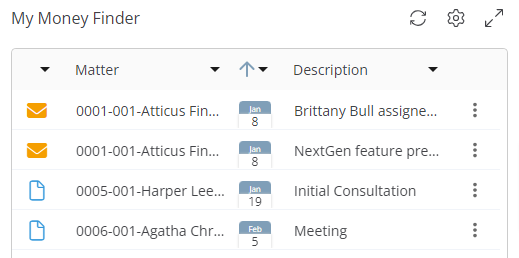
These items can include emails, tasks, notes or calendar events. While the Firm Dashboard displays a firm-wide Money Finder list, the Me Dashboard displays only the user's Billable items.
Items that will display in the Money Finder are those that you mark as Billable when you create them, or edit the item to change its Billing status to Billable.
Note: The Money Finder will display billable:
- Emails and Notes - As soon as they are created
- Calendar Event - Once the event is over
- Task - When you change the status of the task to Done
Once your items display in the Money Finder, you can enter time from your Dashboard, reducing the possibility of overlooking billable time.
Add Time from the Money Finder
To add time from the Money Finder:
- Locate your billable item on the Money Finder list.
- To the item's far right, click the three dots.
- From the drop-down, click Add Time.
- On the Add Timecard screen, complete the fields.
- Click Save.
Timekeeper Utilization
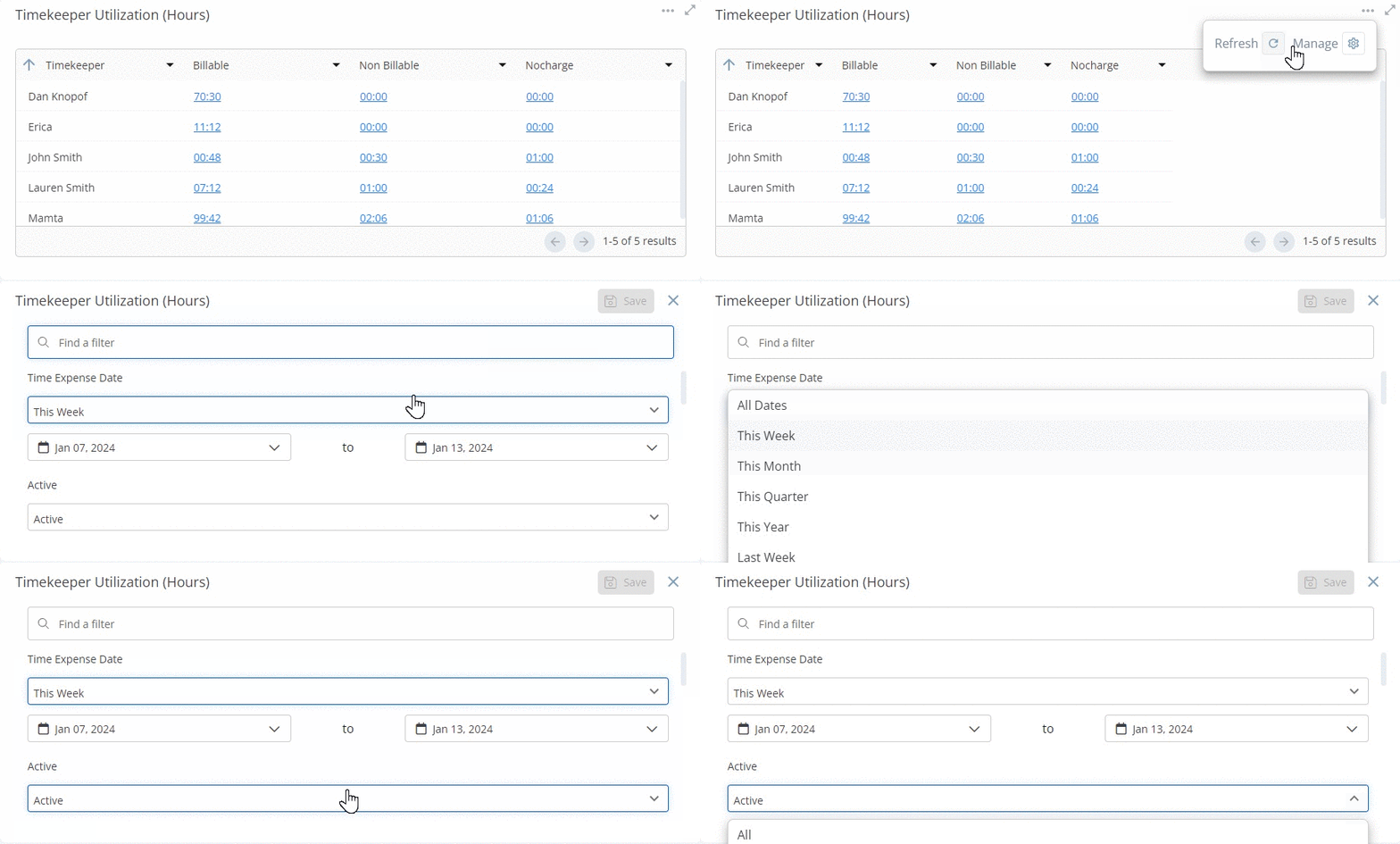
In this section, you can view your Billable, Non Billable, and No Charge hours. Click the filter icon to change the date range.
View Time Entries From Timekeeper Utilization
To view individual time entries:
- Beside the timekeeper's name, click either the Billable, Non Billable, or No Charge field's value.
The applicable screen opens, displaying all time entries for that billing category. - Click the three dots to edit the time entries, if desired.