When you log in to your account, your dashboards are the first things you see.
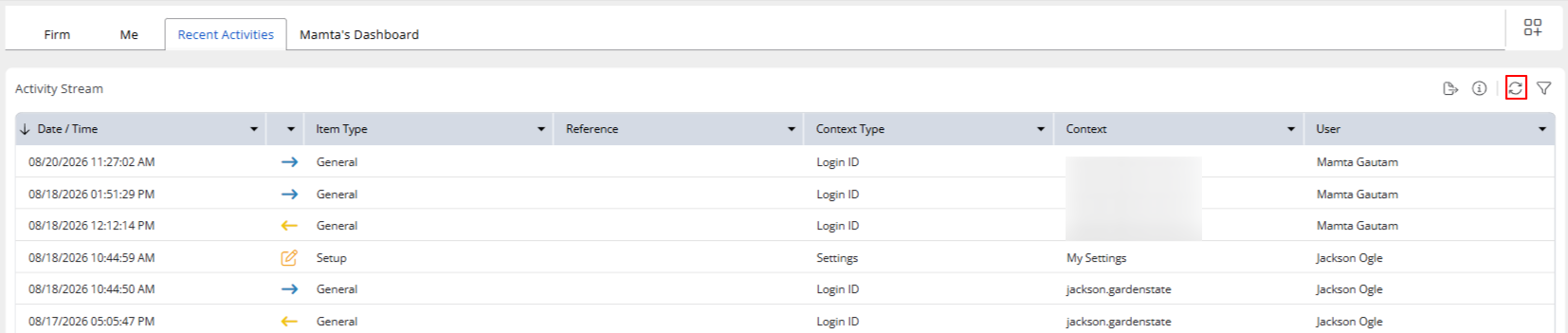
Your access to view dashboards depends on your user permissions. To learn more about your dashboards, see Dashboards Overview. Your Recent Activities dashboard includes:
-
Recent user activities, transactions, invoices, matters, logins, matter closing, and more.
- Users can filter these activities based on various criteria like reference number and context.
- Export in formats such as Excel, PDF, or CSV.
View Recent Activities
Export Recent Activities
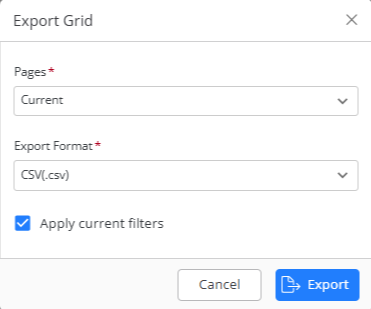
To export recent activities:
- On the Recent Activitiestab, click on the export icon located on the top right.
- From the drop-down, select the pages you wish to export and the export format (CSV, PDF, Excel).
- After making your selection, click Export.
Your audit ready export will be added to the job list and downloaded to your desktop.
Filter Recent Activities
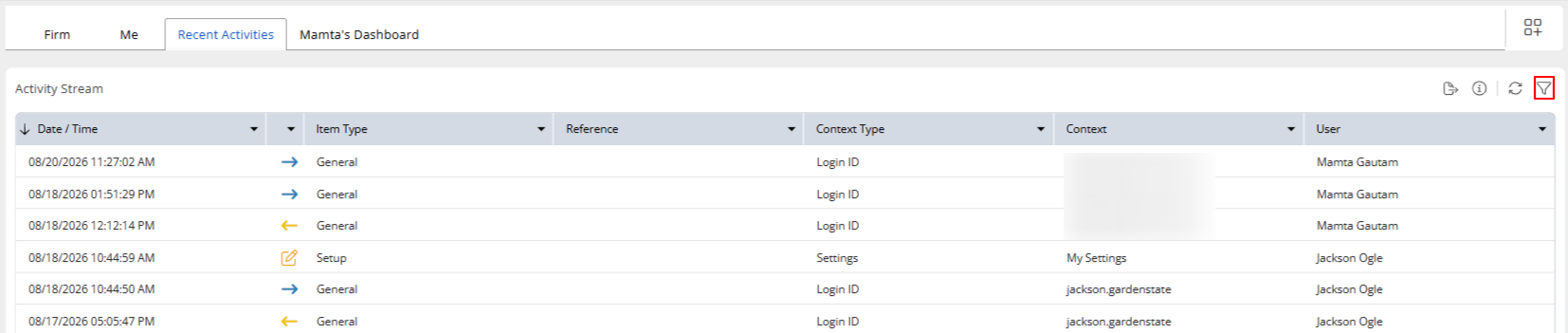
To refine your search in Recent Activities, click on the filter icon located on the top right.
Filters Criteria
- To refine your search in Recent Activities, click on the filter icon on the top right.
- Utilize the search bar at the top to find a specific filter if needed. Click to select all relevant filters.
- Afterward, click the Save button located in the top right corner of the screen to save your filter selections.
| Search | Utilize the search bar at the top to find a specific filter if needed. | ||||||||||||||||||||||||||||||||||
| Context | Utilize this filter to input a context, which could represent a specific client, matter, new entry, or login ID. | ||||||||||||||||||||||||||||||||||
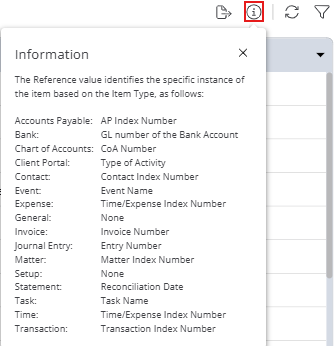
| Reference | Enter a reference value to refine your search to a specific entry. The Reference value helps identify the particular instance of the item based on the Item Type, as follows:
|
||||||||||||||||||||||||||||||||||
| Date/Time | Defaults to one month. To change, you can use the Range drop-down menu to choose from a variety of options including All Dates, This Week, This Month, This Quarter, This Year, Last Week, Last Month, Last Quarter, and Last Year. Alternatively, you can use the =, >, < symbols to specify a custom date range by selecting dates from the calendar. | ||||||||||||||||||||||||||||||||||
| Activity | By checking the box beside each, you can choose from Add, Delete, Login, Update, Information, or Logout. | ||||||||||||||||||||||||||||||||||
| User | Opt to view recent activities for All users, or utilize the drop-down menu to select a specific user for more targeted insights. |