If your lawyer has enabled the client portal, they can grant you access to share these secure communications regarding your matter:
- Invoices
- Calendar Events
- Tasks
- Documents
- Notes
- Messages
Access the Client Portal
To access the client portal:
- Open the automated email invitation from your lawyer. The subject line is You have an update from [Law Firm Name].

- In the body of email, click Click here.
A welcome screen opens, prompting you to create your account.
- Enter a username, password, and confirm your password.
- Click Activate your Account.The system activates your account, allowing access to the Client Portal.
- Log into the client portal.
Forgot Username or Password
If you happen to forget your password to log into the client portal, follow steps below:
- Log into the client portal.
- Beneath the Log In icon, click Click here.
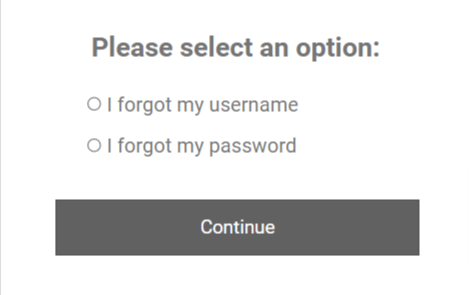
- From the screen prompting you to Please select an option: click I forgot my username, or I forgot my password as applicable.
- On the Recover Username or Reset Password screen as applicable, take the appropriate action:
- To recover your username, enter the email address associated with your account.
- To recover your password, enter your username.
- Click Submit.
The system either emails you your username or instructions to reset your password.
Lock the Side Panel Tabs
If you would prefer the side panel's tabs to not expand, in the upper left corner click the three-lined (expand/contract) icon.

Enabling the New Client Portal
Clients of certain firms are currently able to opt into a rewritten, streamlined interface for the Client Portal areas. As this new Client Portal interface is improved, it will be rolled out to more firms and their users.
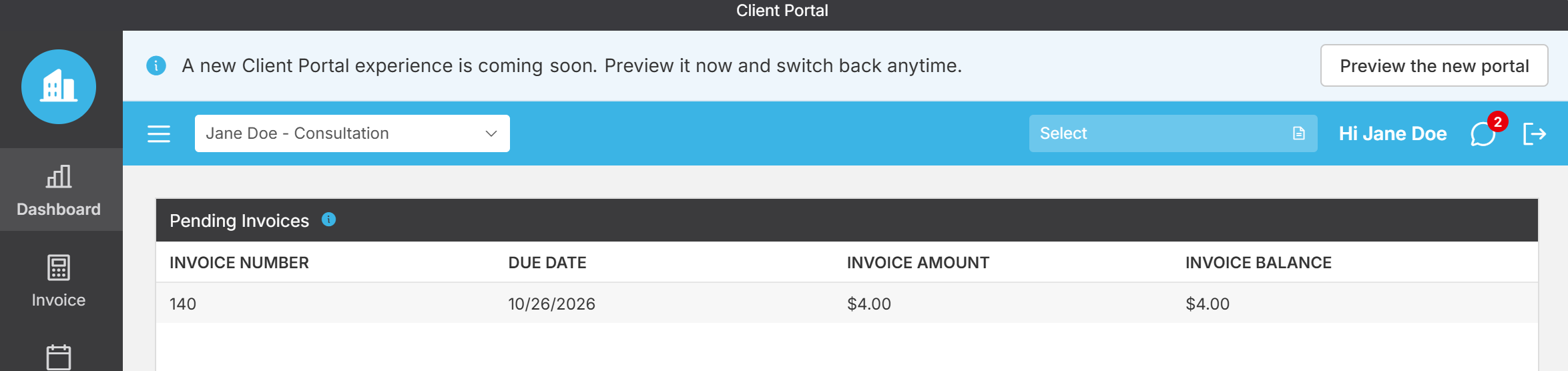
Viewing the New Client Portal
After previewing the new Portal, you will be able to either toggle back on the previous Client Portal look, or permanently stay on the new interface, using the banner at the top.
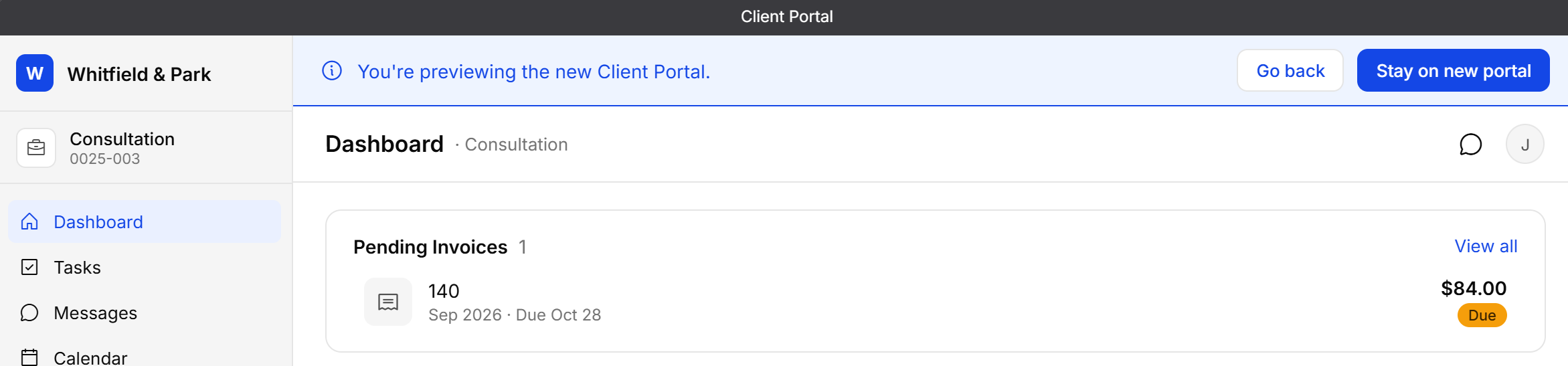
Client Portal pages in the new interface should retain a familiar functionality and layout that you have already come to expect. Both of these Client Portals access the same information from your lawyer's firm.
This includes the following returning features:
| Dashboard | View pending invoices, upcoming tasks, and upcoming events. |
|---|---|
| Task | View tasks the firm has shared. |
| Messages | Read and respond to messages from permitted firm users. |
| Calendar | View calendar events the firm has shared. |
| Documents | Download, view, and upload documents the firm has shared. |
| Invoice | Download and view invoices the firm has shared and pay invoices online via our payment processing integrations. |
| Notes | View notes the firm has shared. |
However, there is a new tab for Forms accessed from the left-hand side:
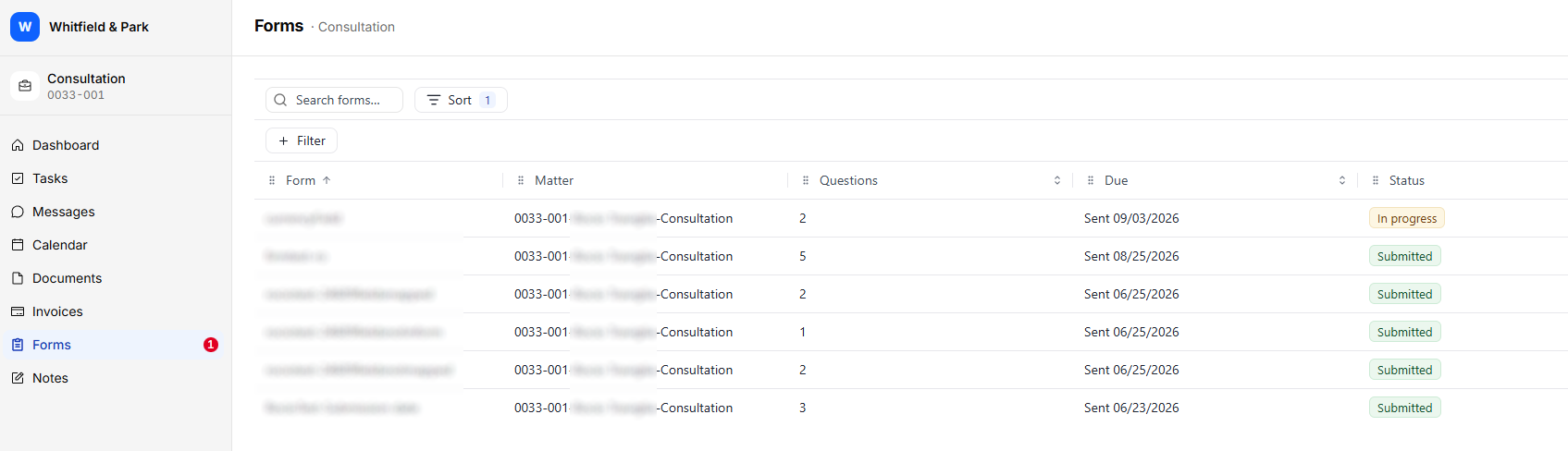
Within this new Forms tab, any forms sent to you by the firm can be viewed, modified, and submitted from within the Client Portal if they haven't been submitted already.
Log Out
In the upper right corner of the screen:

- Click the right arrow beside your name.
The Log Out message box reads: Are you sure you want to leave?
- Click Yes.
The system logs you out.